Account, Billing & Team
Change your account password
Update the password for the currently signed-in merchant panel user from Account Settings.
When to change your password
Change the password when you know the current password and want to replace it for security or team policy reasons. If you do not know the current password, use the Reset your password flow instead.
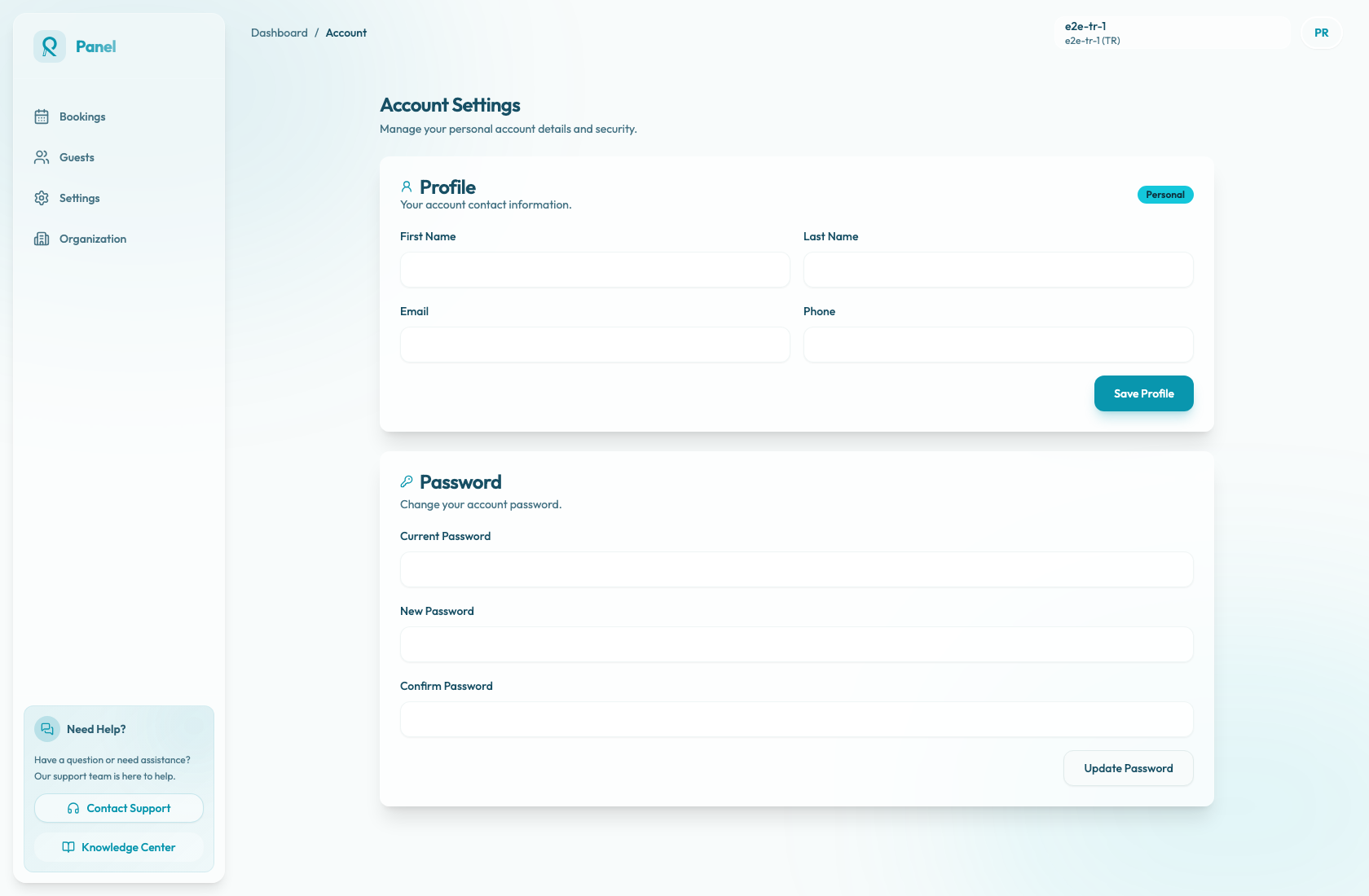
Change the password
- Open the user menu from the top-right avatar.
- Select Account Settings.
- Scroll to Password.
- Enter the current password.
- Enter the new password.
- Confirm the new password.
- Select Update Password.
The form requires both Current Password and New Password. The new password must be at least 8 characters and include uppercase, lowercase, number, and special character. Confirm Password must match the new password before the change can be saved.
While the change is being saved, the button shows Updating.... The request submits the current password and new password; the confirmation is checked in the form. When the password changes successfully, the fields clear and a success toast appears. If the change fails, the page shows Failed to change password.
After the password changes, use the new password the next time you sign in.
Good password hygiene
Use a password that is unique to the Reslify account. Changing your password only updates your own sign-in credentials. It does not remove an employee or revoke team access; remove employee access separately from the organization when needed.