Account, Billing & Team
Invite team members
Use Employees to review existing users, add employee accounts, and assign the right access role.
What the Employees tab is for
The Employees tab controls who can access the organization in the Reslify Panel. Open it from Organization / Employees or Settings / Employees. The list shows Name, Contact, Role, and Actions, and search filters employees by first name, last name, or email.
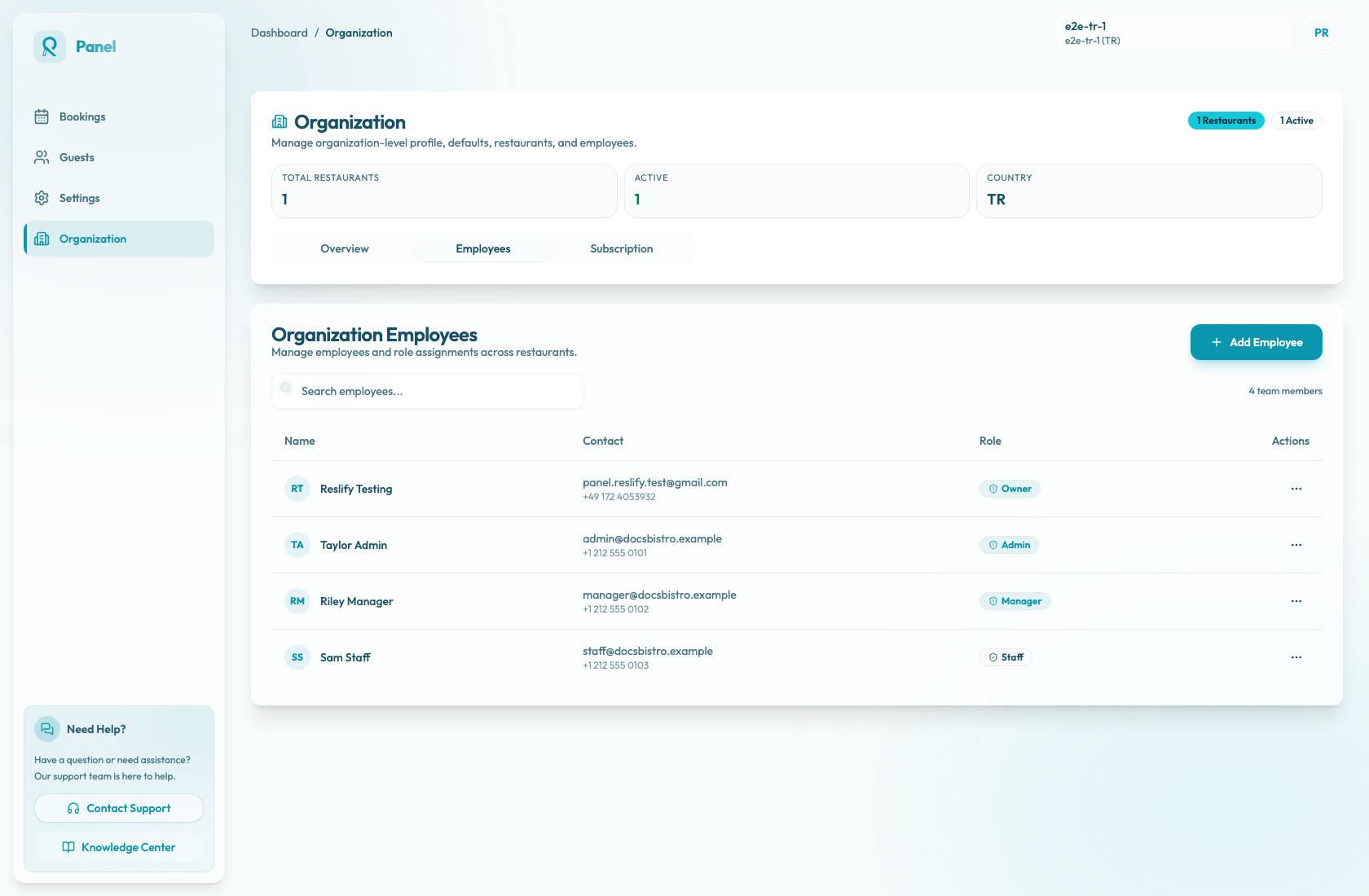
Add a team member
- Open Organization / Employees or Settings / Employees.
- Review or search existing employees to avoid duplicates.
- Select Add Employee.
- In Add New Employee, enter First Name, Last Name, Email, and optionally Phone.
- Choose Admin, Manager, or Staff in Role.
- Select Create Employee.
The email must be valid and not already used by another employee in the organization. Phone is optional, but if you enter one, Reslify validates it against the organization's country.
When the employee is created, Reslify creates the user directory account and sends the account email flow automatically. The panel does not show a custom invitation email editor.
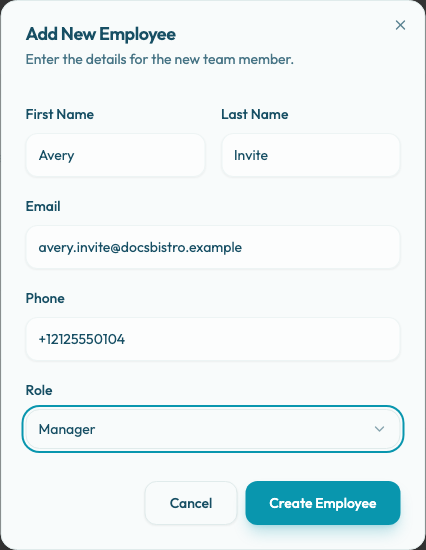
Choose the right role
Use the least access that fits the job. Role labels appear as Owner, Admin, Manager, and Staff, but use this add flow for Admin, Manager, or Staff only.
Use Staff for everyday panel users, Manager for people who need broader operational access, and Admin for people responsible for business administration, billing, or employee access.
If adding an employee fails
Check that the email is spelled correctly, is valid, and does not already belong to an employee in the list. If the same email already belongs to an existing Reslify user account, adding the employee can also fail.
If the organization context is missing, the panel shows Unable to update employees. Refresh the panel, reopen Employees, and try again.
After adding a user
Ask the team member to sign in with the email address used in the employee record. If they cannot sign in, confirm the email spelling and use the password reset flow.