Account, Billing & Team
Update your account profile
Edit the personal profile details attached to the signed-in Reslify Panel user.
What the account profile controls
The account profile belongs to the signed-in user. It is separate from the restaurant profile, organization profile, and public booking-page contact details.
Use it to keep the team member's personal name and phone current. The profile loads from the current user's employee record in the organization; if that employee record cannot be found, the profile does not load.
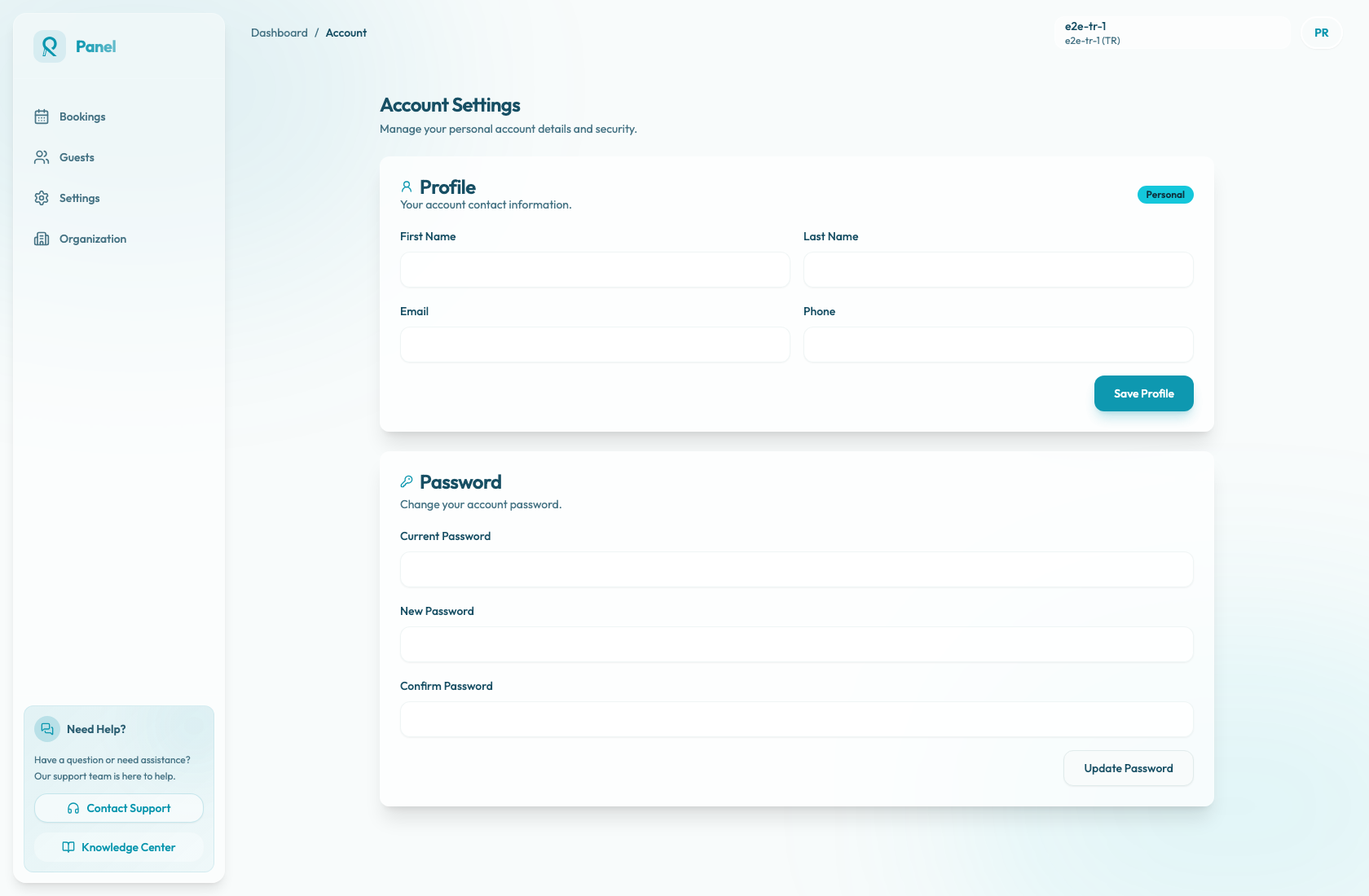
Update the profile
- Open the user menu from the top-right avatar.
- Select Account Settings.
- In Profile, use the Personal card to update First Name, Last Name, or Phone.
- Select Save Profile. While the update is running, the button shows Saving....
- Confirm the user menu and employee list show the expected identity where relevant.
Email is shown for reference and is read-only on this form. Saving the profile updates only first name, last name, and phone.
Phone is optional. If you enter one, Reslify normalizes it using the organization's country. If the value is not valid for that country, the form shows Enter a valid phone number. and does not save.
Profile versus restaurant settings
Use Account Settings for the signed-in person's personal profile. Use Settings / Profile for the restaurant profile: public links, logo, address, and contact details.
Role information is required internally, but it is not edited on the account profile form. Use Organization / Employees or Settings / Employees when you need to add, remove, or change roles for team members.