Account, Billing & Team
Sign in to the panel
Access the Reslify merchant panel, complete first-login password setup when prompted, and reach the right operational page.
When to use this guide
Use this guide when a team member needs to open the Reslify Panel for bookings, guests, settings, organization management, or billing. The panel is the merchant workspace for restaurant operations.
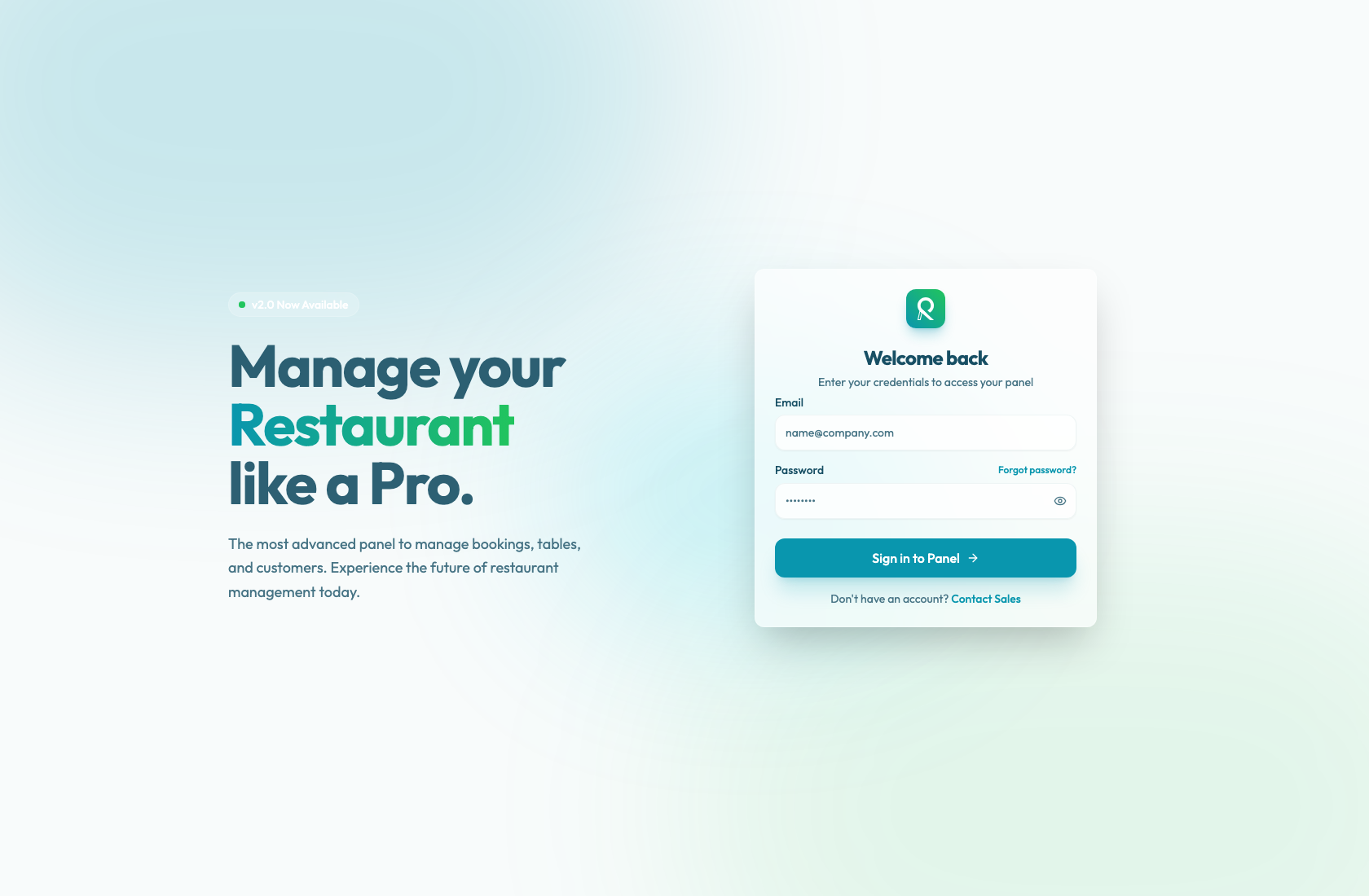
Sign in
- Open the Reslify Panel URL shared with your team. If you open the sign-in page directly, the path is
/login. - On the Welcome back card, enter the account email in Email.
- Enter the account password in Password.
- Select Sign in to Panel. While the request is processing, the button shows Signing in....
- After sign-in, the panel opens the internal page you were trying to reach. If there is no valid panel redirect, it opens Bookings.
- Confirm the active restaurant in the top-right Switch Restaurant menu.
If your organization manages more than one restaurant, always check the active restaurant before changing bookings, settings, availability, or payment rules.
The Don't have an account? Contact Sales link is for new merchant inquiries. Existing team access is managed by an owner or admin from Organization / Employees.
If a new password is required
Some accounts must set a new password after entering the current or temporary password. In that case, the sign-in form changes to Set your new password.
- Leave the email as shown on the form.
- Enter the new password in New password.
- Enter it again in Confirm new password.
- Meet every item in Password requirements. The checklist uses English labels: Min length: 8 character(s), Contains at least 1 number, Contains at least 1 special character, Contains at least 1 uppercase letter, and Contains at least 1 lowercase letter.
- Select Set new password.
After the password is accepted, the panel opens the internal page you were trying to reach. If there is no valid panel redirect, it opens Bookings.
If sign-in does not work
Check the email address first. Account access is tied to the exact email assigned in Organization / Employees.
If the password is not accepted, enter the email address and select Forgot password?. The reset flow keeps the typed email and return page where possible.
If the panel sends you to password reset confirmation after a sign-in attempt, complete that flow with the verification code from the account email. If the user is no longer listed in Organization / Employees, an owner or admin must add the user again.