Account, Billing & Team
Reset your password
Request a password reset code, set a new panel password, and return to the merchant sign-in flow.
When to reset a password
Reset the password when a merchant user cannot sign in, forgot the current password, or receives a reset-required challenge after an account change. The forgot-password page is available at /forgot-password.
The page starts on the request step unless the URL includes both step=confirm and email. A reset-required login can route the user directly to the confirm step when a verification code has already been sent.
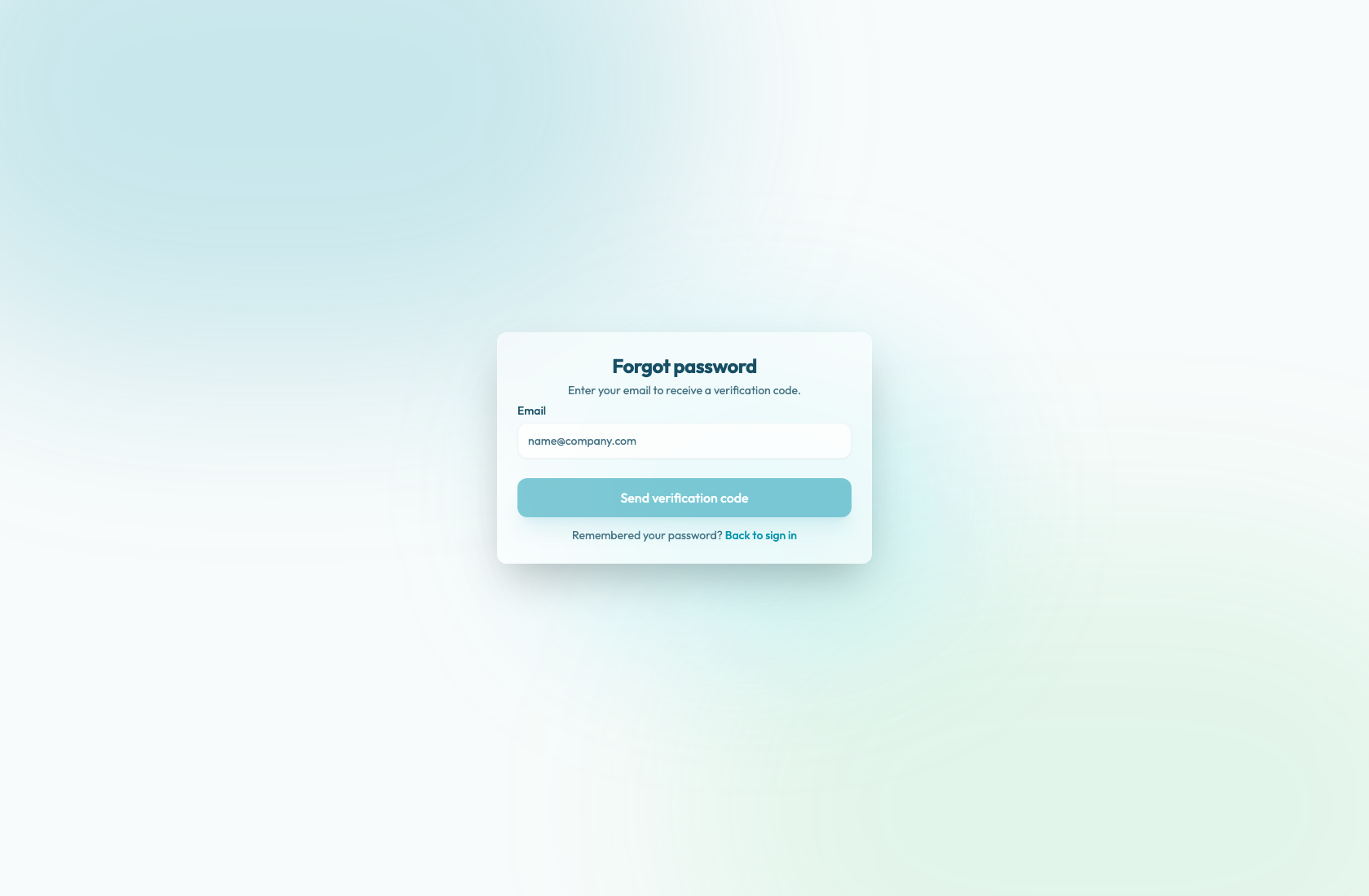
Request the code
- Open the panel sign-in page.
- Select Forgot password? or open
/forgot-passworddirectly. - In Email, enter the same email used for the Reslify account. The email field is required.
- Select Send verification code. While the request is running, the button shows Sending code....
- Check the mailbox for the verification code.
After a successful request, the page moves to the confirm step and shows either a destination-specific code-sent message or Verification code sent. Check your email.
The code is sent to the account email. If the email is not in the inbox, check spam and make sure the user is still an employee in the organization.
Set the new password
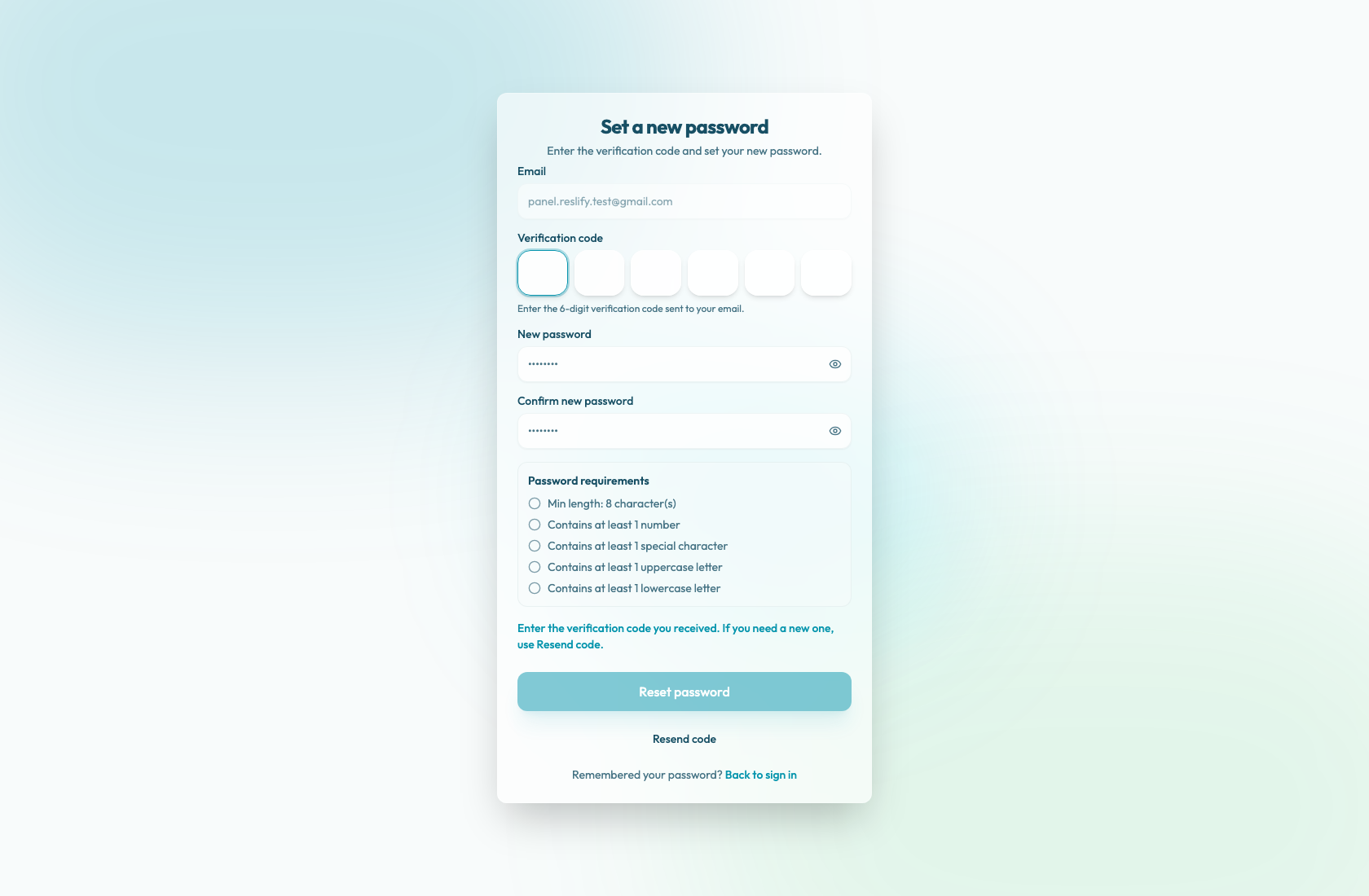
- In Verification code, enter the 6-digit code from the email. The code must be exactly 6 digits.
- In New password, enter the replacement password.
- In Confirm new password, enter the same password again.
- Complete every item under Password requirements.
- Select Reset password. While the update is running, the button shows Updating password....
Use Resend code on the confirm step if the user needs a new verification code.
The password requirements shown under the localized Password requirements heading are:
- Min length: 8 character(s)
- Contains at least 1 number
- Contains at least 1 special character
- Contains at least 1 uppercase letter
- Contains at least 1 lowercase letter
Return to sign in
After the password is updated, the page shows Password updated and the Go to sign in button. Select it, then sign in with the new password.
If the code has expired, use Resend code and then use the newest email.