Account, Billing & Team
Edit employee roles
Change an employee role when their responsibilities or required panel access changes.
When to edit a role
Edit a role when a team member changes responsibility, starts managing settings, no longer needs admin access, or should have reduced access after a staffing change.
The employee table shows each employee's Name, Contact, Role, and Actions. Use the Actions menu for the employee you want to update.
Change a role
- Open Organization / Employees.
- Find the employee in the table.
- In the employee row, open the actions menu. The menu button is announced to screen readers as Open menu.
- Select Edit Details.
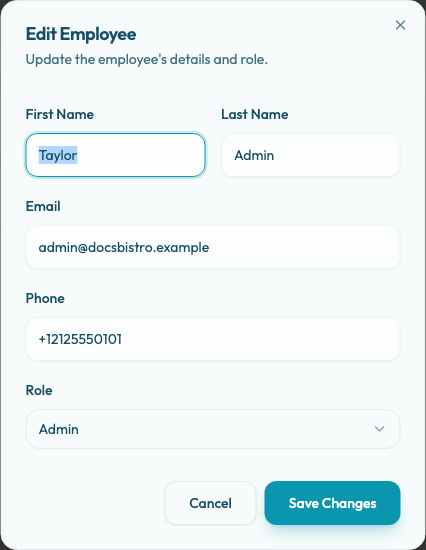
- In the Edit Employee dialog, review the employee details. The dialog explains: Update the employee's details and role.
- Update the needed fields: First Name, Last Name, Email, Phone, or Role.
- Choose one of the available role options: Admin, Manager, or Staff.
- Save the employee.
After the save succeeds, the panel shows Employee updated with the description Employee details have been updated. The employee list refreshes with the updated organization data. If the employee's access does not refresh immediately, ask them to refresh the panel or sign out and sign back in.
If the update fails, the panel shows Failed to save employee. Review the fields and try again.
Role review guidance
Review role assignments regularly. Keep Owner and Admin roles limited to users who manage access, billing, or sensitive configuration. Use Manager or Staff roles for day-to-day operational access when possible.