Account, Billing & Team
Manage restaurants in an organization
Review the restaurants attached to an organization and understand how active restaurant context works.
What restaurant management shows
The Restaurants section on Organization / Overview lists the restaurant records attached to the organization. Each card shows the restaurant name, formatted address, and whether it is currently active for the panel session.
If an address is not available, the card shows Address unavailable.
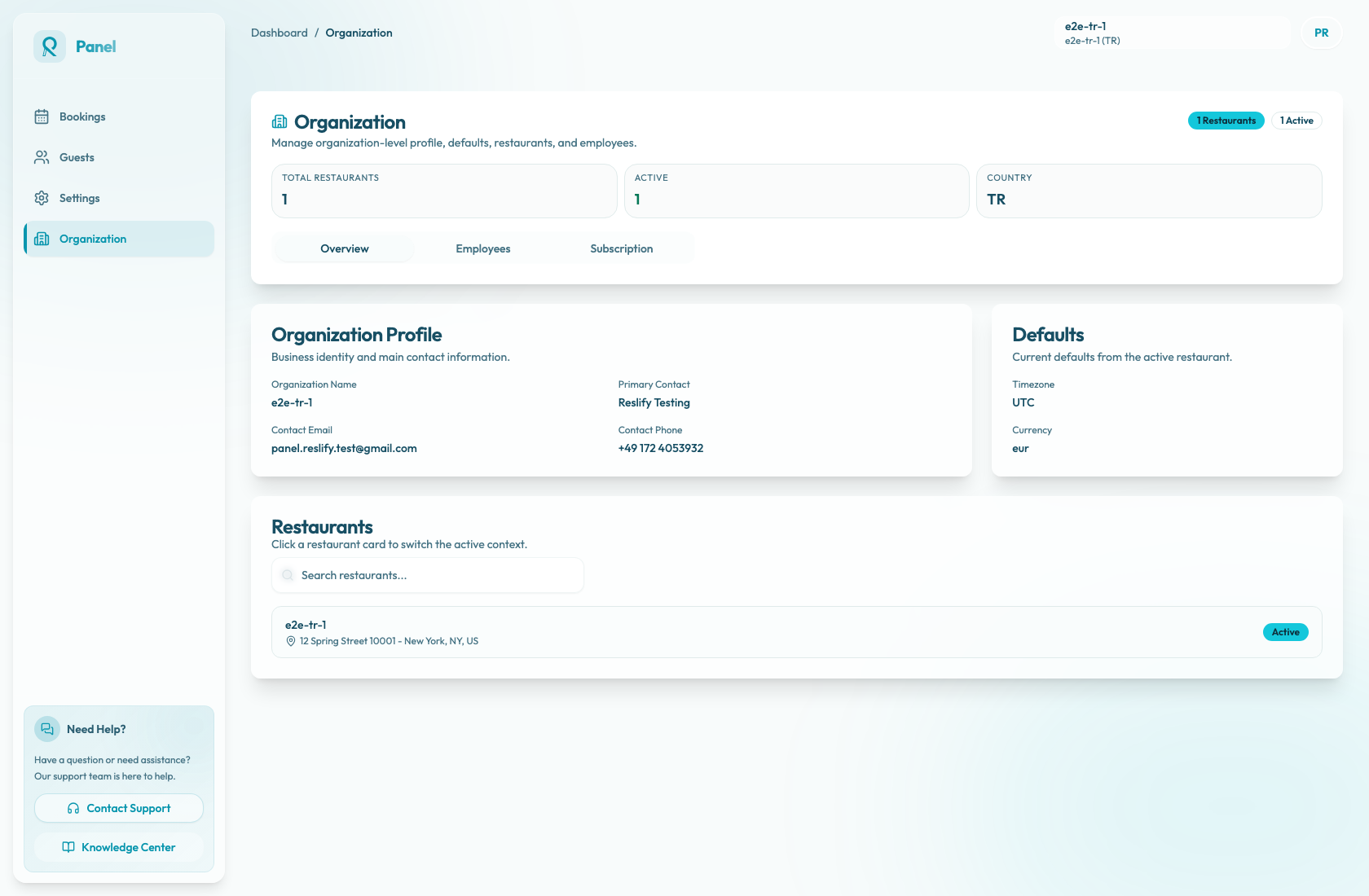
Review restaurants
- Open Organization.
- Stay on the Overview tab.
- Scroll to Restaurants.
- Use the search field to filter loaded restaurant cards by name or address.
- Check the Active badge before continuing to restaurant-specific settings.
If the search has no matching loaded cards, the section shows No restaurants match your search.
Restaurant cards are also used for switching the active context when the organization has multiple restaurants. The active restaurant card is disabled and shows Active. Other restaurant cards show Switch. Clicking Switch changes the active restaurant context, and the button shows Switching... while the change is in progress.
What to check
Confirm the restaurant name and address before making operational changes. If a restaurant is missing, contact support or the account owner rather than creating duplicate settings under another restaurant.
There is no create or delete restaurant workflow in this view. Organization profile details and defaults are read-only here; restaurant operational settings live under the active restaurant's Settings area.