Account, Billing & Team
Open the Stripe billing portal
Use the Stripe customer portal to manage payment details, billing history, invoices, and subscription actions.
What opens in Stripe
Reslify sends billing self-service actions from Organization / Subscription to the Stripe customer portal. The Reslify panel shows synced subscription status and Stripe entry points; Stripe is where authorized billing users manage payment details, invoices, billing history, and subscription actions.
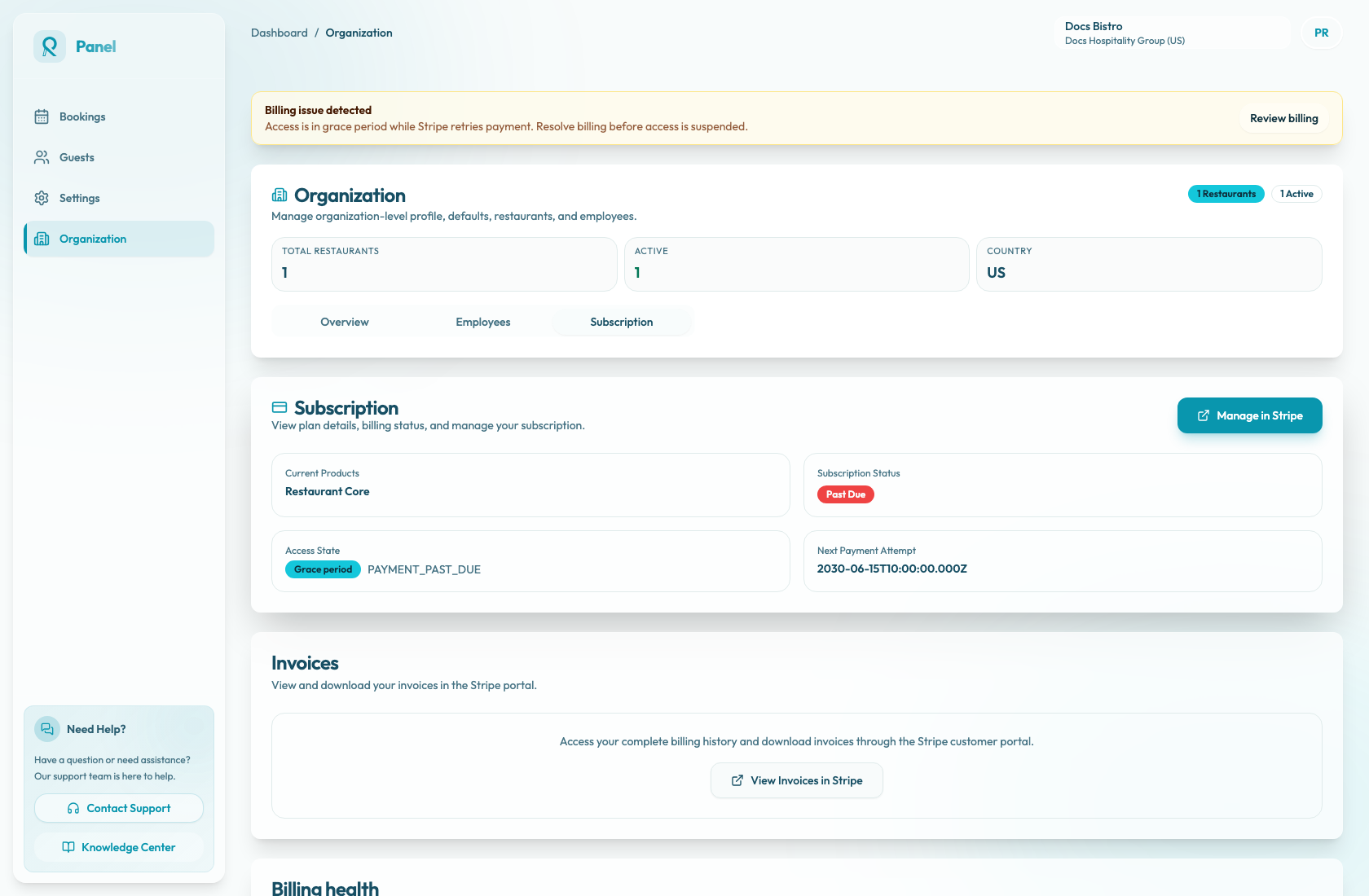
Open the portal
- Open Organization / Subscription.
- Select Manage in Stripe from the subscription card, or View Invoices in Stripe from the invoices section.
- While the portal session is being created, the button label changes to Opening....
- Reslify creates a portal session for the current organisation, uses the current page as the return URL, and opens the returned Stripe URL in a new tab.
- Complete the payment detail, invoice, billing history, or subscription action in Stripe.
- Return to Reslify and refresh Organization / Subscription. Stripe updates may take a short time to sync back into the panel.
Both buttons use the same portal-session flow. If pop-ups are blocked, allow pop-ups for the panel domain and try again.
If there is no active subscription
When an organisation does not have a billing provider, the Subscription page shows No Active Subscription and asks users to contact support to get started. The Stripe portal is not available until support connects a subscription.
If Stripe does not open
If no Stripe tab opens, first check whether the browser blocked the new tab. If the button returns from Opening... without opening Stripe, the portal session may have failed before a URL was returned. The page does not currently show a dedicated portal-session error message, so retry once and contact support if it still does not open.
Who should use it
Only owners, admins, or authorized billing contacts should manage payment methods or subscription details. Staff members who notice a billing warning should escalate it to the billing owner.