Account, Billing & Team
Remove employee access
Delete an employee from the organization when a person should no longer access the merchant panel.
When to remove access
Remove employee access when someone leaves the business, changes role and no longer needs Reslify, or was added by mistake.
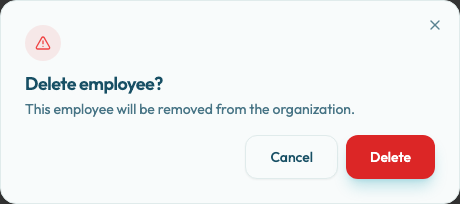
Remove an employee
- Open Organization / Employees or Settings / Employees.
- Find the employee.
- Open the row actions menu.
- Select Delete Employee.
- In the Delete employee? confirmation dialog, review the message: "This employee will be removed from the organization."
- Confirm deletion. The action shows Deleting... while it is running.
- Wait for Employee deleted and the message "Employee has been removed from the organization."
- Check that the employee no longer appears in the list.
When deletion succeeds, the employee is removed from the organization and their user directory account is deleted. If the user is signed in at the time, treat their access as revoked after the success message; ask them to sign out or refresh if needed.
If the user directory deletion fails, Reslify attempts to restore the employee record and returns an error. Retry the removal or contact support before assuming access has been revoked.
What not to remove
Do not use this flow to remove an Owner. Owner removal requires a different admin or support path; the normal employee deletion action is blocked with CANNOT_DELETE_OWNER. Keep at least one responsible administrator available for access and billing support.
Deleting an employee removes organization access and the user account. It does not delete historical reservations, audit records, or other business history tied to the organization.