Account, Billing & Team
Switch the active restaurant
Change which restaurant context the panel is managing before editing bookings, settings, or guest data.
Why active restaurant matters
The active restaurant controls which bookings, guests, settings, menus, portal configuration, availability, payments, and Booking Copilot context you view and edit for the current panel session. In a multi-restaurant organization, switching context prevents changes from being made to the wrong location.
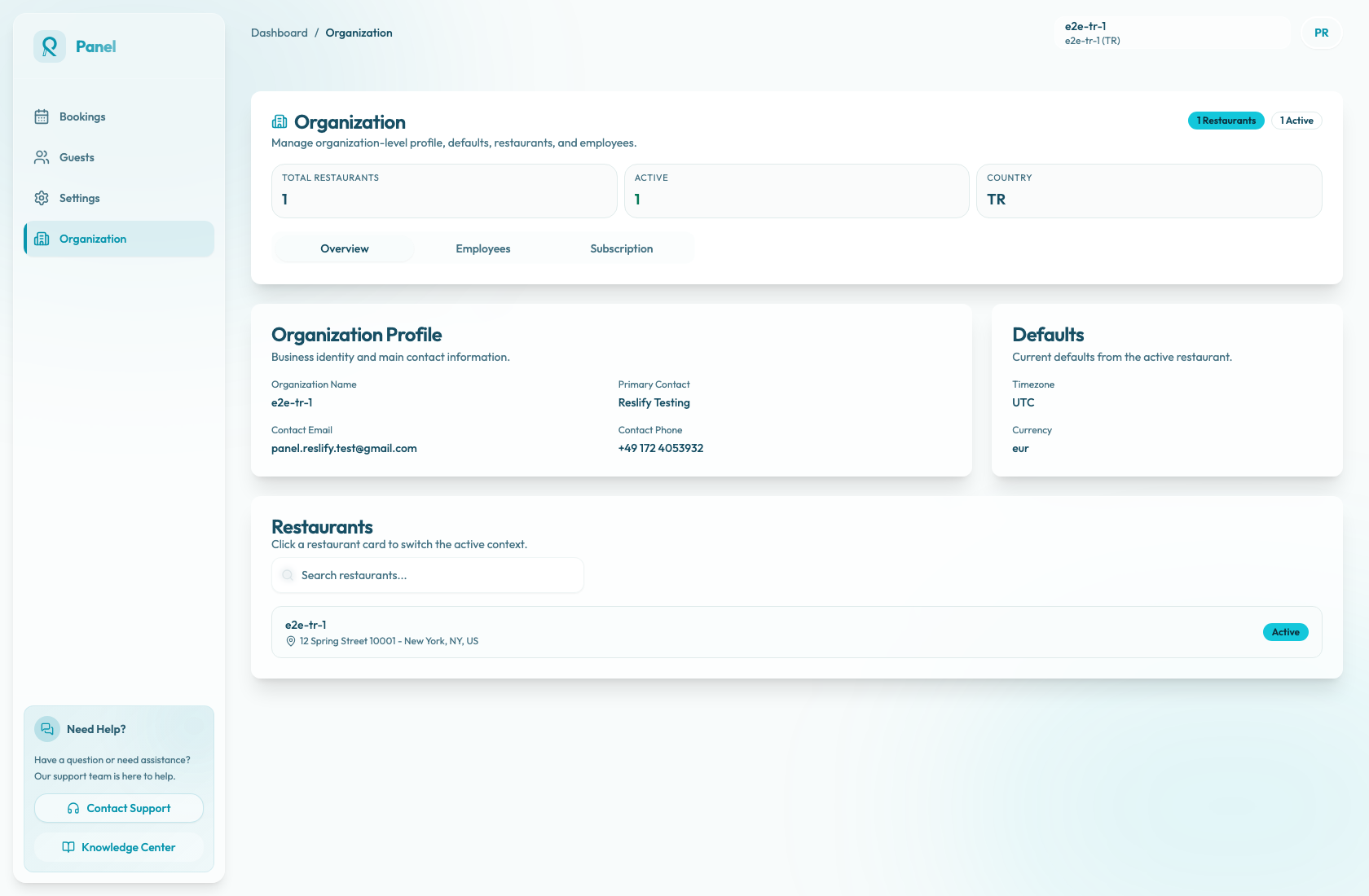
Use the header switcher
When your organization has more than one restaurant, the top-right header shows the Switch Restaurant menu. The menu lists each restaurant name and meta information, shows a checkmark next to the active restaurant, and disables restaurant items while a switch is in progress.
- Open the top-right Switch Restaurant menu.
- Select the restaurant you want to manage.
- Wait for the menu item to finish switching.
- Confirm the top-right restaurant name changed.
If switching fails, the panel shows Failed to switch restaurant with Please try again. Retry from the same menu.
If your organization has only one restaurant, the top-right header shows the restaurant name and meta information as a read-only label instead of a dropdown.
Use Organization instead
You can also switch from Organization / Overview. In the Restaurants section, the active restaurant card shows Active. Other restaurant cards show Switch and change to Switching... while the panel changes the active restaurant.
The header menu also has Manage Restaurants, which opens Organization at /organization.
Before editing settings
Check the restaurant name in the top-right header before saving high-impact changes such as shifts, payment policies, widget settings, integrations, or Booking Copilot context.