Account, Billing & Team
Understand billing status
Interpret billing health fields such as latest invoice status, amount due, payment action, and recovery window.
Where billing health appears
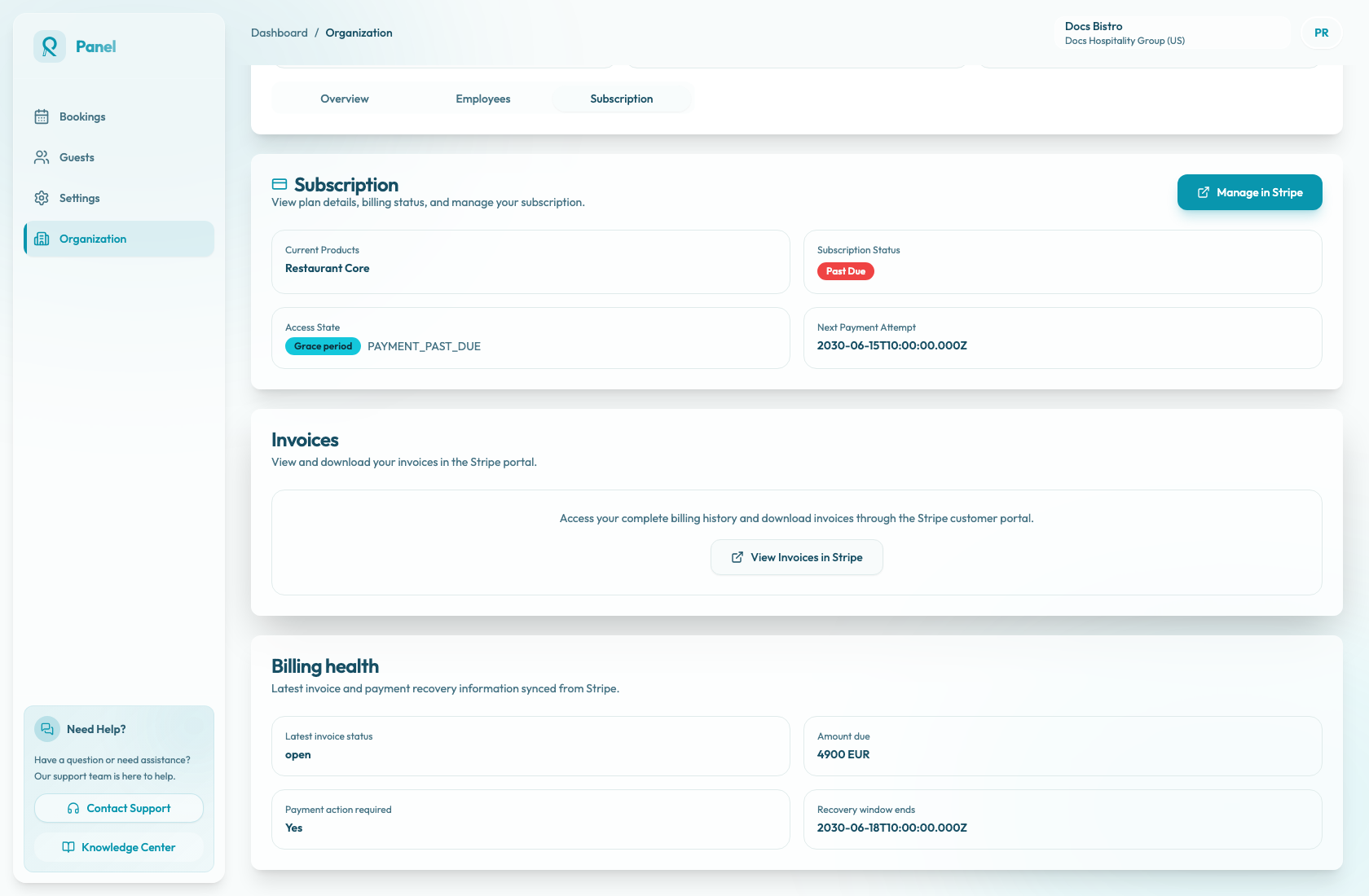
When the organization has billing data, Billing health appears under Organization / Subscription. Its description is Latest invoice and payment recovery information synced from Stripe.
Use this section to interpret the billing status Reslify has synced. Payment updates and invoice downloads happen in the Stripe portal, not directly in the panel.
Check access state first
The top subscription cards show the access state before the billing health fields. It can be Active, Grace period, or Suspended. The access reason appears next to the state; when there is no explicit reason, it shows NONE.
Read the fields
Latest invoice status shows the current invoice state from Stripe. If no invoice status is synced, it shows Unknown.
Amount due shows the outstanding amount and currency when payment is not complete. If nothing is due, it shows None.
Payment action required indicates whether someone must complete an action in Stripe, such as updating payment details or authenticating a payment. It shows Yes or No.
Recovery window ends shows the deadline for payment recovery when available. If no recovery window applies, it shows Not applicable.
Use banners as prompts
When access is in grace, the layout can show a Billing issue detected banner with a Review billing action. When access is suspended, the layout can show Organisation access is suspended with an Open billing action, and the subscription page stays available while operational areas are blocked.
Use these banners as prompts to open the subscription page and review the synced billing details.
Respond to billing issues
- Open Organization / Subscription.
- Read the access state and reason.
- Check invoice status and amount due.
- If action is required, select Manage in Stripe to open the Stripe portal.
- Use View Invoices in Stripe for invoice history or downloads.
- Resolve the payment issue in Stripe.
- Return to Reslify and refresh the subscription page.
If the billing warning remains after you refresh, contact support with the organization name, access state, and latest invoice status.