Account, Billing & Team
Upload the restaurant logo
Add or replace the logo for the active restaurant from Profile Settings.
Where the logo lives
The restaurant logo is part of the active restaurant profile. It is different from the signed-in user's account profile and should represent the restaurant brand.
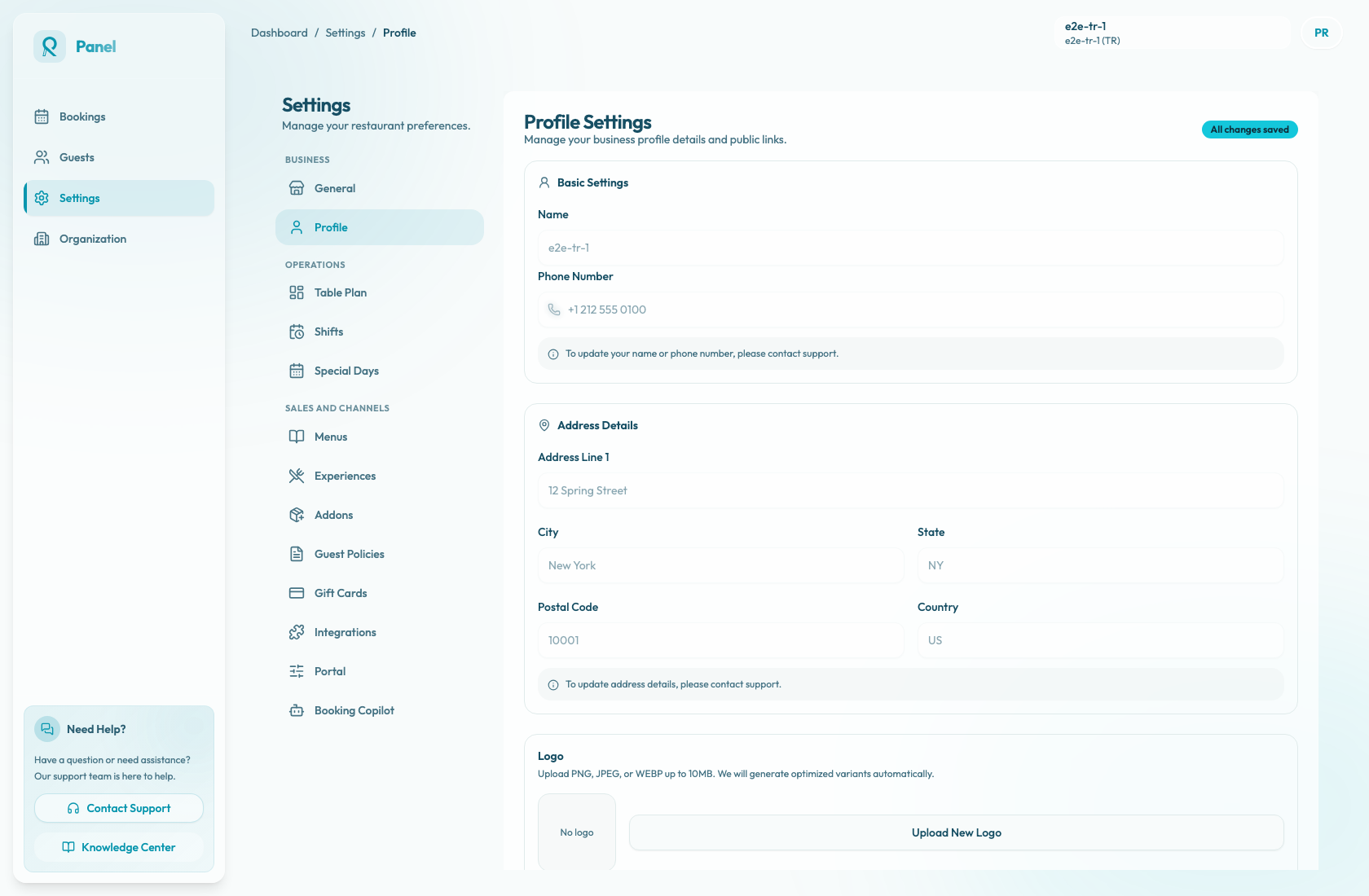
Open Settings / Profile and check the Profile Settings page. The upload control is in the Logo section. When a logo exists, the preview is announced as Merchant logo; when no logo is set, the section shows No logo.
Before you upload
Prepare a PNG, JPEG, or WEBP file up to 10 MB. Use a clear logo with enough padding and contrast so it remains readable in small previews. Avoid screenshots, photos of signage, or artwork with tiny text.
The image review step supports optional cropping for logos. If the original logo already has the right framing, leave crop disabled. If the logo needs tighter framing, enable crop and use Zoom before uploading.
Upload a logo
- Confirm the active restaurant.
- Open Settings / Profile.
- On Profile Settings, scroll to Logo.
- Select Upload New Logo.
- Choose a PNG, JPEG, or WEBP file.
- In Review Image, leave Enable crop off or turn it on and adjust Zoom.
- Check Target previews for Large 96x96 and Small 48x48.
- Select Upload.
If you selected the wrong file, use Choose Another before uploading. Use Cancel to close the dialog without changing the logo.
While the upload is in progress, the button shows Uploading.... If the upload can be retried, select Retry Upload.
Messages you may see
Unsupported files show Invalid logo file and Unsupported file type. Please upload PNG, JPEG, or WEBP. Files over the limit show File is too large. Maximum size is 10MB.
If the network fails, the dialog shows Upload failed due to a network issue. Please try again. If the upload succeeds but processing is slow, it shows Logo uploaded, but processing is taking longer than expected. Please refresh in a few seconds.
On success, the toast says Logo updated and Your new logo is now available.
After upload
The logo updates immediately through the image upload flow. You do not need to save the Profile web links form with Save Changes for the logo to apply.
Review guest-facing surfaces that display the active restaurant profile. If the logo looks blurry, too small, or cropped incorrectly, upload a cleaner source file.