AI Concierge
Configure the AI concierge
Configure Reslify Booking Copilot so guests can get booking help from the public booking page.
What the AI concierge is
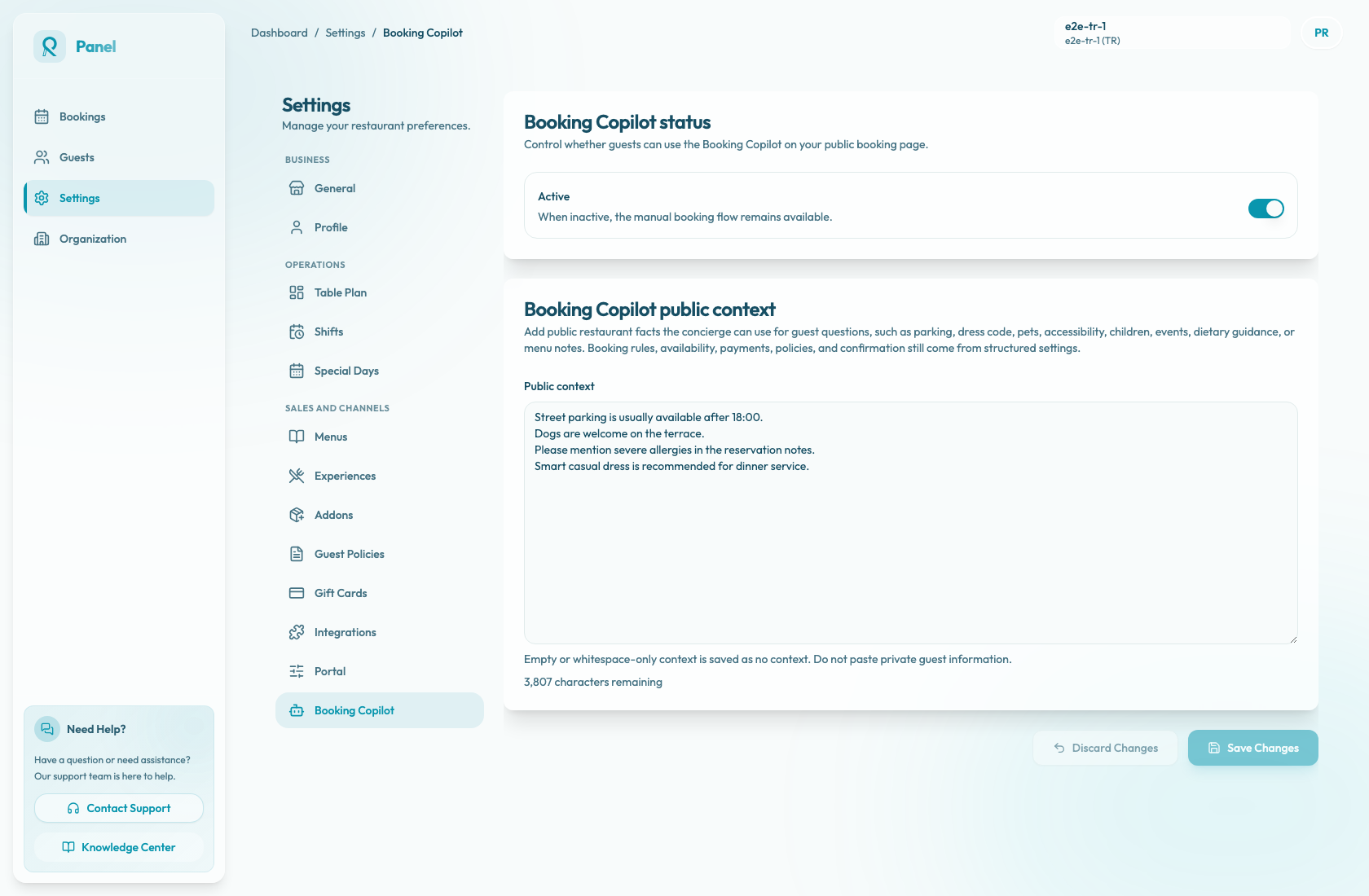
In the panel, the AI concierge is configured as Booking Copilot. It appears on the public booking page and helps guests with booking-related questions, availability, options, and next actions.
Open Settings / Booking Copilot to manage it.
What you configure
The page has two main areas:
- Booking Copilot status controls whether guests can use the assistant.
- Booking Copilot public context gives the assistant public restaurant facts it can reference.
The status card saves whether Booking Copilot is enabled for the public booking page. The public context card saves free-form restaurant information, up to 4,000 characters, that is safe for guests to read. If the field contains only whitespace, it is saved as no context.
Booking rules, availability, payments, policies, and confirmation still come from structured Reslify settings. Public context is for extra guest-facing facts that are not already represented elsewhere.
What Booking Copilot can use
When a guest opens the assistant, Booking Copilot can use several high-level knowledge sources:
- the public context you write on this page
- the merchant profile
- configured experiences, add-ons, and areas
- live booking state, including availability and booking details
The public booking page reads whether Booking Copilot is enabled from public merchant settings. It is not controlled by portal designer configuration.
Configure in this order
Start by deciding whether the assistant should be active. Then write a short public context with information guests commonly ask about, such as parking, pets, dress code, accessibility, dietary guidance, children, events, or menu notes.
After reviewing the settings, select Save Changes.