Booking Pages & Channels
Add the booking widget to your website
Copy the Reslify booking widget snippets, choose the right install output, and verify the widget on your restaurant website.
What the widget does
The booking widget lets guests start the Reslify reservation flow from the restaurant website. Depending on the install mode, it can open as a modal, open as a drawer, or mount inline inside a page section.
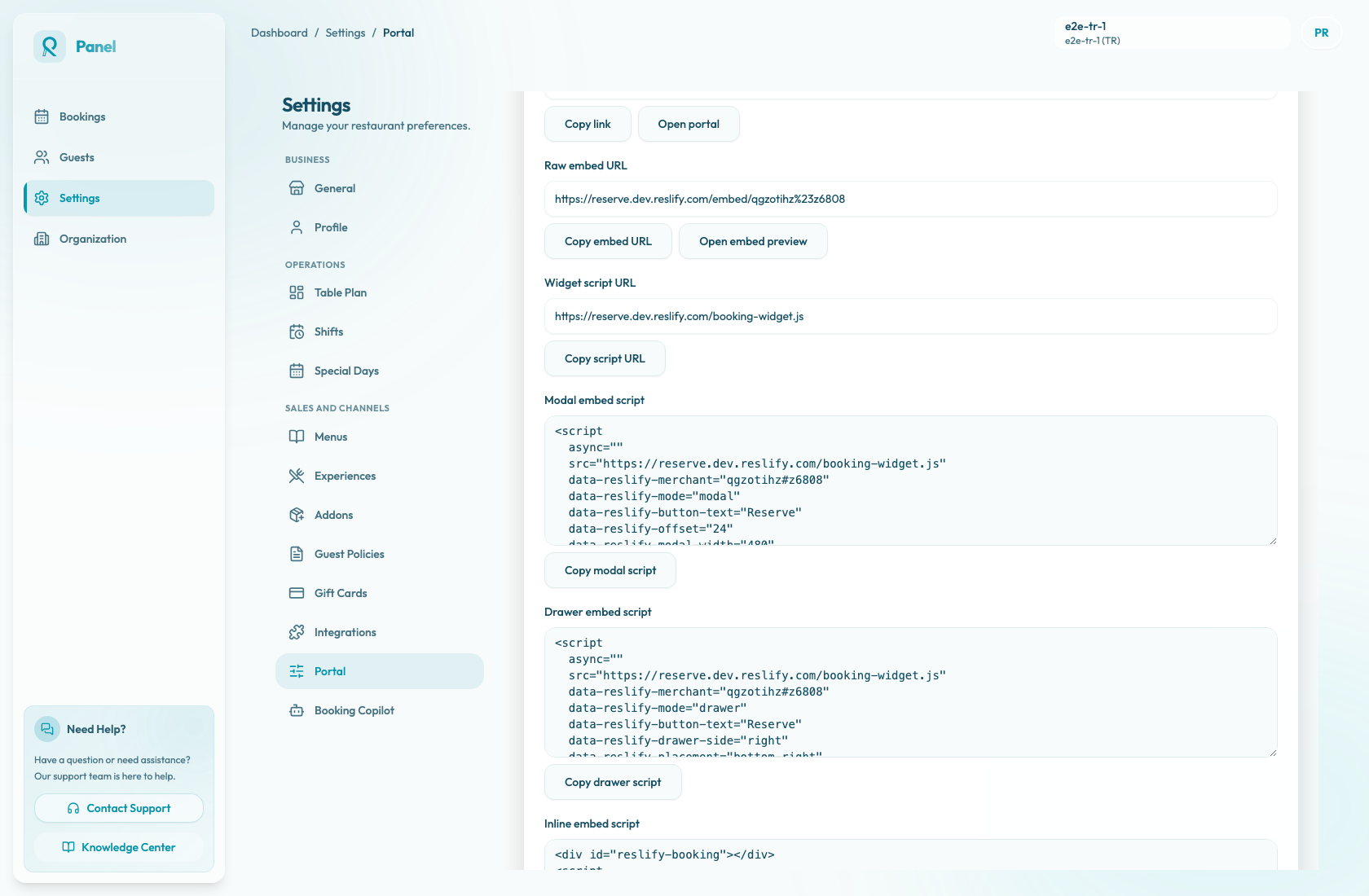
The copyable links and snippets live in Settings / Booking widget / Booking widget settings / Install.
Before copying a snippet
Confirm these items before sending code to the website team:
- Portal access mode is Public. The copy buttons on the Install tab are disabled while access is Restricted or Disabled.
- If the page is still being reviewed, keep access Restricted and use Open portal or Open embed preview for staff checks. Public website installs will not work for guests until access is Public.
- The public booking page opens successfully from Open portal.
- The embed route opens successfully from Open embed preview.
- Allowed origins in Booking widget settings / General is either intentionally empty or lists every production,
www, staging, and preview origin where the widget will run. - The mode-specific settings are saved before copying: Button text, Offset, Z-index, Modal width, Drawer side, Launcher placement, Drawer width, or Inline min height.
- A developer or website editor can paste script tags into the website or CMS without the platform stripping them out.
Only owners and admins can change Portal access mode. Staff can review the page through staff launches, but they cannot make a restricted or disabled public install usable for guests.
Choose the install output
Use the output that matches the website change:
- Booking page URL is a direct link to the standalone booking page. Use it for website buttons or social links that should open a new page.
- Raw embed URL opens the iframe route directly. Use it for previewing or for a developer building a custom iframe host.
- Widget script URL is the standalone script file. Use it only when a developer is writing a custom script tag.
- Modal embed script inserts a launcher button and opens booking in a centered overlay.
- Drawer embed script inserts a launcher button and opens booking from the side of the page.
- Inline embed script includes the
#reslify-bookingcontainer and mounts the booking flow directly into that page section.
For most restaurant websites, copy one of the three embed scripts instead of the raw URL. Use modal or drawer when booking should open on demand. Use inline when the booking section should be visible as a main part of the page.
Install the widget
- Open Settings / Booking widget.
- In Booking widget settings, open the Install tab.
- Check the install hint. It should say the links and snippets are ready for public installs.
- Copy the Modal embed script, Drawer embed script, or Inline embed script.
- Paste the snippet into the restaurant website or CMS.
- For Modal, place the script where the default launcher button should render.
- For Drawer, paste the script once on the page; the launcher position comes from Launcher placement and Offset.
- For Inline, paste the provided
divand script together where the reservation section should appear. Keepid="reslify-booking"anddata-reslify-target="#reslify-booking"unless a developer intentionally changes both values. - Publish or preview the website page.
If the website has separate staging and production environments, test the snippet in staging first and make sure both origins are allowed in Booking widget settings / General.
Verify the install
Before the website change goes live:
- In the panel, use Open portal to confirm the standalone page loads.
- Use Open embed preview to confirm the embed route loads.
- Open the website page as a guest, preferably in an incognito window.
- Confirm the modal or drawer launcher appears with the expected Button text, or that the inline booking section appears in the intended page section.
- Start a booking and select party size, date, experience, and time.
- Confirm the widget remains usable on mobile and does not sit behind website navigation, cookie banners, or chat widgets.
- For modal and drawer installs, close the widget and confirm the guest returns to the website page cleanly.
Selecting a slot and experience can create a temporary slot hold. Stop before the final confirmation step unless you intentionally want to create a test reservation. If you do complete a test booking, confirm it appears in Bookings and that any guest email, policy, or payment behavior is expected.
If the widget does not appear, check:
- Portal access mode is Public.
- The website did not remove the
scripttag. - The snippet still contains
data-reslify-merchant. - Allowed origins includes the exact website origin, or the field is intentionally empty.
- The browser console does not show an origin, iframe, or
Reslify embederror. - The website z-index does not hide the modal, drawer, or launcher behind another element.
When to refresh the website code
Save Booking widget settings first, then copy a fresh snippet when you switch between modal, drawer, and inline, or when you change settings that are written into the snippet:
- Button text
- Offset
- Z-index
- Modal width
- Drawer side
- Launcher placement
- Drawer width
- Inline min height
Many saved Booking widget settings are fetched by the script when the page loads, but data-reslify-* attributes are part of the website code. Refreshing the snippet keeps the website code aligned with the panel.