Booking Pages & Channels
Publish your public booking page
Publish the Reslify public booking page, test the guest reservation flow, and share the correct page URL.
What publishing means
Publishing the booking page means guests can open the standalone Reslify page and complete the reservation flow without staff launching it from the panel.
Publishing is an access change, not an availability setup. Guests can book only when the restaurant already has active experiences, bookable shifts, tables or combinations, guest policies, and any required payment setup ready.
The page is controlled by Settings / Website. The important controls are Online booking access, Open website, and the public Booking page URL in the Install tab. The same access mode also affects website embeds.
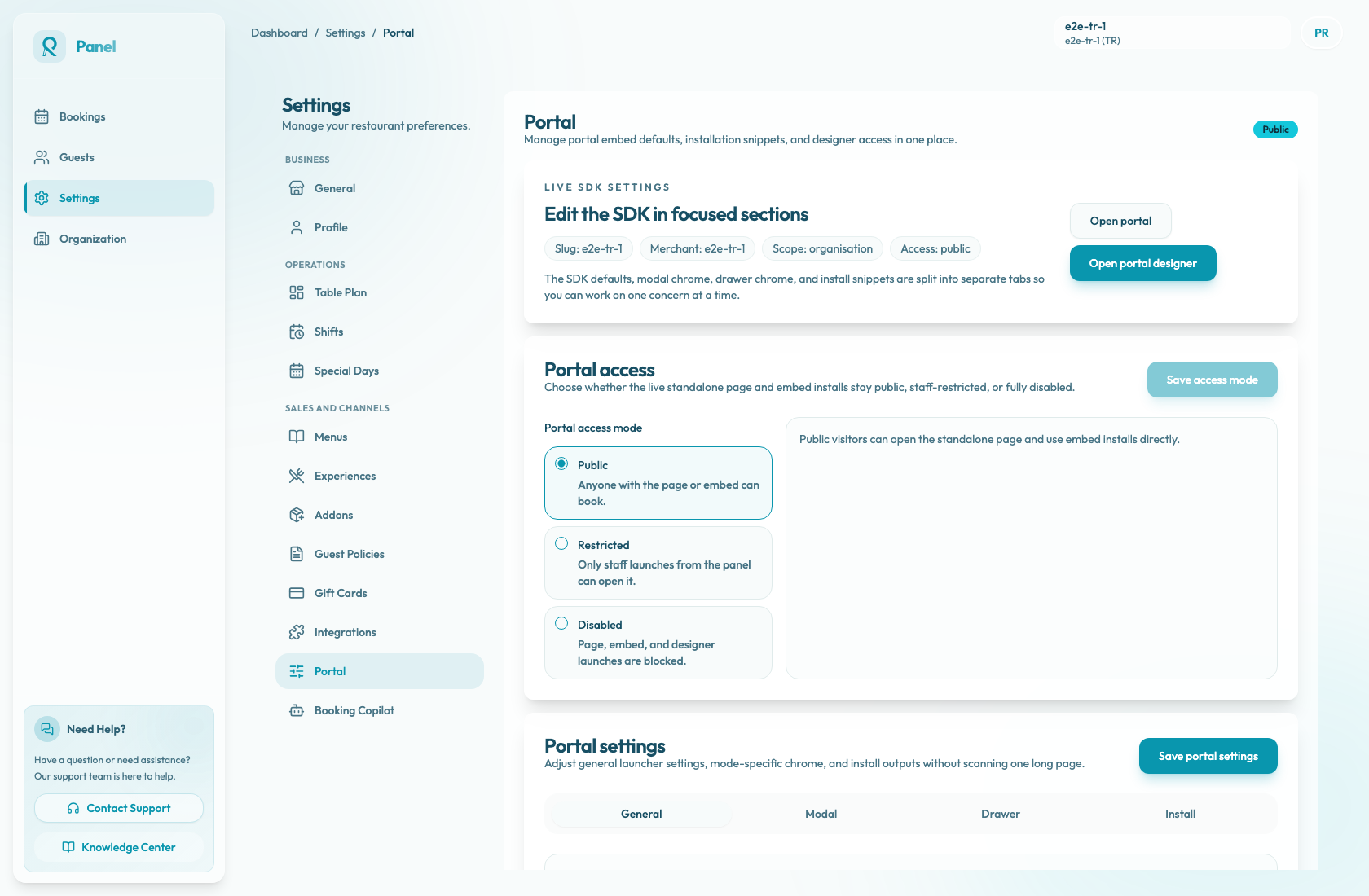
Set portal access to Public
- Open Settings / Website for the restaurant you are publishing.
- Find Online booking access.
- Select Public. The summary should say public visitors can open the standalone page and use embed installs directly.
- Choose Save access mode and wait for the Online booking access mode saved confirmation.
Only owners and admins can change portal access. Staff users can open the page for checks when allowed, but they see the access mode as read-only.
If the page is already Public, the save button may be disabled because there is nothing new to save. Continue to the Install tab.
Use Restricted only when staff should preview the page before launch. In Restricted mode, panel users can still use Open website for staff preview launches, but guests using the direct link or widget see not found and public install copy actions are disabled.
Use Disabled only when the page and embeds should not be available. Disabled blocks page, embed, and designer launches.
Copy the public page URL
After access is public:
- In Website settings, open the Install tab.
- Use Copy link next to Booking page URL.
- Use Open website to load the page in a new tab.
- Save the URL in the places where guests will find it, such as the restaurant website, social profiles, email templates, or QR codes.
The Copy link button is available only when portal access is Public. If you open the portal while access is Restricted, you are using a staff preview launch; do not share that preview session.
The URL is restaurant-specific. Do not copy a URL while the wrong restaurant is selected in the panel.
Test the live guest page
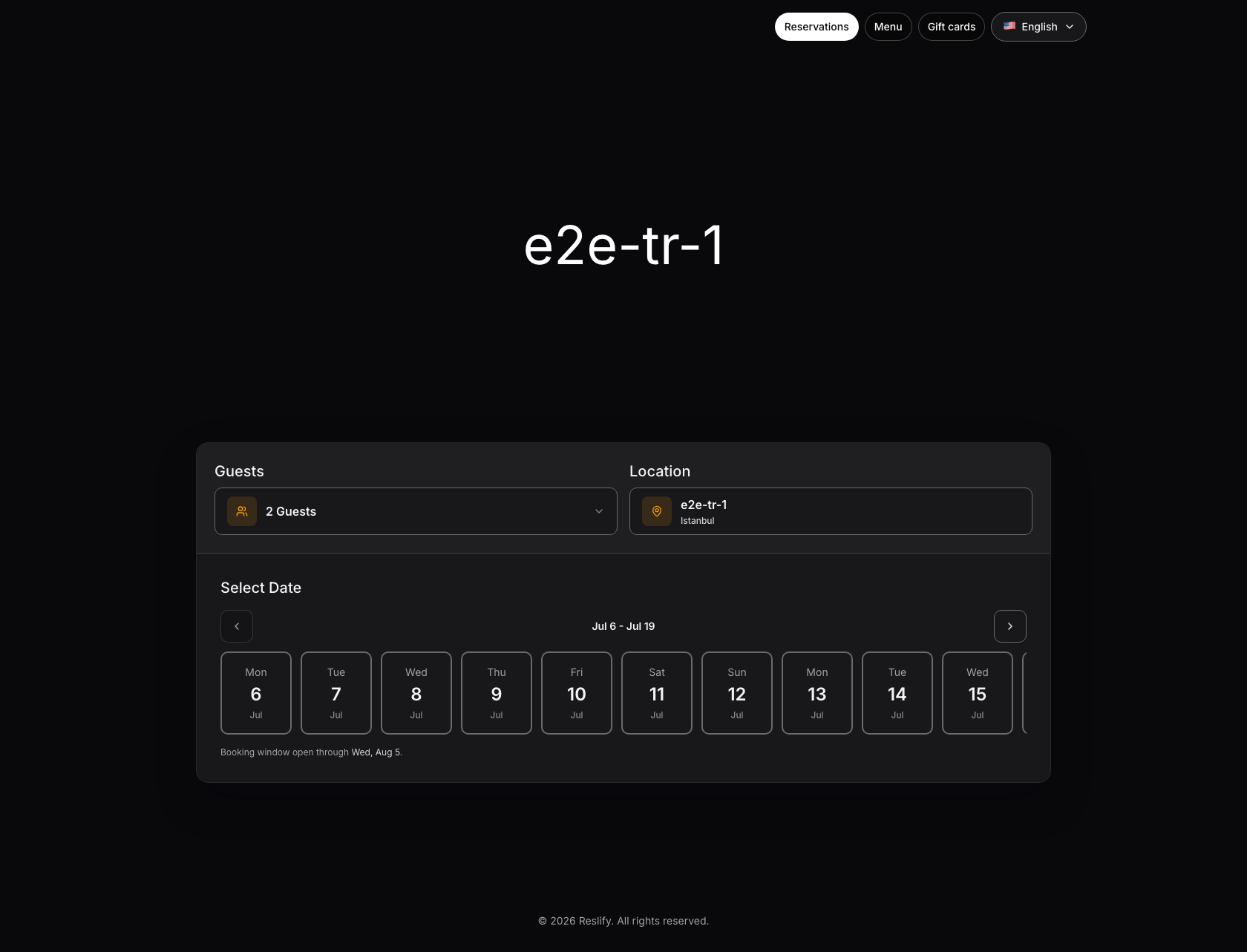
Open the copied URL as a guest, not from a panel staff launch, and verify:
- the page does not show not found in an incognito window
- the restaurant name and page language are correct
- Reservations is selected and the booking controls are visible
- guests can choose party size, location, and date
- the booking range matches the intended booking window
- time slots appear for a normal bookable date and unavailable days behave as expected
- experiences, add-ons, guest policies, legal consent, and payment steps appear only where they should
For launch checks, use an incognito window or a browser session that is not signed into the panel.
If guests see not found
Direct public visitors see not found when portal access is Restricted or Disabled. Check:
- Settings / Website: access is Public and saved.
- Install: copy a fresh Booking page URL from the active restaurant.
- Browser session: test in incognito so panel state or a staff preview session does not hide the issue.
- Website, social, email, or QR destinations: make sure they use the copied booking page URL, not a restricted
/access?launch=...preview URL.
For Restricted, only staff launches from Open website can open the page. For Disabled, even staff preview launches are blocked.
If the page opens but no slots appear
The public page usually reflects configuration problems rather than page problems. Check:
- Experiences: the experience is active and accepts the selected party size.
- Shifts: the date has bookable service hours.
- Table Plan: the restaurant has tables or combinations that fit the party size.
- Special Days: the date is not closed or unintentionally overridden.
- Payment setup: required payment or guarantee rules are ready.
After publishing
Preview the page again whenever you change availability, experiences, add-ons, guest policies, payment rules, branding, or portal access.
If you later change access away from Public, the panel asks you to continue or keep the page public. After the non-public mode is saved, existing shared links and website embeds stop working for guests.