Booking Pages & Channels
Preview the guest booking page
Learn how to preview the public guest booking page and what to verify before sharing it with guests.
What the preview proves
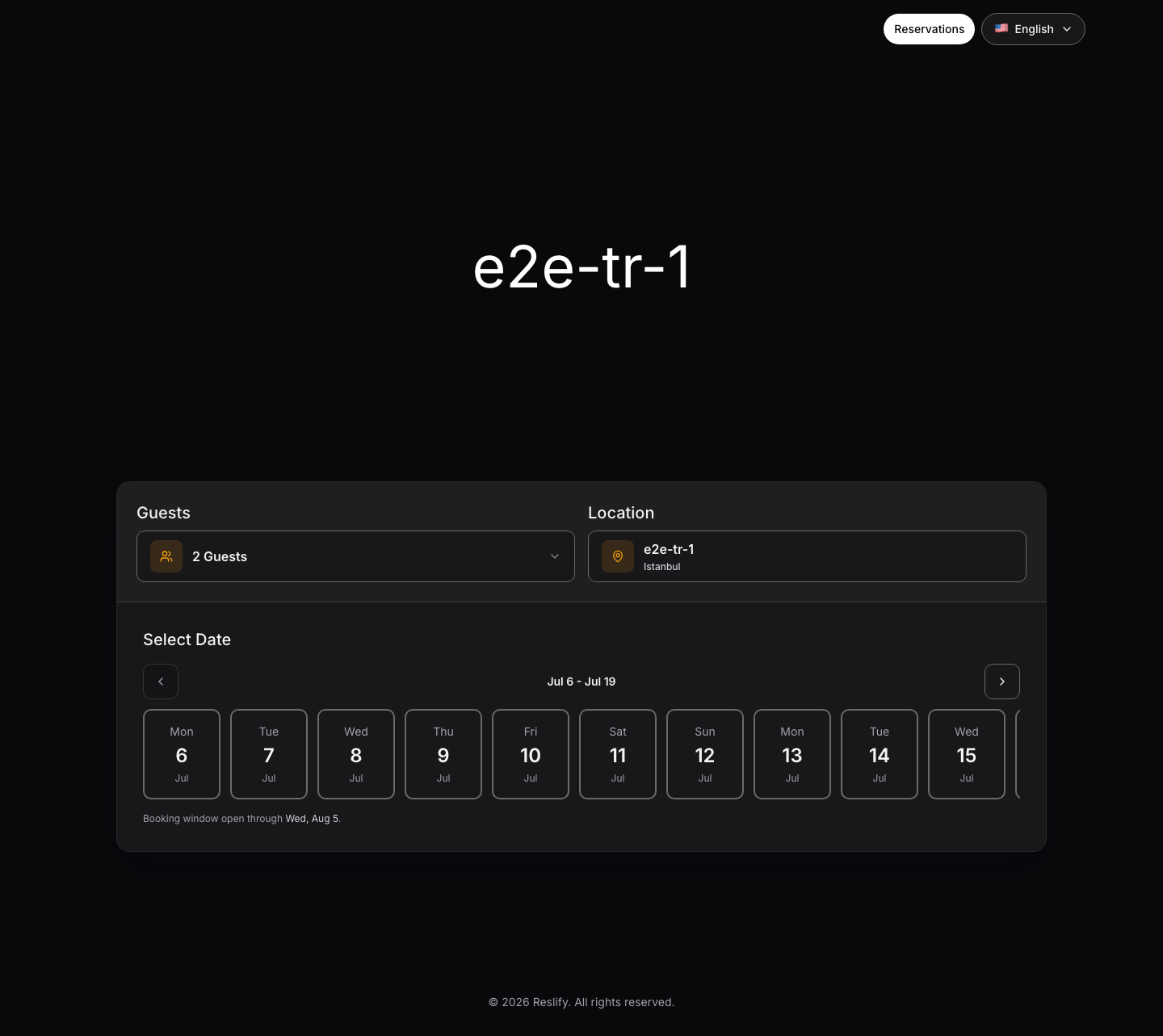
The guest booking page is the standalone public page where guests choose party size, location or area, date, time, experience, add-ons, and guest details depending on how the restaurant is configured.
Previewing confirms that the selected restaurant's portal settings and panel configuration produce a usable guest path. It does not change availability by itself, but selecting a time and experience can create a temporary slot hold. Completing the final step can create a real reservation, request, payment, or card guarantee flow, so only submit a live booking when you mean to test that outcome.
Open the booking page
Open the preview from the same restaurant you are checking:
- Open Settings from the left sidebar.
- Select Portal under Sales and Channels.
- Confirm the top bar shows the correct restaurant.
- Select Open website.
The page opens in a new tab. How it opens depends on Online booking access:
- Public opens the same standalone page guests can reach directly.
- Restricted creates a staff-only launch from the panel. Use this while the team is reviewing the page; public visitors still resolve to not found.
- Disabled blocks page and designer launches. An owner or admin must choose Restricted or Public, then select Save access mode, before previewing.
If you need the exact shareable link, open Website settings / Install and use Booking page URL. Copy or publish that URL only after Online booking access is Public.
What to verify
Start with the visible page basics. Confirm the restaurant name, visual style, language, and portal navigation match what guests should see.
Then test the booking controls:
- Guests, Location, Date, and the visible booking window
- Search Slots and Available Times for a normal bookable date
- experience names, images, descriptions, and payment labels
- Select Add-ons, required add-ons, and add-on limits
- cancellation policy, guest policy, legal consent, payment, or card guarantee prompts
- Guest Details and the final action, such as Complete reservation, Send request, Continue to payment, or Continue to card guarantee
Use realistic combinations. For example, test both small and larger party sizes, a normal weekday, a weekend, and any special day that should behave differently.
Stop once you have proven the path you intend to test. Reaching Guest Details proves the guest can get through availability and experience selection. Continuing past guest details can create operational records or payment state.
If no available times appear
No availability on the guest page usually comes from configuration, not the page itself. Re-test with the same date, party size, location, and experience, then check these panel areas:
- Settings / Experiences: the experience is active, not archived, accepts the party size, and its reservation rules allow the date.
- Settings / Shifts: the date has a bookable shift and table availability assigned for the experience.
- Settings / Table Plan: areas, tables, or combinations can seat the party size.
- Settings / Special Days: the date is not closed or unintentionally overridden.
- Bookings: existing reservations have not consumed the capacity for that time.
If times appear but the flow stops at policy, payment, or card guarantee, check Settings / Experiences / Payment and Settings / Integrations for the selected restaurant.
When to preview again
Preview the guest page after changes to:
- portal design
- portal access mode
- Website settings tabs such as General, Modal, Drawer, or Install
- shifts
- special days
- table plan
- experiences
- add-ons
- Guest Policies
- gift cards
- payment integrations
- Booking Copilot public context