Booking Pages & Channels
Customize booking page branding
Use the portal designer to adjust booking page colors, typography, hero image, widget flow, and guest-facing visual style.
Where branding is edited
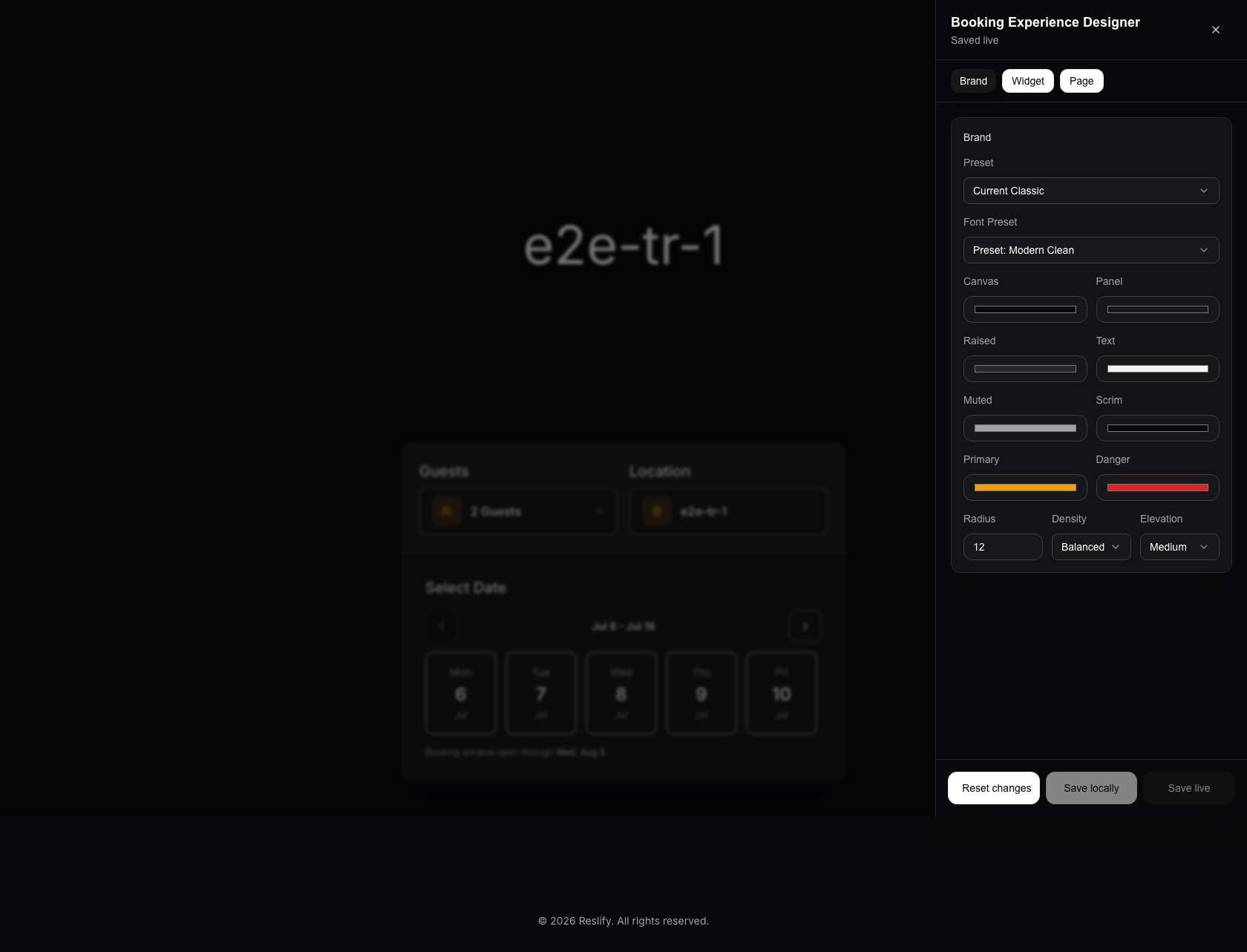
Booking page branding is edited in the portal designer. The designer shows a live guest preview and a control panel for the selected restaurant's brand, widget, and public page presentation.
Open it from Settings / Website by selecting Edit website. Confirm the correct restaurant is selected in the panel before you launch it.
Before changing branding, check Online booking access:
- Public means guests can see live branding changes on the standalone page and embeds after you save live.
- Restricted means staff launches from the panel are required for page and embed checks.
- Disabled blocks page, embed, and designer launches.
Understand what changes
Branding is restaurant-specific. It does not change the staff panel, but it does change guest-facing portal surfaces after Save live.
The shared visual language is used by the public booking page, embedded booking widget, menu page, gift card page, payment checkout, and reservation detail pages. If the restaurant uses only bookings today, still check any public page you plan to enable later.
Start with the Brand tab
The Brand tab controls the broad visual system for the page and widget. Review these settings first:
- Preset: a packaged visual baseline for the page.
- Font Preset: the typography style used by the guest experience.
- Canvas and Panel: the main background and content surfaces.
- Raised, Text, Muted, and Scrim: text, secondary surfaces, and overlay treatment.
- Primary: the main action color used for emphasis and active states.
- Danger: warning or destructive-state color.
- Radius, Density, and Elevation: the overall shape, spacing, and depth of the UI.
- Body Font and Heading Font: shown when Font Preset is set to a custom font preset.
Keep enough contrast between text, controls, and backgrounds. If the page looks polished but low-contrast, guests may struggle on mobile screens or in bright environments.
Review Widget and Page tabs
After the brand foundation is set, move through the remaining tabs:
- Widget controls booking behavior such as Initial Flow, UI Mode, Slot Display, and Date Selection. These settings affect how guests move through the booking widget on the public page and in embeds.
- Page controls the standalone page shell. Use it for Hero Image, Page Max Width (px), Hero Height, Hero Overlay, and Footer.
For hero images, upload only JPEG, PNG, or WebP files smaller than 10 MB. After choosing an image, crop it in the dialog and select Confirm Crop. Use Replace or Remove when the image no longer matches the restaurant brand.
Check every mode you plan to use. A style that looks balanced on the standalone page may need adjustment in a modal, drawer, or inline embed.
Save and publish carefully
Use the designer save controls at the bottom of the panel:
- Save locally stores a draft in the current browser for this restaurant. Guests and other staff do not see it.
- Save live publishes the current design to the live guest experience when your designer session is valid.
- Reset changes clears the local draft and returns the preview to the current live design.
Watch the status under Booking Experience Designer. Unsaved changes, Saved locally, and Saved live tell you whether the current preview is only a draft or already published.
Save locally while experimenting. Save live only after checking the visible guest states you care about. If your launch session expires, open the designer again from Settings / Website before saving live.
What to verify after branding changes
After Save live, open the public booking page and confirm:
- the restaurant name is readable against the background
- primary buttons and selected states are obvious
- date cards, time slots, policy text, add-ons, and form inputs have enough contrast
- warning, payment, and cancellation states remain readable
- language selector and page navigation remain readable
- the same design works on desktop and mobile
- modal, drawer, and inline embeds still fit the restaurant website if they are installed
If the restaurant uses menus, gift cards, payments, or reservation detail links, check those public pages too because they share the portal visual language.