Booking Pages & Channels
Choose modal, drawer, or inline widget mode
Choose the best Reslify booking widget mode for your website: modal, drawer, or inline.
How widget modes work
The booking widget can appear on a restaurant website in three modes:
- Modal: guests click a launcher and booking opens in a centered overlay.
- Drawer: guests click a launcher and booking opens from the side of the page.
- Inline: the booking flow is mounted directly into a page section.
The default mode is configured in Settings / Booking widget / Booking widget settings / General. It is the fallback used when a website script does not explicitly set a mode. The snippets in Booking widget settings / Install set their mode with data-reslify-mode, so an already-pasted modal, drawer, or inline snippet keeps using that mode until the website code is updated.
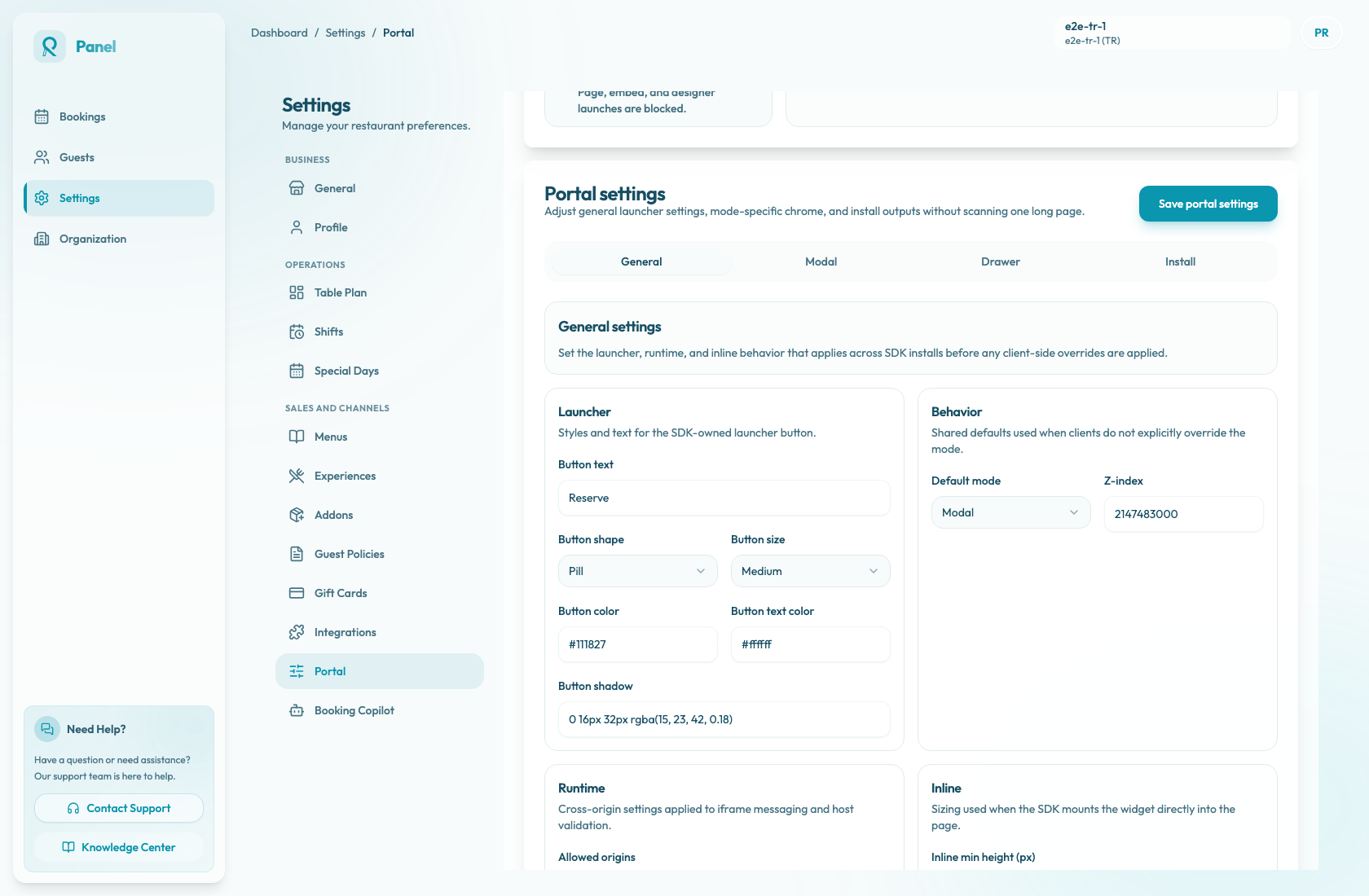
Changing mode changes how guests open the same reservation flow. It does not change availability, experiences, guest policies, payment rules, or how staff manage resulting bookings.
Before choosing a mode
Confirm these items before sending the mode decision to the website team:
- Portal access mode must be Public before guests can use the widget on the live website. Restricted is for staff preview launches, and Disabled blocks page, embed, and designer launches.
- Allowed origins in Booking widget settings / General should include each production,
www, staging, or preview origin where the widget will run, unless you intentionally leave the field empty. - Button text is shown on the SDK launcher and in the modal or drawer header.
- Z-index affects whether the launcher, modal, or drawer appears above website navigation, cookie banners, chat widgets, and other overlays.
- The website editor can paste script tags. Some CMS editors remove scripts unless they are added through a code-injection area.
Only owners and admins can change Portal access mode. Staff can preview and test, but they cannot make a restricted or disabled widget usable for public guests.
When to use Modal
Choose Modal when the restaurant website has a normal page layout and booking should appear as a focused overlay. It is usually the easiest first install because it does not need a large dedicated booking section.
Modal is a good fit for:
- header or navigation booking buttons
- campaign landing pages
- websites where booking should interrupt the page flow clearly
- teams that want a simple default install
The modal snippet inserts an SDK launcher button. When a guest clicks it, the widget opens in a centered overlay using Modal width (px) from the Modal tab, and it uses the shared Z-index from General. On small screens, treat the modal as a full-screen booking surface during testing.
When to use Drawer
Choose Drawer when booking should feel attached to the current page while still staying separate from the page content. Drawer works well when guests may compare page content and booking details without feeling fully moved away.
Drawer is a good fit for:
- restaurant homepages with persistent booking actions
- layouts with enough horizontal space on desktop
- teams that want a lighter interruption than a modal
The drawer snippet inserts an SDK launcher button and opens the widget from the configured Drawer side. Use Launcher placement, Offset (px), and Drawer width (px) on the Drawer tab to keep the launcher and panel clear of sticky navigation, cookie banners, and chat widgets.
Check mobile behavior carefully. The drawer width is capped by the viewport, so it can feel close to full screen on small devices.
When to use Inline
Choose Inline when booking should be part of the page body. Inline is best for pages where reservation conversion is the main purpose of the page.
Inline is a good fit for:
- a dedicated reservations page
- event or experience pages
- campaign pages where the booking form should be immediately visible
The inline snippet includes <div id="reslify-booking"></div> and mounts the iframe into that target with data-reslify-target="#reslify-booking". Keep the div and script together unless a developer intentionally changes both the target ID and the script attribute.
Inline installs need enough vertical space. Confirm Inline min height (px) fits the website layout. The iframe can grow as the booking flow changes height, but it will not shrink below the configured minimum.
Change the default mode
- Open Settings / Booking widget.
- In Booking widget settings, keep the General tab selected.
- Find Default mode.
- Select Modal, Drawer, or Inline.
- Adjust Button text, Z-index, Allowed origins, and Inline min height (px) if needed.
- Choose Save widget settings.
- Open Booking widget settings / Install.
- Copy the matching Modal embed script, Drawer embed script, or Inline embed script if the website code needs to change.
- Open the website or Open embed preview and test the result.
If the website already has an older snippet, changing Default mode alone may not update the live website. The generated install snippets include mode-specific data-reslify-* attributes such as modal width, drawer side, drawer width, or inline minimum height. Save settings first, then copy a fresh snippet when those values change.
Verify the mode
Before the website change goes live:
- Use Open portal to confirm the standalone booking page still loads.
- Use Open embed preview to confirm the embed route loads.
- Test the actual website page as a guest, preferably in an incognito window.
- For modal and drawer, confirm the launcher appears with the expected Button text, opens above the website, and closes cleanly.
- For inline, confirm the booking section appears in the intended page section and has enough vertical room on mobile and desktop.
- Start a booking and confirm guests can reach the intended details, policy, or payment step.
Selecting a slot can create a temporary hold. Stop before final confirmation unless you intentionally want a test reservation. If you complete one, staff should review it in Bookings and cancel or clean it up according to the restaurant's test-booking process.