Booking Pages & Channels
Manage public portal access
Use Online booking access mode to make the booking page and embeds public, staff-only, or fully disabled.
What Online booking access controls
Online booking access controls whether the live standalone booking page, embed installs, and portal designer launches can be opened.
Use it from Settings / Website before sharing a booking link, copying widget snippets, or asking staff to review the guest flow. Confirm the correct restaurant is selected first, because the access mode is saved for that restaurant.
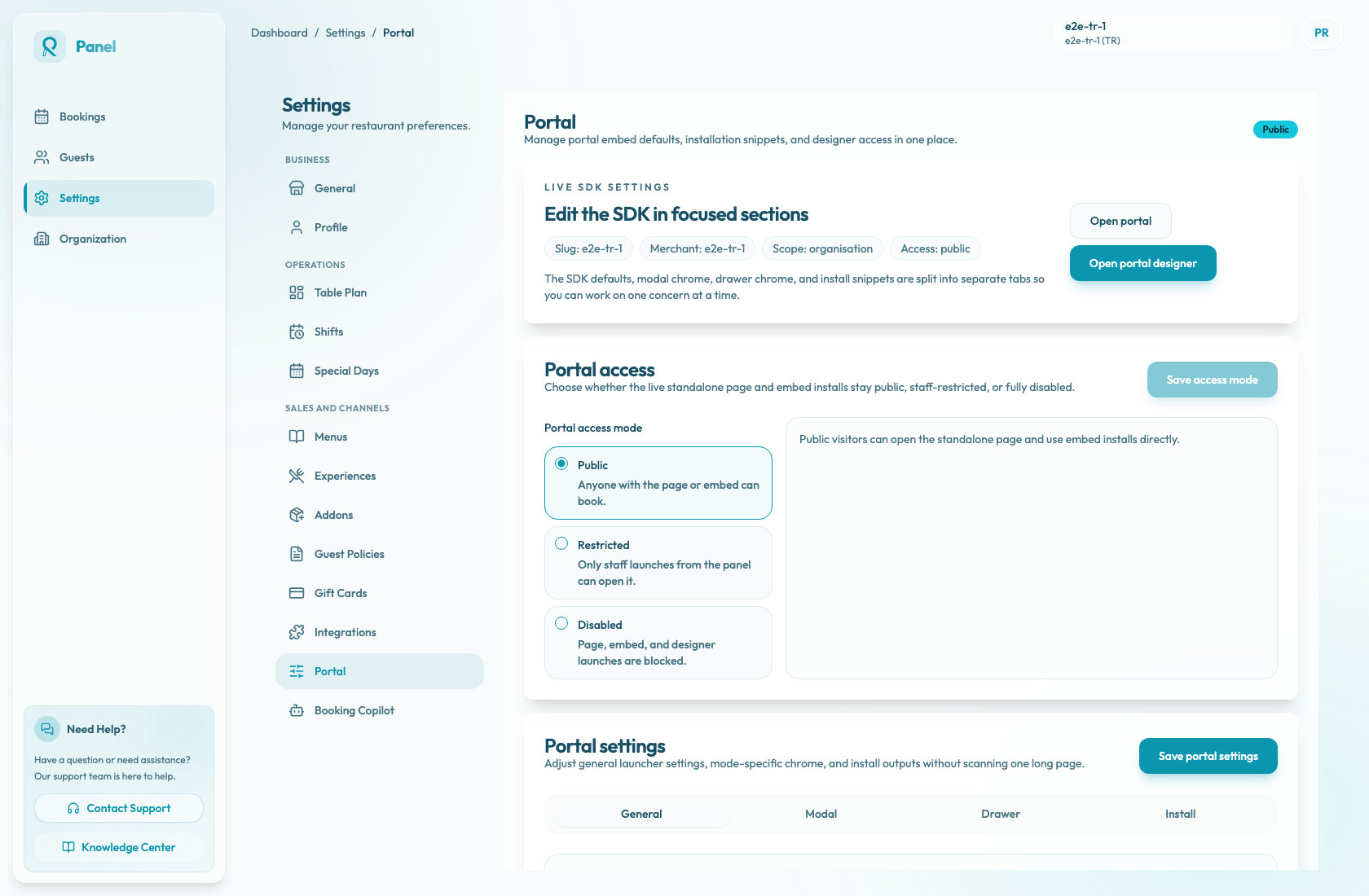
Only owners and admins can change Online booking access mode. Staff users can open staff review launches when access allows it, but the radio buttons and Save access mode are read-only for them.
Access modes
| Mode | Guest impact | Staff and panel impact | | --- | --- | --- | | Public | Anyone with the page or embed can book. Public visitors can open the standalone page and use embed installs directly. | Open website opens the public page. The Install tab enables Copy link, Copy embed URL, script copy buttons, and Open embed preview. | | Restricted | Public visitors resolve to not found for the standalone page and embed routes. Existing public links and embeds stop working after the change is saved. | Staff-only launches from the panel can open the standalone page and embed preview. The Install tab keeps public copy actions disabled. | | Disabled | Public visitors resolve to not found even if they have an old link or a staff launch token. | Open website, Edit website, Open embed preview, and public install copy actions are blocked. |
Change the access mode
- Open Settings / Website.
- Find Online booking access.
- Under Online booking access mode, select Public, Restricted, or Disabled.
- If you are moving away from Public, review the Restrict public portal access? dialog.
- Choose Continue to apply the selection, or Keep public to cancel.
- Choose Save access mode.
- Wait for the Online booking access mode saved confirmation.
Selecting a radio option does not change guest access until you save. When the panel warns that public visitors will stop opening the portal, save only if you are ready for existing public links and website embeds to stop working.
Use the right mode
Use Restricted while the restaurant is still configuring table plans, shifts, experiences, guest policies, payments, menus, gift cards, or branding. It gives the team a staff-only review path without letting public visitors book from shared links or embeds.
Use Public when you are ready to send guests to the booking page, add the link to social profiles, place QR codes in the restaurant, or install the widget on the live website. Copy public links and snippets from Website settings / Install only after access is Public.
Use Disabled only when the portal experience should be fully unavailable, such as during a temporary setup reset or when the restaurant needs to pause all public page, embed, and designer launches.
After changing access
Always test the state you expect:
- For Public, open the Booking page URL in an incognito window and test the website widget on an allowed origin if one is installed.
- For Restricted, open the public link in an incognito window and confirm it returns not found, then use Open website or Open embed preview from the panel for staff review.
- For Disabled, confirm Open website, Edit website, and Open embed preview are disabled before telling guests the portal is unavailable.