Booking Pages & Channels
Manage widget allowed origins
Control which website origins are allowed to host the Reslify booking widget.
What allowed origins control
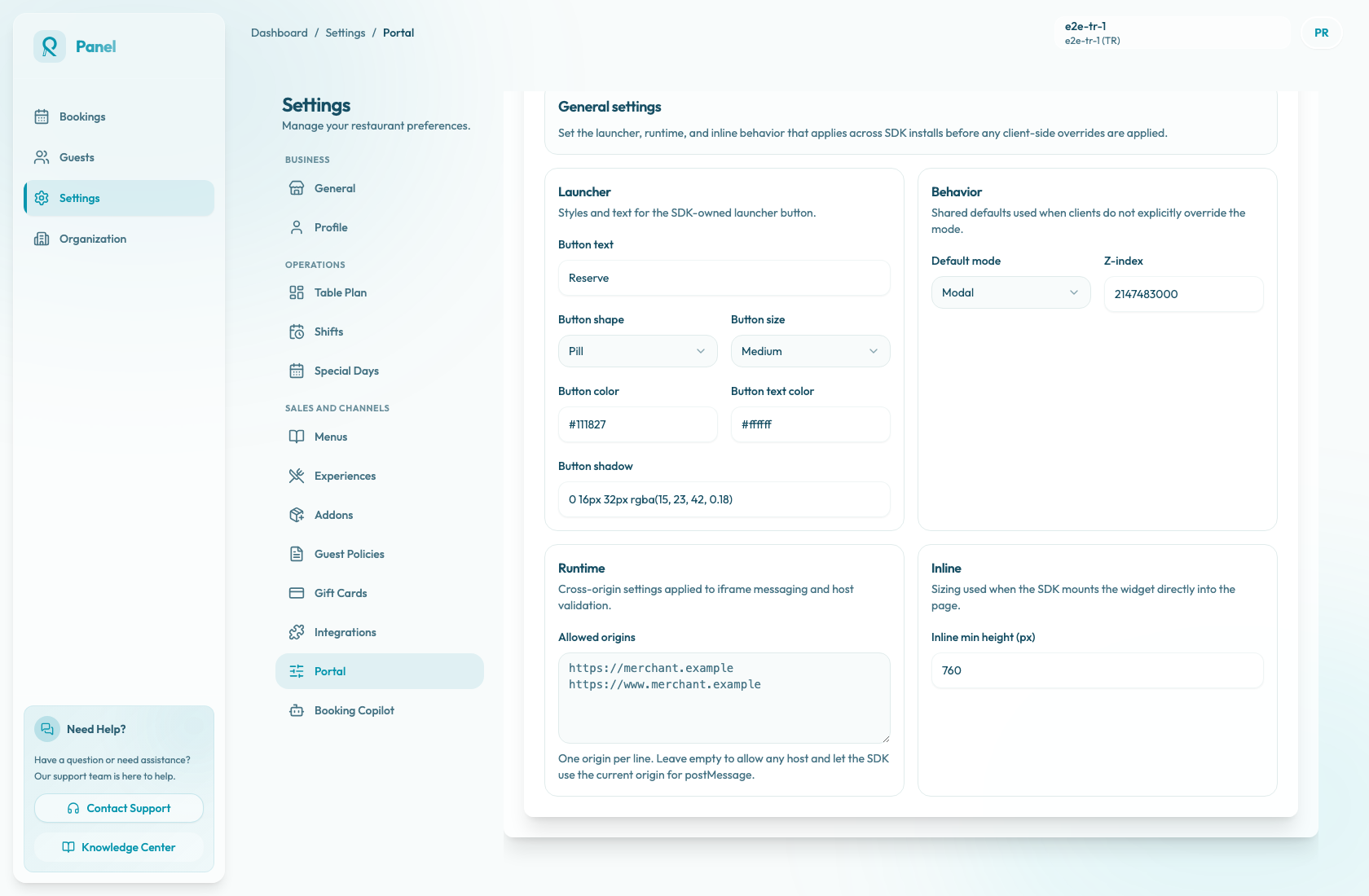
Allowed origins define which website origins can host the Reslify booking widget and communicate with the embedded booking experience. The setting is used by the widget SDK for iframe host validation and postMessage communication.
You can manage the list from Settings / Booking widget / Booking widget settings / Advanced / Allowed origins.
Before you change the list
Confirm the operational state first:
- Portal access mode should be Public when guests need to use the widget from the restaurant website.
- If access is Restricted, public page and embed installs return not found for visitors without a staff launch. Staff can still use panel preview launches for checks.
- If access is Disabled, page, embed, and designer launches are blocked until access is re-enabled.
- Know every website environment that must run the widget, including production,
www, staging, and CMS preview hosts.
Changing allowed origins does not change booking availability, existing reservations, or staff panel access. It affects the website embed bridge. Existing loaded website pages need a refresh after you save.
Origin format
An origin includes the protocol, hostname, and optional port. It does not include a path.
Use values like:
https://restaurant.examplehttps://www.restaurant.examplehttps://staging.restaurant.examplehttps://restaurant.example:8443
Treat these as separate origins when they are used separately:
https://restaurant.exampleandhttps://www.restaurant.examplehttp://restaurant.exampleandhttps://restaurant.example- production, staging, and preview domains
Do not enter page paths like https://restaurant.example/reservations. The page path is not part of the origin, and the portal runtime reads only the origin portion from valid URLs.
Add or update origins
- Open Settings / Booking widget.
- In Booking widget settings, open the Advanced tab.
- Find Allowed origins.
- In Allowed origins, add one origin per line.
- Include every host where the widget should run.
- Choose Save widget settings.
- Refresh the website page and test the widget on each environment.
Saved values are trimmed, and duplicate lines are collapsed. You do not need to copy a fresh modal, drawer, or inline script only because this allowlist changed. The widget fetches saved portal settings when the page loads.
If Allowed origins is empty, any host is allowed and the SDK uses the current website origin for postMessage. For a live website, explicit origins are easier to audit and troubleshoot.
Common origin list
Most restaurants need at least:
- the production website domain
- the
wwwversion if it is used separately - the staging or preview domain used by the website team
If the restaurant later changes website providers, domain names, or preview URLs, update this list before testing the new website. Keep the production origin in the list while adding staging or preview origins so the live website keeps working.
Guest and staff impact
When the website origin is not allowed, the standalone booking page can still work, and staff previews from the panel can still work when portal access permits them. The restaurant website embed is the affected surface.
Guests may see the launcher or iframe, but embed behavior can fail because the SDK cannot establish the expected bridge with the host page. Symptoms include missing resize behavior, close actions that do not return cleanly to the website, host-driven messages not applying, or a browser console warning such as Reslify embed: current origin is not allowlisted for postMessage.
Troubleshooting
If the widget appears but does not load correctly, or if browser console messages mention origin, host, iframe, postMessage, or Reslify embed validation:
- On the website page, check the browser's
window.location.originvalue. - Confirm that exact value is listed in Allowed origins, including protocol,
www, and port if present. - Check whether the site redirects between
wwwand non-www. - Include the staging or preview host if you are testing outside production.
- Confirm Portal access mode is Public for guest website testing.
- Choose Save widget settings again, then refresh the website page.
If Open portal works and Open embed preview works, but the restaurant website widget still does not, focus on the website install, allowed origins, script blockers, or website theme placement.