Booking Pages & Channels
Open the portal designer
Learn how to launch the Reslify portal designer from Website settings, what to check first, and how designer saves affect guests.
What the portal designer is for
The portal designer is the staff-only editor for the visual presentation of the guest booking experience. It opens the standalone booking page in preview mode and adds the Booking Experience Designer panel for the selected restaurant.
Use the designer for visual Brand, booking Widget, Page, Website, and Media changes. Use Settings / Website for the live domain, Reslify address, Custom Domain, and visibility. Use Settings / Booking widget for General, Modal, Drawer, Advanced, Install, generated snippets, and Save widget settings.
Designer changes are restaurant-specific. They do not change the staff panel, existing reservations, availability, table capacity, experiences, prices, guest policies, or payment rules.
Check access before launch
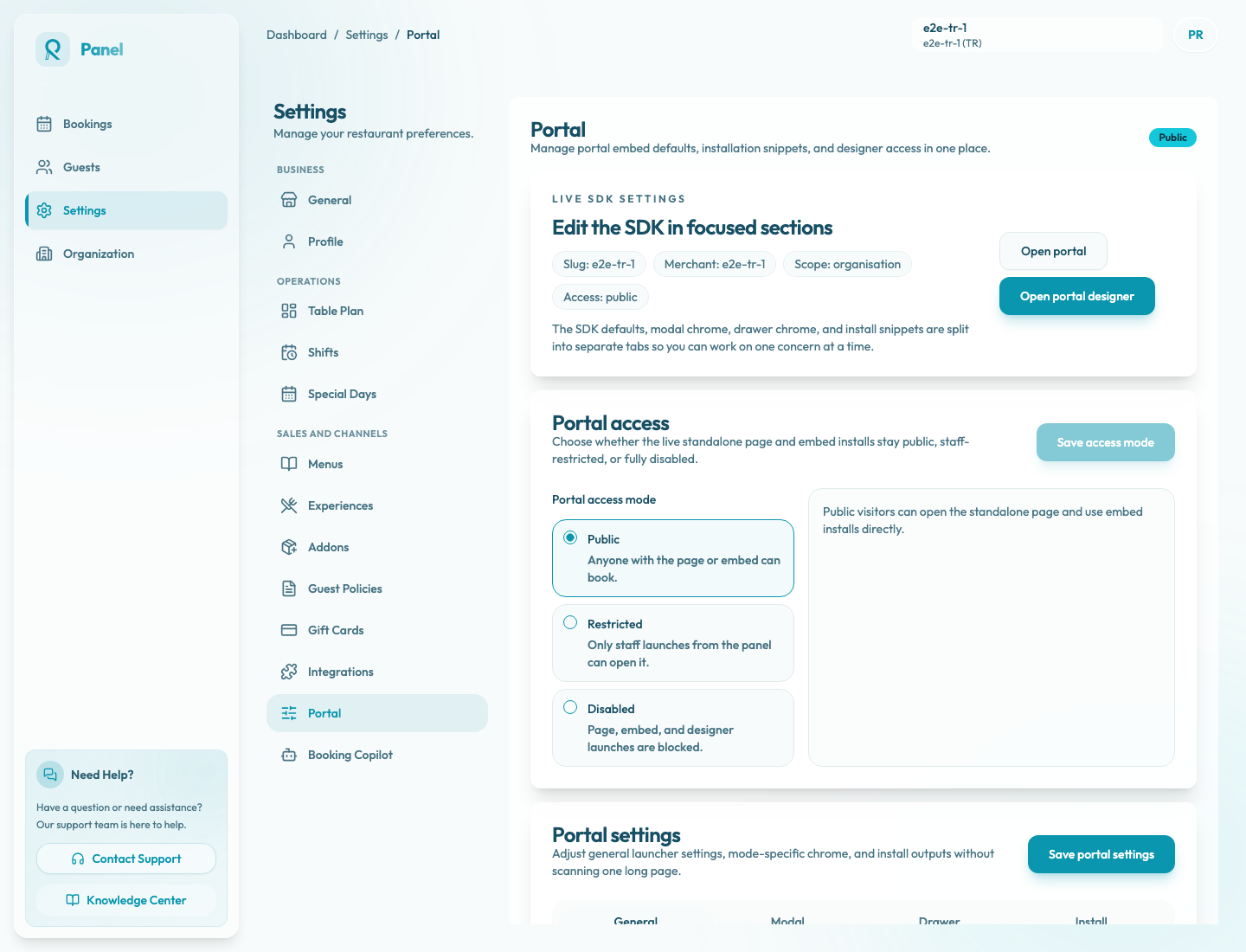
Confirm you are editing the correct restaurant in the top bar. In the Live SDK settings card, check the badges for Slug, Merchant, Scope, and Access before you launch.
Then check Online booking access:
- Public means guests can open the standalone page and use embed installs directly. Live designer changes are visible to guests after Save live.
- Restricted means public visitors see not found for the standalone page and embed routes. Staff can still use Open website, Open embed preview, and Edit website from the panel for review.
- Disabled blocks Open website, Edit website, Open embed preview, and public install copy actions.
Only owners and admins can change Online booking access mode. If the designer button is disabled because access is Disabled, an owner or admin must choose Public or Restricted and then select Save access mode before launching.
Launch the designer
- Open Settings from the left sidebar.
- Select Portal under Sales and Channels.
- In the Live SDK settings area, select Edit website.
- Reslify opens a new browser tab and redirects it to the authorized designer launch URL.
The launch URL is for the current staff session. Do not share it with guests; use the Booking page URL from the Install tab only when Online booking access is Public.
If the designer does not open, allow popups for the panel and try again. Also confirm access is not Disabled, the selected restaurant still has a slug, and your user still has permission to manage the restaurant.
Inside the designer
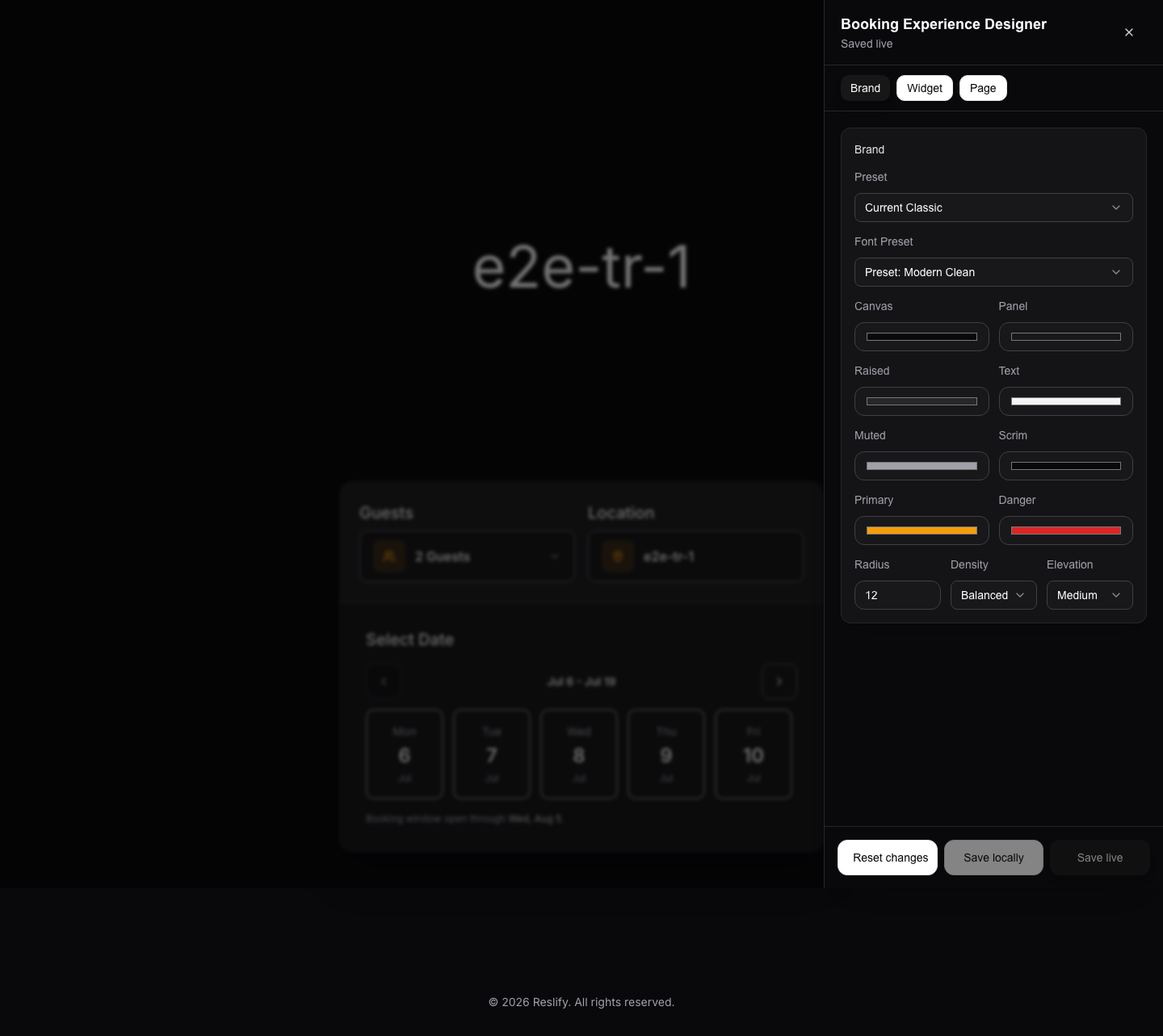
The designer shows the live booking-page preview with the Booking Experience Designer panel on the right. The status under the header shows whether the current view has Unsaved changes, is Saved locally, or is Saved live.
Use the tabs for different responsibilities:
- Brand controls the broad visual system: Preset, Font Preset, canvas and panel colors, raised, text, muted, scrim, primary and danger colors, plus Radius, Density, and Elevation.
- Widget controls booking-widget behavior: Initial Flow, UI Mode, Slot Display, and Date Selection.
- Page controls the standalone page shell: Hero Image, Page Max Width (px), Hero Height, Hero Overlay, and Footer.
For hero images, upload only JPEG, PNG, or WebP files smaller than 10 MB. After selecting an image, crop it and choose Confirm Crop.
Saving changes
The bottom of the designer includes three controls:
- Save locally stores a draft for this restaurant in the current browser. Guests and other staff do not see it.
- Save live publishes the current design to the live guest portal when your designer session is valid.
- Reset changes clears the local draft and returns the preview to the current live design.
Save live does not make a restricted or disabled portal public. It also does not change SDK install settings such as button text, default mode, allowed origins, modal width, drawer side, or generated snippets; return to Settings / Booking widget and use Save widget settings for those.
If your designer session expires, the panel tells you designer access is required to save live. Open the designer again from Settings / Website before publishing.
Verify after saving live
After Save live, return to Settings / Website and verify the surfaces guests or staff will actually use:
- Use Open website for the standalone page.
- Use Open embed preview or the installed website widget for modal, drawer, or inline embeds.
- Check desktop and mobile layouts.
- Test visible booking states such as guest count, date selection, available times, experience selection, add-ons, policy text, payment, and card guarantee prompts.
- If access is Public, repeat the public page check in an incognito window. If access is Restricted or Disabled, confirm direct public links return not found.