Booking Pages & Channels
Publish a digital menu page
Make a reviewed restaurant menu visible on the public Reslify portal and verify what guests can open, search, and share.
What publishing controls
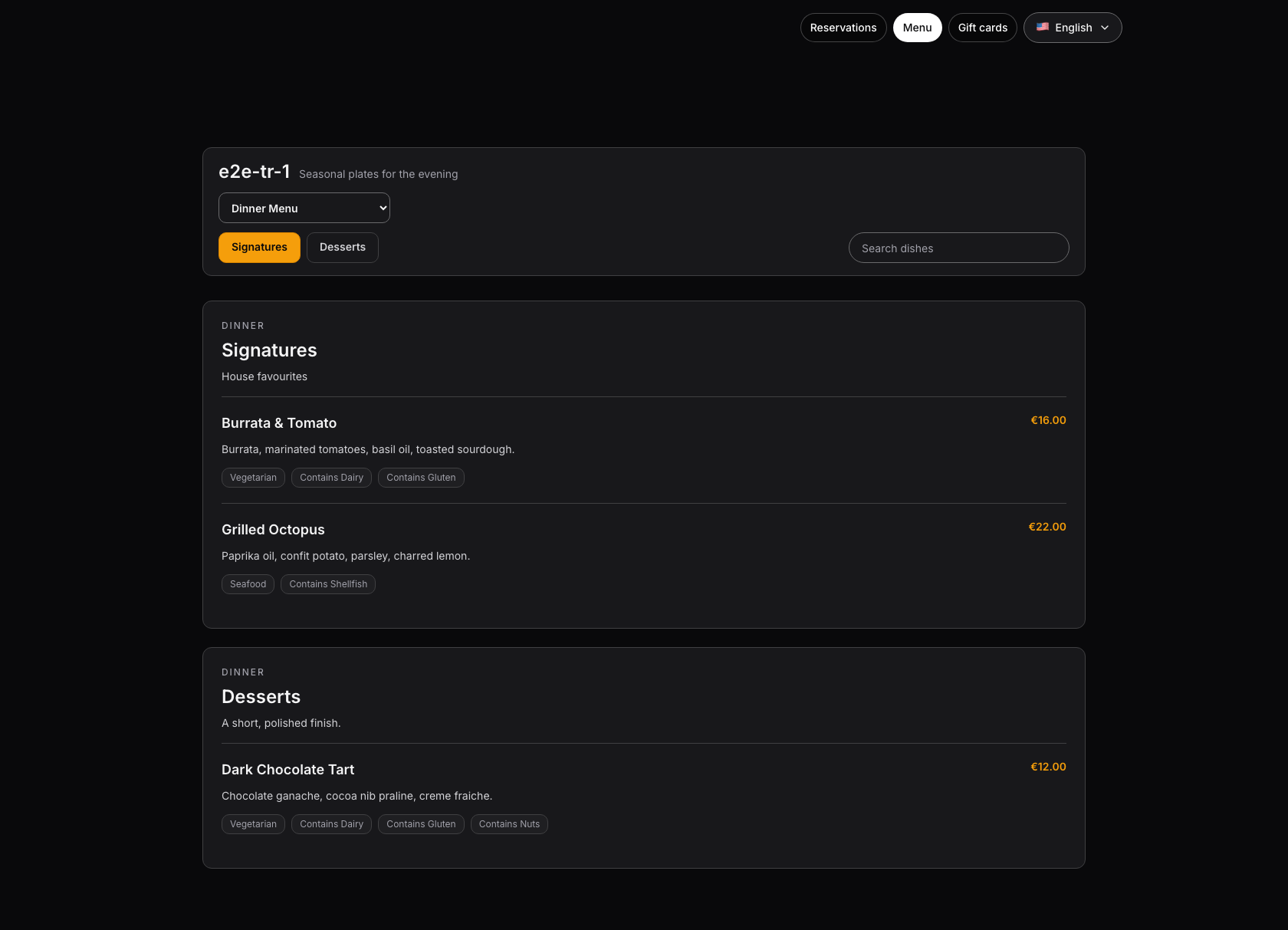
The public digital menu page is the guest-facing Menu route in the Reslify portal. It opens at the restaurant portal URL with /menu, uses menu data saved in Settings / Menus, and shares the same portal navigation, branding, and access rules as the public booking page.
Only menus with Status set to Visible are returned to the public menu page. Hidden and Archived menus stay out of the guest selector. The public booking page shows the Menu navigation link only when at least one visible public menu exists.
Publishing a menu is different from publishing portal access. The menu must be Visible, and Settings / Website / Online booking access must allow the intended audience to open the portal.
Prepare the menu in the panel
Before treating the page as live, review the menu in Settings / Menus:
- Confirm the correct restaurant is active in the panel.
- Open Settings / Menus.
- Create a menu with New menu, or select the existing menu from the list.
- Fill Menu name, Service label, and Description with guest-facing wording.
- Add categories in the order guests should browse them. A menu cannot be saved as Visible unless it has at least one category.
- Add items with names, descriptions, and prices. Items can also include images, Tags, Allergens, Available, and Featured.
- Set Status to Visible only when the menu is ready for guests.
- Choose Save changes and wait until the editor shows the saved state.
Use Hidden for drafts and Archived for old menus. Imported menu drafts start as Hidden until staff review and publish them.
Set portal access
Guests can open the menu directly only when portal access allows public visitors:
- Open Settings / Website.
- In Online booking access, select Public.
- Choose Save access mode and wait for Online booking access mode saved.
- Use Open website for a final staff check, or return to Settings / Menus and use Open public menu.
Only owners and admins can change portal access. Staff users can review the page when access allows it, but the access mode controls are read-only for them.
Use Restricted only for staff preview before launch. Restricted access requires staff launches from Open website; direct guests see not found. Use Disabled only when page, embed, and designer launches should be blocked.
Verify the public menu
Open the public menu as a guest and check:
- Menu is visible in portal navigation when visible menus exist
- Reservations links back to the booking page
- Gift cards appears only when public gift-card selling is available
- the menu selector includes each Visible menu and excludes Hidden or Archived menus
- category tabs scroll to the correct category sections
- Search dishes finds expected items by name, description, tag, or allergen
- prices use the correct currency and amount
- tags and allergens are correct; allergens display as Contains ...
- unavailable items are intentionally labeled Temporarily unavailable
- featured items with images appear in the featured area only when they are available
- the item detail modal shows description, price, tags, allergens, item image when present, and Share
- share options open for WhatsApp, Copy link, and SMS
Review mobile layout too, especially long item names, prices, allergen labels, and the share sheet.
What changes guests see
After Save changes, updates to visible menus can appear publicly without a separate portal designer publish step.
Changing a menu from Visible to Hidden or Archived removes it from the public menu list. If no visible menus remain, the booking page no longer shows the Menu navigation link and the direct menu page shows No public menu is available yet.
Changing Online booking access away from Public affects the menu page too. Restricted makes direct guest visits return not found unless staff opened a valid launch session. Disabled blocks public and staff launch access.
If the menu is missing
If the public portal does not show the expected menu, check:
- Settings / Menus: the menu is saved and Status is Visible.
- The menu has at least one category and the intended items.
- The active restaurant in the panel is the same restaurant whose portal URL you opened.
- Settings / Website: Online booking access is Public for a guest-facing check.
- Browser session: test in an incognito window so a staff preview cookie does not hide access problems.
- Menu item settings: an item marked unavailable still appears as Temporarily unavailable.