Booking Pages & Channels
Use the public gift card checkout page
Verify the public Reslify gift-card checkout page, product visibility, buyer details, recipient delivery, and payment readiness.
What the gift card checkout page does
The public gift-card checkout page lets guests buy active gift-card products from the Reslify portal. It shows the product catalog, buyer and recipient options, sender and recipient details, an optional message, a gift preview, and the checkout action.
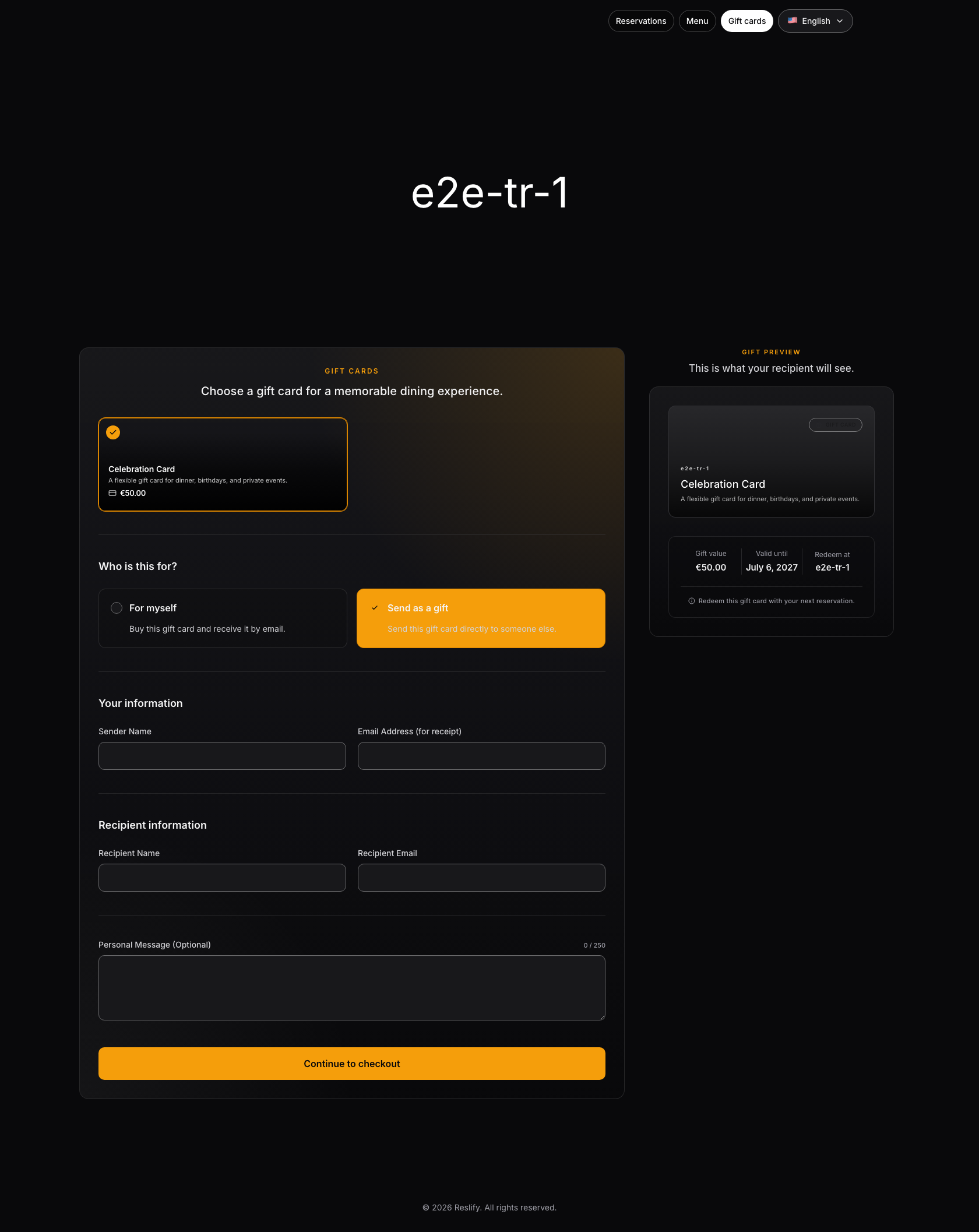
Before using the public checkout
Confirm these items in the panel:
- Gift Cards shows Ready, not Selling disabled
- at least one gift-card product is Active
- archived products have been removed from public checkout intentionally
- product Title, Description, Amount, Validity (days), and optional Product Image are correct
- the restaurant has either Stripe connected-account readiness for charges or PAYTR marketplace payout readiness
- portal access is Public if guests should open the standalone page themselves
- the public portal design is readable on desktop and mobile
If payment setup is incomplete, product edits and public checkout stay blocked. The standalone booking page also hides the Gift cards navigation link when there are no public gift-card products.
Open the gift card page
- Open Settings / Website.
- Select Open website.
- In the public portal navigation, choose Gift cards.
- Select a gift card product.
- Choose For myself or Send as a gift.
- Fill in the buyer fields.
- If Send as a gift is selected, fill in the recipient fields.
- Add the optional message or note if needed.
- Review the gift preview.
- Continue to checkout only when you are intentionally testing the payment path.
Use a test environment or test payment method when validating checkout behavior before launch.
Checkout behavior to expect
Stripe gift-card checkout redirects the guest to hosted checkout and then returns to a Reslify success or cancellation page.
PAYTR gift-card checkout opens an embedded secure payment frame on the gift-card page. For TRY products, the buyer phone number is required before checkout starts.
After payment:
- Processing payment means Reslify is waiting for provider confirmation
- Payment received means the gift card has been issued and will be delivered by email
- Payment not completed. means no payment was taken and no card should be issued from that checkout attempt
What to verify
Review the guest-facing page for:
- correct product titles and descriptions
- correct value and currency
- correct Valid until date based on the product validity period
- archived products do not appear
- public navigation label is Gift cards
- recipient choice labels are For myself and Send as a gift
- buyer fields show Sender Name or Full Name, plus Email Address (for receipt)
- TRY products require Phone Number (required)
- recipient fields show Recipient Name and Recipient Email only when sending as a gift
- personal message and note fields show a 250 character limit
- readable gift preview
- checkout button changes from Continue to checkout to Starting checkout... while submitting
- issued cards appear in Gift Cards / Issued Cards after successful payment
Also test mobile. Gift card pages often contain long labels and form fields that need enough space on small screens.
If Gift cards does not appear
Check:
- Gift Cards is Ready.
- Stripe charges readiness or PAYTR marketplace payout readiness is complete.
- The restaurant has at least one Active gift-card product.
- The product was not archived.
- Online booking access is Public when testing as a public visitor.
- The public page was refreshed after saving gift-card changes.
- The selected restaurant in the panel is the same restaurant whose portal you opened.