Experiences & Add-ons
Archive or restore an experience
Archive experiences that should no longer be offered, and restore them when they should become active again.
What archiving does
Archiving changes an experience from active to archived without deleting its setup. Archived experiences stay visible in Settings / Experiences with an Archived badge, the row switch turned off, and they no longer count toward active experiences.
Archived experiences are also removed from the public booking catalog and ignored by online availability, so guests cannot select them on the booking page or widget. Use archiving for old menus, seasonal offers, test experiences, or services that should not be bookable right now.
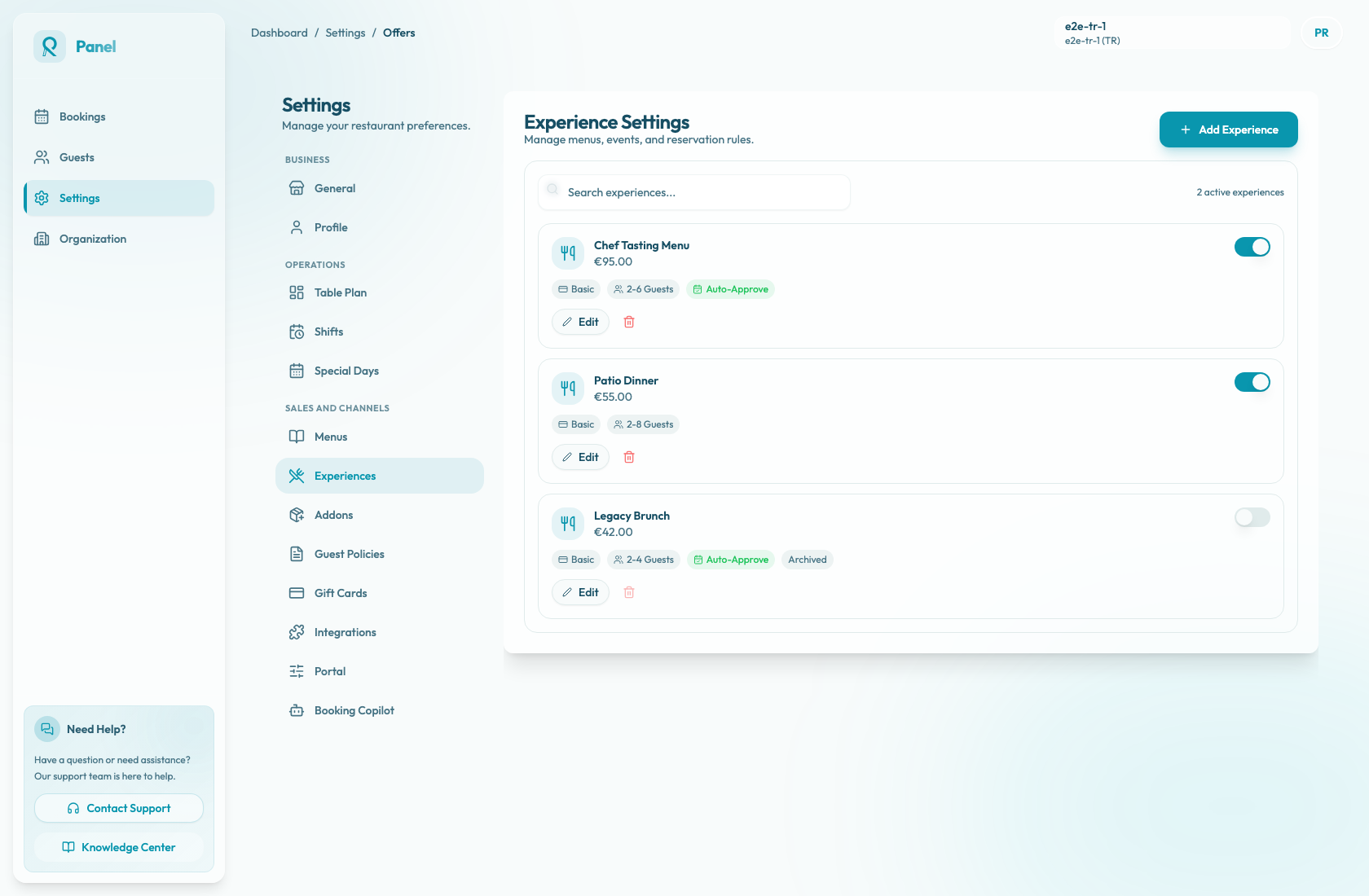
Archive an experience
- Open Settings / Experiences.
- Find the experience.
- Click the trash icon on the experience row.
- In the Archive experience? dialog, confirm Archive.
The experience is marked Archived, its switch turns off, and guests should no longer see it as an active booking option. The archive button is disabled for experiences that are already archived.
Restore an experience
- Open Settings / Experiences.
- Find the archived experience.
- Turn the experience back on using the row switch.
- Review all settings before relying on it again.
The switch uses the same archived/active toggle in reverse. Before restoring, check the description, add-ons, guest policies, payment rules, party-size limits, and shift availability. Old experiences often point to old operational assumptions.
When to archive instead of edit
Archive when the old offer should be preserved for reference but should not be changed into a new offer. Create a new experience when the new offer has a different guest promise, price, policy, or operational setup.