Experiences & Add-ons
Experiences overview
Understand how experiences control bookable offers, reservation rules, add-on groups, guest policies, payment behavior, and availability.
What experiences are
An experience is a bookable offer guests can choose during reservation. Examples include standard dinner, a tasting menu, patio seating, chef counter, brunch, a private event format, or any other offer that needs its own booking rules.
Each experience can define its own name, description, optional image, displayed price, add-on groups, guest-policy omissions, reservation rules, payment policy, and cancellation terms. Availability still depends on shifts and table capacity, but the experience decides which rules apply once a guest selects it.
Only non-archived experiences are exposed to public booking. Public booking also receives only active guest policies that have not been omitted for the selected experience, and only non-archived add-on groups and add-ons.
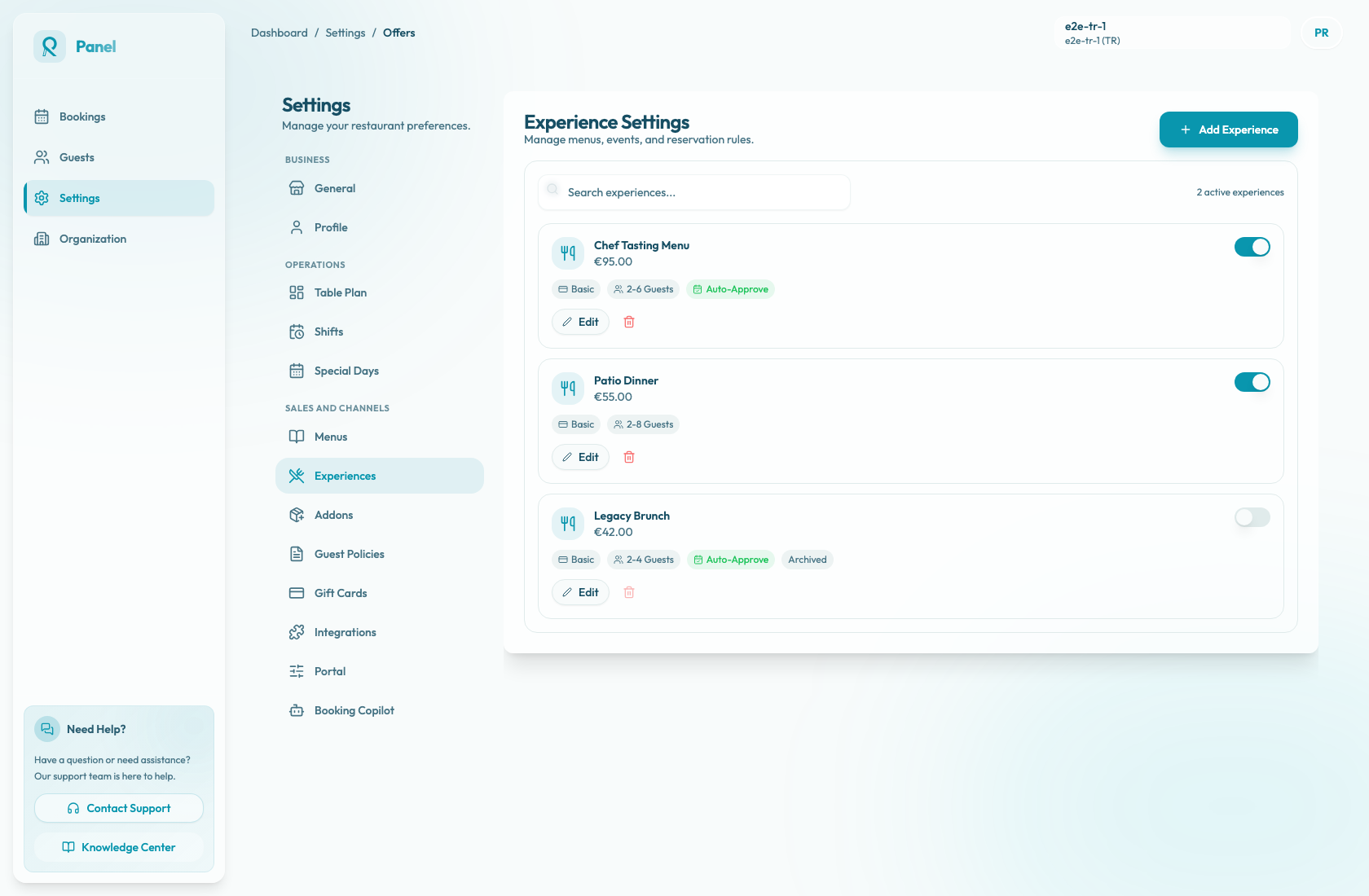
What the list tells you
Use the list as a quick operational review:
- Search filters the list by experience name.
- Active count shows how many experiences are not archived.
- Displayed Price is the saved price shown in the panel list. It is not the payment requirement; the booking widget payment copy is driven by the payment policy.
- Payment badge summarizes the payment policy: Basic, Card required, Deposit, Prepay, or Optional Prepay.
- Guest badge shows the minimum and maximum party size configured for the experience.
- Auto-Approve appears when matching reservations can be accepted automatically instead of becoming requests.
- Archived marks experiences kept for reference but hidden from public booking.
The switch on each row toggles active or archived state. The edit button opens the full experience dialog, and the archive action is disabled for experiences that are already archived.
What you configure
The experience dialog is split into four areas:
- Basics controls the optional experience image, name, displayed price, description, and available add-on groups. Guests only see add-ons from groups assigned here. Leave all groups unselected to hide add-ons for the experience.
- Reservation controls minimum guests, maximum guests, minimum notice, maximum notice, booking gap, and automatic approval. The panel prevents saving a maximum guest count lower than the minimum.
- Guest Policies lists the restaurant's guest policies. Policies are included by default; check a policy in this tab to omit it from this experience. Public booking only asks guests to accept active policies that remain included.
- Payment controls whether the booking is basic, card-required, deposit-based, prepaid, or optionally prepaid. It also controls the cancellation policy text that guests accept and that is snapshotted with the reservation.
Payment behavior
Payment policy changes the booking outcome:
- Basic uses no upfront payment. Automatic approval decides whether the reservation is approved immediately or submitted as a request.
- Card required asks the guest to save a card for a guarantee policy. It is available only when card guarantee is supported for the merchant and a Stripe account is ready. The experience must also use automatic approval before it can be saved with card guarantee.
- Deposit charges an upfront deposit as a fixed total or per guest. You can limit the deposit to a group-size range; outside that range, booking stays available and no deposit is required.
- Prepay requires payment upfront, with a per-person prepayment price and optional service fee.
- Optional Prepay lets the guest choose pay now or pay at the venue. Paid commitment rules apply when the guest chooses pay now; pay-at-venue bookings fall back to the experience's approval behavior.
For card guarantee, deposit, prepay, and optional prepay, review the cancellation policy carefully. Reslify generates guest-facing terms from the configured fields and stores the accepted version with the reservation.
When to create a separate experience
Create a separate experience when the guest-facing promise or booking rules differ meaningfully. For example, use separate experiences for a prepaid tasting menu, a large-party patio dinner, a chef counter, or a special event.
Do not create a new experience for a tiny wording difference if the same rules, availability, policies, and add-ons apply. Too many similar experiences make the guest flow harder to understand and harder for staff to audit.
How experiences connect to other settings
Experiences depend on other parts of the panel:
- Shifts decide when an experience is bookable and which areas can serve it.
- Table Plan decides whether the requested party size can be seated.
- Add-ons provide the groups and items that can be attached to an experience.
- Guest Policies provide the active policies that can be included or omitted per experience.
- Payments decide whether a card, deposit, prepayment, optional prepayment, or no upfront payment is required.
Before opening public booking
Review each active experience before guests can book:
- Confirm the name, image, description, and displayed price are current.
- Confirm the guest range, notice windows, booking gap, and auto-approval setting match operations.
- Confirm the experience is connected to the right shifts and table areas.
- Confirm assigned add-on groups are intentional, especially required groups and group limits.
- Confirm omitted guest policies are intentional.
- Confirm the payment and cancellation terms match the promise guests see during booking.