Experiences & Add-ons
Set experience reservation rules
Set the guest count, notice window, booking gap, and auto-approval rules for an experience.
What reservation rules control
Reservation rules decide which party sizes can book an experience, how far ahead guests can see and select availability, how much reset time the table plan needs, and whether eligible reservations are confirmed automatically.
These rules work together with online shifts, table capacity, and special days. A rule can allow a party size or date range, but the booking page still needs an online shift and a table or table combination that fits the request.
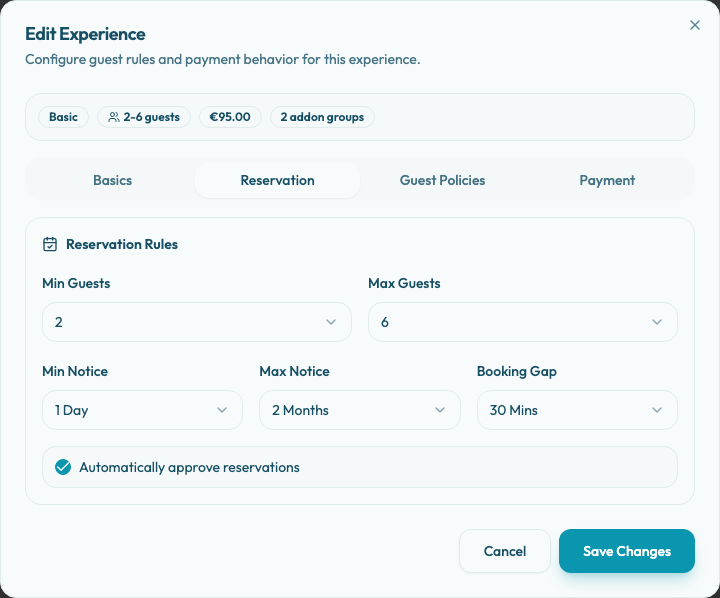
Open Settings / Experiences, edit the experience, then select the Reservation tab.
Set guest limits
Use Min Guests and Max Guests to define the party-size range the experience accepts.
New experiences start at 1 minimum guest and 10 maximum guests. The form rejects a maximum that is lower than the minimum.
The experience may allow a party size, but the table plan still has to seat it. For example, an experience with a maximum of 8 guests needs tables or combinations that can seat 8 guests on the selected online shift. Availability calculations use the experience range when they generate bookable cover counts, and specific guest searches still need a table or combination that fits the selected party size.
Set notice rules
Use Min Notice to stop last-minute bookings. Use Max Notice to control how far into the future guests can book.
New experiences start with Min Notice set to None and Max Notice set to 3 Months. The standard min notice choices are None, 1 Hour, 2 Hours, 5 Hours, 12 Hours, 1 Day, 2 Days, and 1 Week. The standard max notice choices are 1 Month, 2 Months, and 3 Months.
Set these based on how the restaurant operates. A tasting menu may need 1 Day of notice. A simple dinner reservation may allow None or 1 Hour.
The booking widget uses max notice to limit the date planner. Before a guest chooses an experience, the planner can use the largest max notice across active experiences; after an experience is selected, it uses that experience's max notice.
Set booking gap
Booking Gap adds spacing to the duration used for availability checks. New experiences start with None. The standard choices are None, 15 Mins, and 30 Mins.
Use it when the team needs reset time, special preparation, or a buffer between service blocks. For example, a 90-minute experience with a 30-minute booking gap is checked as a 120-minute table conflict window.
Choose auto-approval behavior
New experiences start with Automatically approve reservations turned off.
When it is off, unpaid request-style bookings are submitted as requests for staff review. When it is on, eligible bookings can be confirmed automatically after the rest of the rules are satisfied. Payment and card-guarantee experiences can still send guests through their required payment or guarantee step.