Experiences & Add-ons
Attach guest policies to an experience
Control which guest policies apply to a specific experience during the reservation flow.
How policies apply
Guest policies are global reservation terms created in Settings / Guest Policies. Every active policy applies to every experience by default.
The Guest Policies tab on an experience is an omission list. Check a policy only when that policy should not apply to the selected experience.
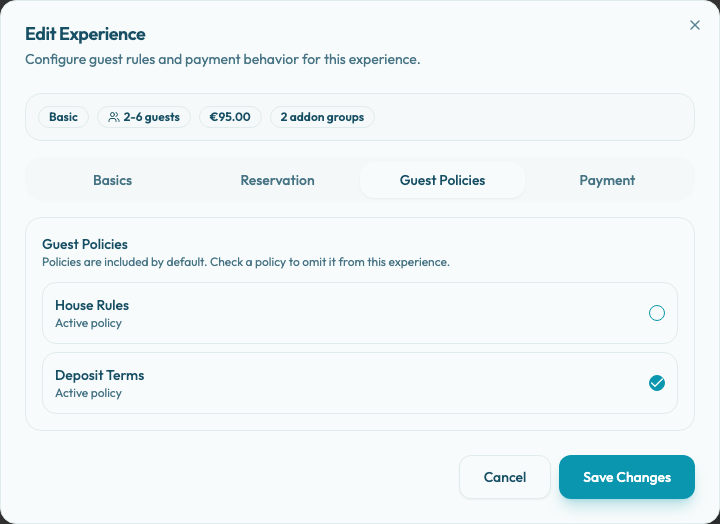
In public booking, guests are asked to accept the active policies that remain included for their selected experience. Archived policies are not shown to guests while archived, even if they still appear in the experience settings list for review.
Decide which policies belong
Use guest policies for terms guests should accept before completing a reservation. Common examples include house rules, deposits, late cancellation terms, allergy notices, and group booking expectations.
If a policy should apply to nearly every booking, leave it included. If a policy is only relevant to a different offer, omit it from this experience.
Omit a policy from an experience
- Create or update the policy in Settings / Guest Policies and keep it active when guests should be able to accept it.
- Open Settings / Experiences.
- Edit the experience.
- Select Guest Policies.
- Check each policy that should be omitted from this experience.
- Leave included active policies unchecked.
- Save the experience.
- Preview the public booking flow and confirm the correct policies appear for the experience.
If the tab says no guest policies have been defined yet, add the policy in Settings / Guest Policies first.