Experiences & Add-ons
Configure add-on group limits
Set fixed, per-party, or per-cover add-on group limits so guests see the right selection rules during booking.
What group limits control
Group limits decide how guests can choose items inside an add-on group once that group is attached to an experience. They control the total quantity guests can select from the group, the limit label shown in the booking widget, and whether the group is marked as optional or required.
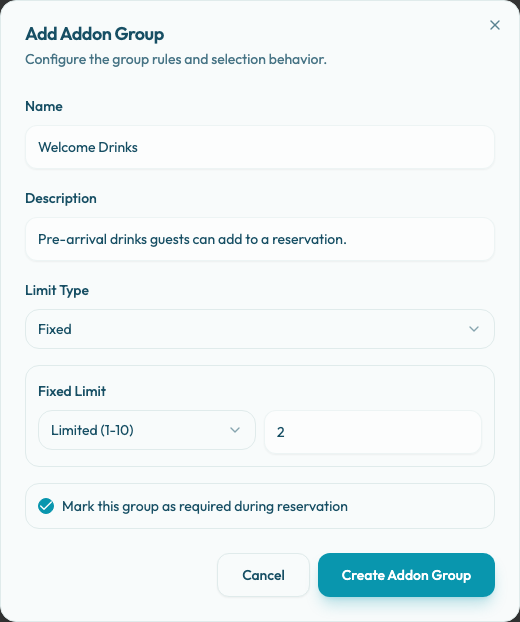
Open Settings / Addons, create or edit a group, and review the limit settings.
Limit types
Use Per party when the reservation should have one group-level choice. In the guest booking widget, this appears as one selection for the party. Selecting another item in the same group replaces the previous selection. Use it for table-wide choices such as one arrival setup or one celebration cake.
Use Per cover when the group should scale with party size. The guest booking widget labels this as a per-person limit and caps the group at the current number of guests. A party of four can make up to four total selections across the group. Use it for add-ons such as welcome drinks or pairings where each guest may receive one item.
Use Fixed when the group should use the same limit regardless of party size. For example, a VIP extras group may allow up to two selections for any reservation.
Limited or unlimited
Fixed groups add a Fixed Limit setting.
Choose Unlimited when guests may add any quantity from the group. The booking widget shows the group as unlimited and keeps counting selected items without a maximum.
Choose Limited (1-10) when the group needs a maximum. Enter a value from 1 to 10. The booking widget shows the limit, disables additional increases once the group total reaches that limit, and validates the limit again before the guest continues.
The extra Unlimited or Limit badge appears in Settings / Addons only for fixed groups. Per-party and per-cover groups are represented by their limit type.
Use a limited value when inventory, preparation, or service pacing matters. Use unlimited only when every selected item can be fulfilled without operational risk.
Required groups
Turn on Mark this group as required during reservation when guests must choose at least one item from the group before moving past add-ons. If they continue without a selection, the booking widget asks them to select at least one option.
Required is separate from the quantity limit. It does not force guests to use the full limit. For example, a required per-cover group for four guests still requires at least one selection, not four selections.
Use required groups carefully. They add friction and should support a real operational need.
Operational checks
Before relying on a limit in live booking:
- Confirm the group has active add-on items.
- Confirm the group is attached to each relevant experience.
- Test the guest booking flow with the party sizes you expect guests to use.
- Check that the limit matches what the team can prepare for the reservation.