Experiences & Add-ons
Create add-on groups
Create add-on groups that organize optional reservation extras and define how guests can select them.
What add-on groups are
Add-on groups organize optional or required extras that guests can select during booking. A group might contain wine pairings, celebration extras, welcome drinks, merchandise, or event upgrades.
Each group has two jobs:
- It gives guests a clear category of add-on items to choose from.
- It defines the selection rules for that category, including the limit type and whether a choice is required.
Create them in Settings / Addons.
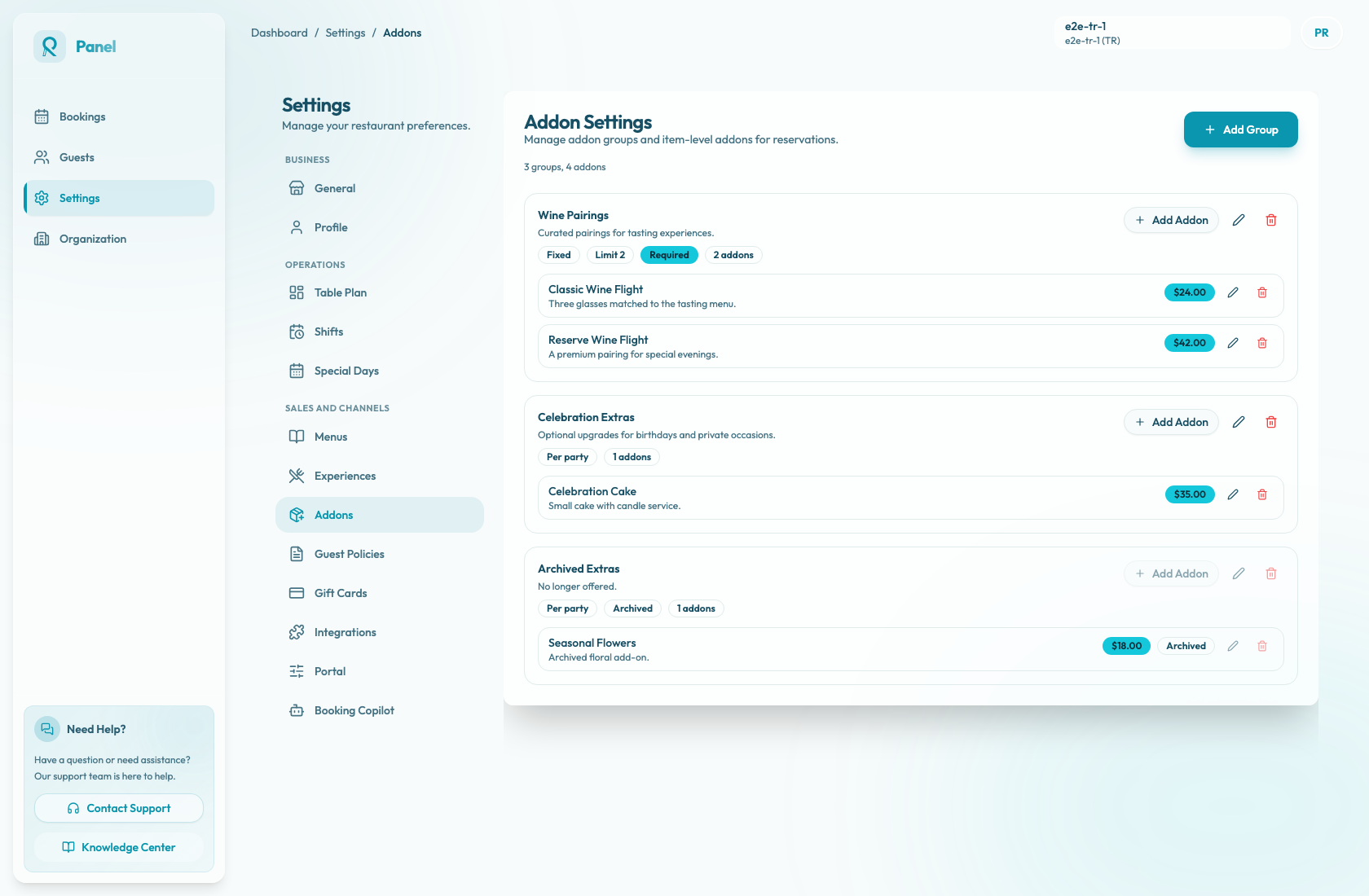
Create a group
- Open Settings / Addons.
- Select Add Group.
- Enter the group name and description.
- Choose the limit type.
- If the limit type is Fixed, choose whether the fixed limit is unlimited or limited.
- If it is limited, enter a value from 1 to 10.
- Decide whether the group is required.
- Save the group.
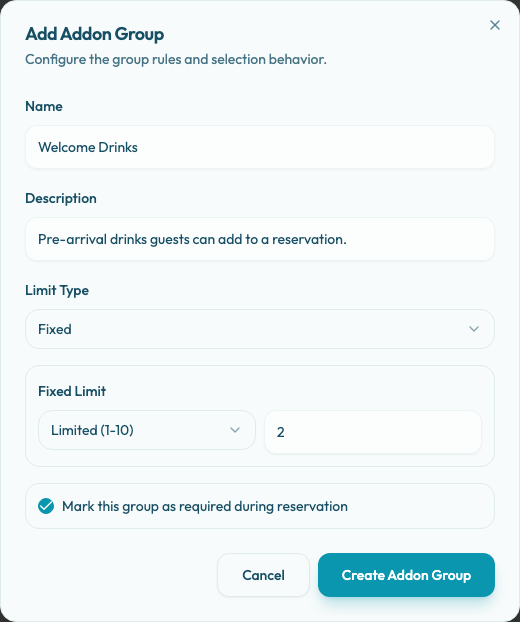
Choose the right selection rule
Use Per party when guests should choose one option for the whole reservation, such as one cake, one room upgrade, or one table decoration.
Use Per cover when the maximum should match the party size. For example, a reservation for four guests can select up to four welcome drinks across the group.
Use Fixed when the group should allow a set number of selections regardless of party size. A fixed group can be unlimited, or limited to a value from 1 to 10.
The guest booking widget shows the group as Required or Optional, shows the limit, and tracks the selected count. For per-party groups, guests select one item. For per-cover and limited fixed groups, guests adjust quantities until the limit is reached. Unlimited fixed groups do not cap the selected count.
Use required groups carefully
When Required is enabled, guests must select at least one item from that group before continuing in the booking widget.
Only make a group required when the team truly needs a choice, such as a menu option or included arrival selection. Do not attach a required group to an experience until the group has at least one active item, because guests cannot satisfy the requirement if the group is empty in public booking.
Name groups for guests
Use names guests understand, such as "Wine Pairings", "Celebration Extras", or "Welcome Drinks". Avoid internal category names.
The group description should explain the purpose of the group. Keep item-specific details in the add-on items themselves.
Add items after creating the group
A group without active add-on items does not offer guests anything to select. After saving the group, add one or more items with names, descriptions, and prices.
Archive old groups or items when they should no longer be offered. Archived groups and archived items are hidden from active booking use, and their edit actions are disabled in the add-on settings list.