Experiences & Add-ons
Create add-on items
Create add-on items inside a group with guest-facing names, optional descriptions, and prices.
What add-on items are
Add-on items are the individual extras guests can select inside an add-on group. Examples include a wine flight, birthday cake, welcome drink, tasting upgrade, or private-room add-on.
Create them from Settings / Addons inside an existing, active group. The group controls the selection rules. The item controls the guest-facing offer, description, and price.
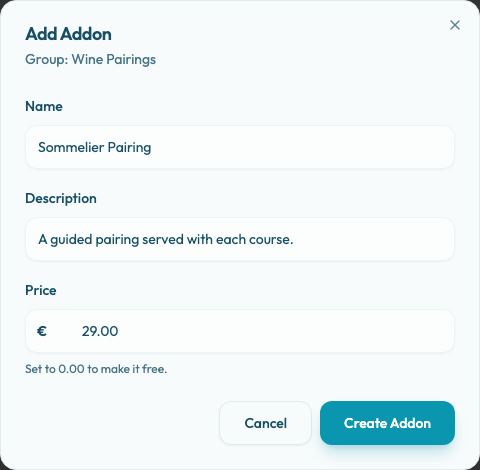
Create an item
- Open Settings / Addons.
- Find the group where the item belongs.
- Choose Add Addon.
- Enter the name, optional description, and price.
- Save the item.
- Attach the group to any experience where guests should see it.
The name is required. The price must use a money format such as 5.00 or 29.00. New add-ons start at 0.00; keep that value only when the restaurant truly wants guests to select the item without extra charge.
Write guest-friendly details
Use the name to make the item easy to scan. Use the description to explain what is included, size, quantity, or limitations.
Avoid vague names like "Upgrade 1". Guests should know what they are adding to the reservation.
Use a distinct name. If another add-on already uses the same name, saving the item is rejected.
Match the group rules
Items inherit the group behavior guests see during booking:
- Per party groups let guests select one item for the reservation.
- Per cover groups let guests increase quantities up to the guest count.
- Fixed groups use the group's fixed or unlimited selection limit.
- Required groups make guests choose at least one item before continuing.
Put items in the group whose rules match fulfillment. For example, a table cake belongs in a per-party group, while a drink pairing usually belongs in a per-cover group.
After saving
Preview the guest booking flow for an experience that has this group attached. Confirm the item appears in the right group, the description reads clearly, the selection control matches the group rules, and the price is correct.
If the item changes, edit it. If the offer is no longer available, archive the item from Settings / Addons instead of reusing it for a different offer.