Experiences & Add-ons
Import a menu with AI
Use AI menu import to upload menu files and create an editable digital menu draft.
What AI menu import does
AI menu import turns an existing menu source into an editable digital menu draft. It can extract the menu name, service label, description, categories, item names, item descriptions, prices, currencies, tags, and allergens for staff review.
AI import does not update a live menu by itself. The result is a Hidden draft that must be reviewed, sent to the menu editor with Use in editor, and saved before it can become public.
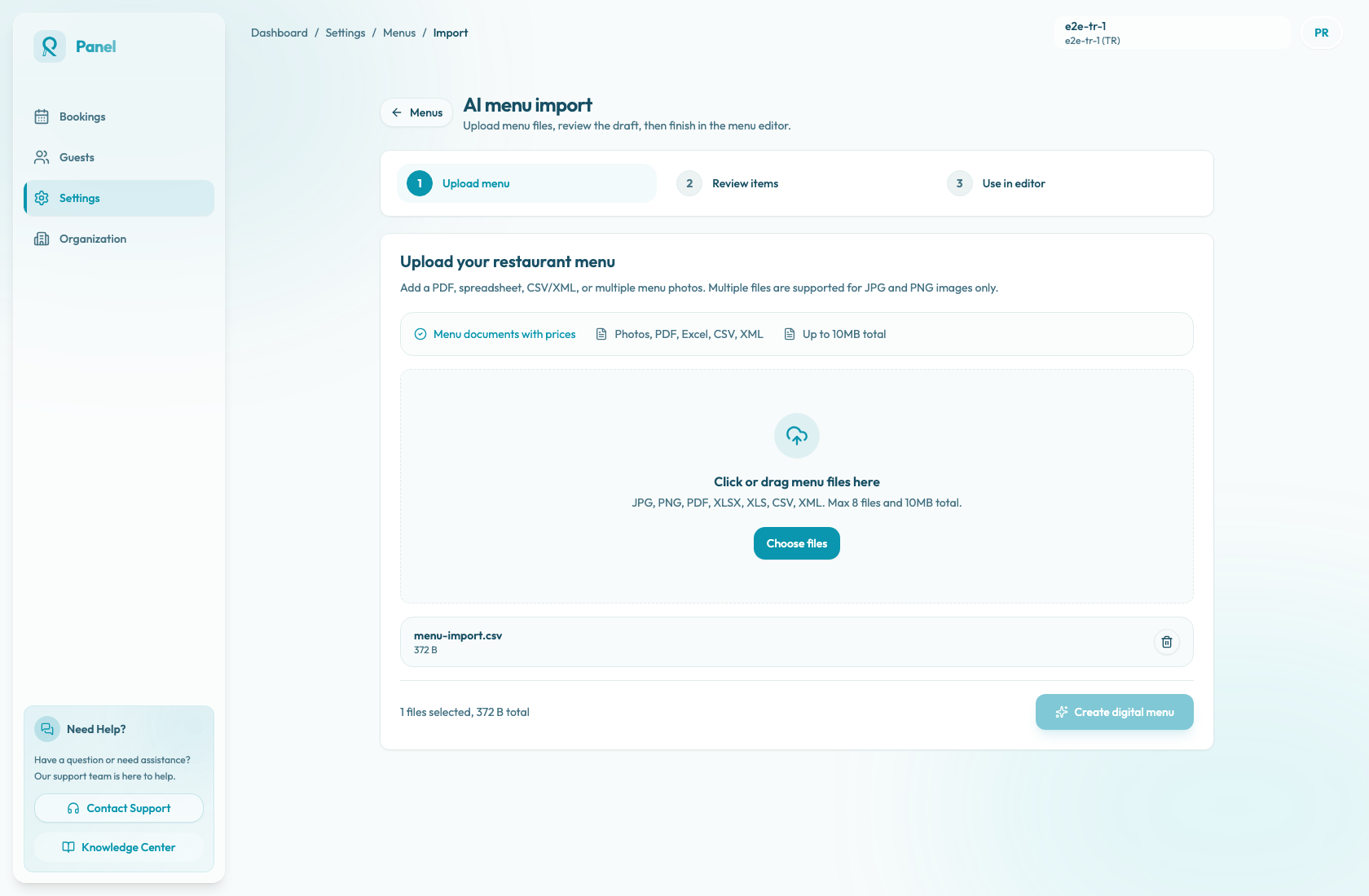
Open Settings / Menus, then choose AI import. This opens the /settings/menus/import page.
Supported files and limits
The upload page accepts these source types:
- JPG or JPEG menu photos
- PNG menu photos
- XLSX or XLS spreadsheets
- CSV
- XML
Each import must include at least one file. You can upload up to 8 files and up to 10 MB total.
A single import can use any supported file type. Multiple-file imports are supported only when every file is a JPG, JPEG, or PNG image. For PDFs, spreadsheets, CSV, or XML, upload one source file per import.
Each restaurant has 5 AI menu imports per month. Selecting files and creating an upload ticket do not consume quota; starting the import after upload does. If the quota is exhausted, Reslify blocks new upload tickets or start attempts until quota is available again. Temporary AI runtime failures can be refunded automatically, but source files that cannot produce a valid draft may still count after the import starts.
Import jobs are temporary. Upload links expire after 10 minutes, and import job records expire after 7 days.
Start an import
- Open Settings / Menus.
- Select AI import.
- Choose Choose files, or drag supported files into the upload area.
- Check the selected file list. Remove a file and choose again if the list is wrong.
- Choose Create digital menu.
- Wait while Reslify creates an upload ticket, uploads each file, starts the AI import job, and polls processing status.
- When the result is ready, review the imported draft on the import page.
- Choose Use in editor only after the draft is ready for deeper editing.
During processing, the page can show these states:
- Uploading: files are being sent to the temporary upload location.
- Queued: the import job has started and is waiting for processing.
- Processing: AI is extracting categories, items, descriptions, and prices.
- Ready: the draft is ready for review.
- Failed: the import could not create a usable draft.
The page checks the job for about 3 minutes. If it is still processing after that, Reslify shows AI import is still processing. Please check again in a moment.
Errors and warnings
The upload step blocks unsupported file types, more than 8 files, more than 10 MB total, and mixed multiple-file imports that include anything other than JPG, JPEG, or PNG images.
An import can also fail if the upload is interrupted, the network drops, the monthly quota is exhausted, the AI provider rejects the file, the import times out, or the AI cannot extract a valid menu. If the page shows Import failed, use Try again with a clearer, smaller, or simpler source file.
Warnings can appear above the draft when Reslify had to make assumptions, such as missing prices, uncertain currency, unreadable sections, skipped rows, XML parsing fallback, or truncation.
What gets generated
AI import generates a menu draft in the Reslify menu shape:
- menu name, description, service label, and Hidden status
- categories in source order
- item names, descriptions, prices, currencies, tags, allergens, availability, and featured state
- warnings for anything uncertain or incomplete
Imported menus are forced to Hidden. If the source has no reliable currency, Reslify uses the restaurant payment currency, or EUR as a fallback. If a price is missing or unreadable, the item is imported with 0 and a warning. The import can include at most 150 items; extra items are skipped with a truncation warning.
Item images are not generated from the imported source. Imported items use no image by default, and item images must be uploaded later in the menu editor.
What to check after import
On the import review page, you can quickly correct Menu name, Service label, Description, category names, item names, and item prices. Then choose Use in editor to load the draft into Menu Management.
The draft is loaded into the editor as an unsaved local menu. Do not reload or leave the editor before choosing Save changes, or the unsaved imported draft can be lost.
Before saving or publishing, verify:
- The active restaurant is the restaurant whose public menu you intend to update.
- Import warnings have been reviewed and resolved where needed.
- Menu name, service label, description, category names, category order, item names, descriptions, and prices are correct.
- Currency, tags, allergens, Available, and Featured values are intentional.
- Missing item images are uploaded where the public menu needs them.
- Status stays Hidden until the menu is ready for guests.
- Save changes succeeds in the editor before anyone checks the public menu.
- The menu is changed to Visible and saved only when it is ready to appear on the public Menu page.