Experiences & Add-ons
Organize menu categories and items
Arrange menu categories and items so guests can scan the public digital menu easily.
Why organization matters
Menu categories and item order shape how guests understand the restaurant before they book. Keep the structure close to how the restaurant presents the menu in service, then publish only menus that are ready for guests.
Use Settings / Menus and select the menu you want to edit.
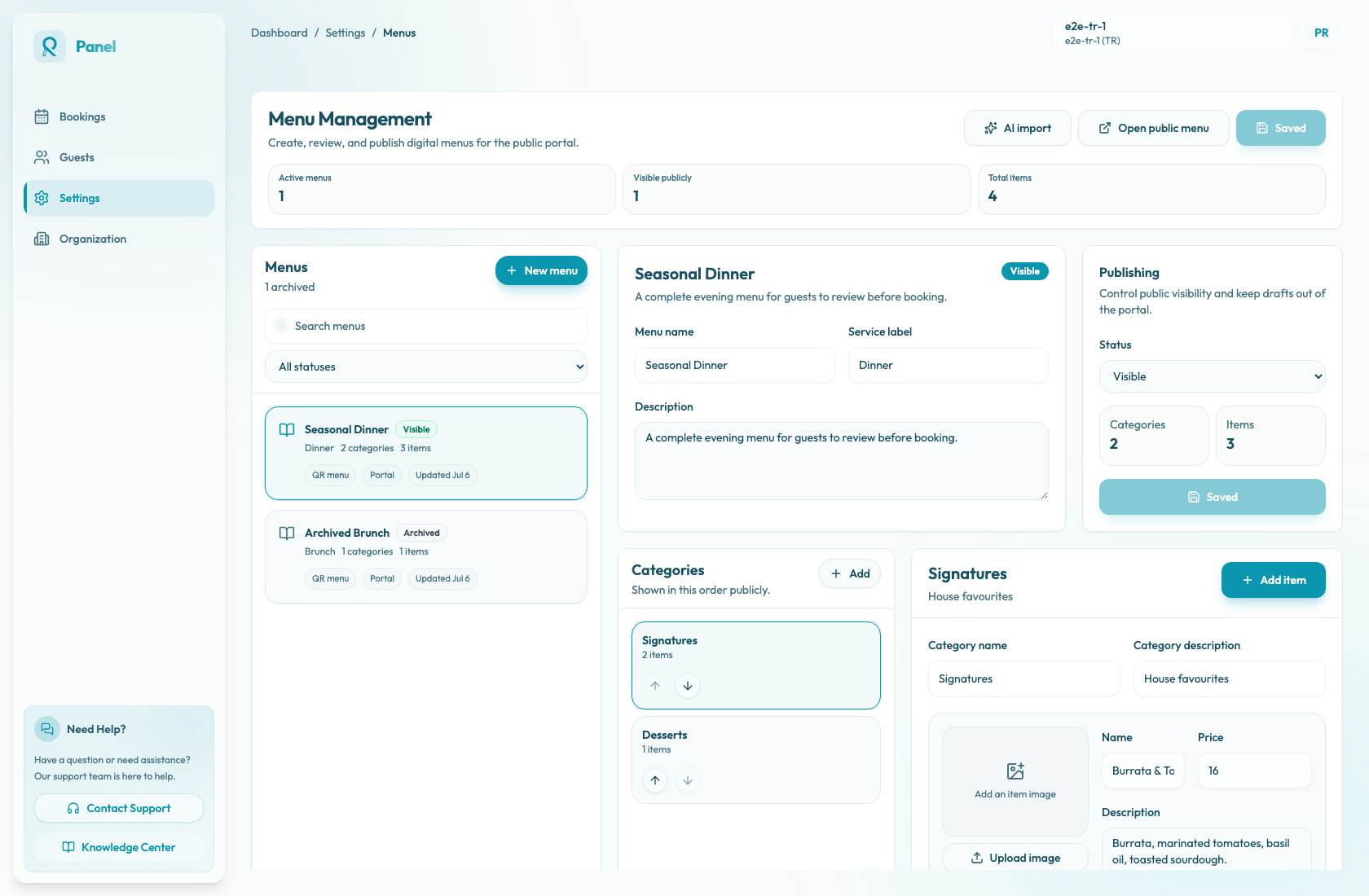
Set the menu status
Open the menu and review Publishing / Status before changing categories or items:
- Visible shows the menu on the public menu page after you save.
- Hidden keeps the menu out of the public portal while you continue editing.
- Archived keeps the menu in the panel for review, but removes it from the public menu page. Archived menus can be selected again in the editor, changed to Hidden or Visible, and saved.
The Active menus count includes Visible and Hidden menus. Visible publicly counts only menus guests can see. The public portal never lists Hidden or Archived menus.
Organize categories
Use categories for natural sections such as Signatures, Starters, Mains, Desserts, Drinks, or Brunch. Select a category to edit its Category name and Category description.
Use the up and down controls on category cards to set the public order. The first category in the panel is the first category tab and section on the public menu.
Keep category names short. Add a description only when it helps guests understand the section. Avoid publishing empty categories: the category can still appear in the public category tabs, but there is no item section for guests to review.
Edit items
Select a category, then use Add item to create a new item in that category. Items stay inside their current category; to move an item to a different category, create it in the target category and delete the old item.
For each item, review these guest-facing fields:
- Name: the public item name.
- Price: the decimal amount shown with the item's saved currency.
- Description: ingredients, preparation, or other guest-facing detail.
- Tags: comma-separated labels such as Vegetarian, Popular, or Vegan.
- Allergens: comma-separated allergen labels. The public menu displays each one with a "Contains ..." label.
- Available: keeps the item visible, but marks it as "Temporarily unavailable" when switched off.
- Featured: can place the item in the public featured area when the item is also available and has an image. The portal shows up to three featured items.
- Image: an optional menu item photo. Use Upload image for PNG, JPG, JPEG, or WebP files up to 10 MB.
Use the up and down controls on item cards to set the item order inside the category. Use the delete control only when the item should be removed from the menu; there is no separate item archive state.
Save and preview
After organizing the menu, choose Save changes. Then choose Open public menu and verify the guest-facing result.
Check that:
- only Visible menus appear in the public menu selector.
- category tabs and sections appear in the intended order.
- items appear in the intended order inside each category.
- menu description, service label, category descriptions, prices, tags, allergens, availability labels, images, and featured items look right.
- search finds items by name, description, tags, or allergens.
- the layout is easy to scan on desktop and mobile.