Experiences & Add-ons
Review an AI menu import draft
Review and correct an AI-imported menu draft before saving it as a public digital menu.
Why review is required
AI import speeds up menu creation, but the draft still needs human review. The restaurant is responsible for the final public menu, especially prices, allergens, item names, and availability.
After choosing Use in editor, the imported draft opens in Menu Management as a new unsaved menu. It is selected automatically, appears at the top of the menu list, and defaults to Hidden so guests cannot see it yet.
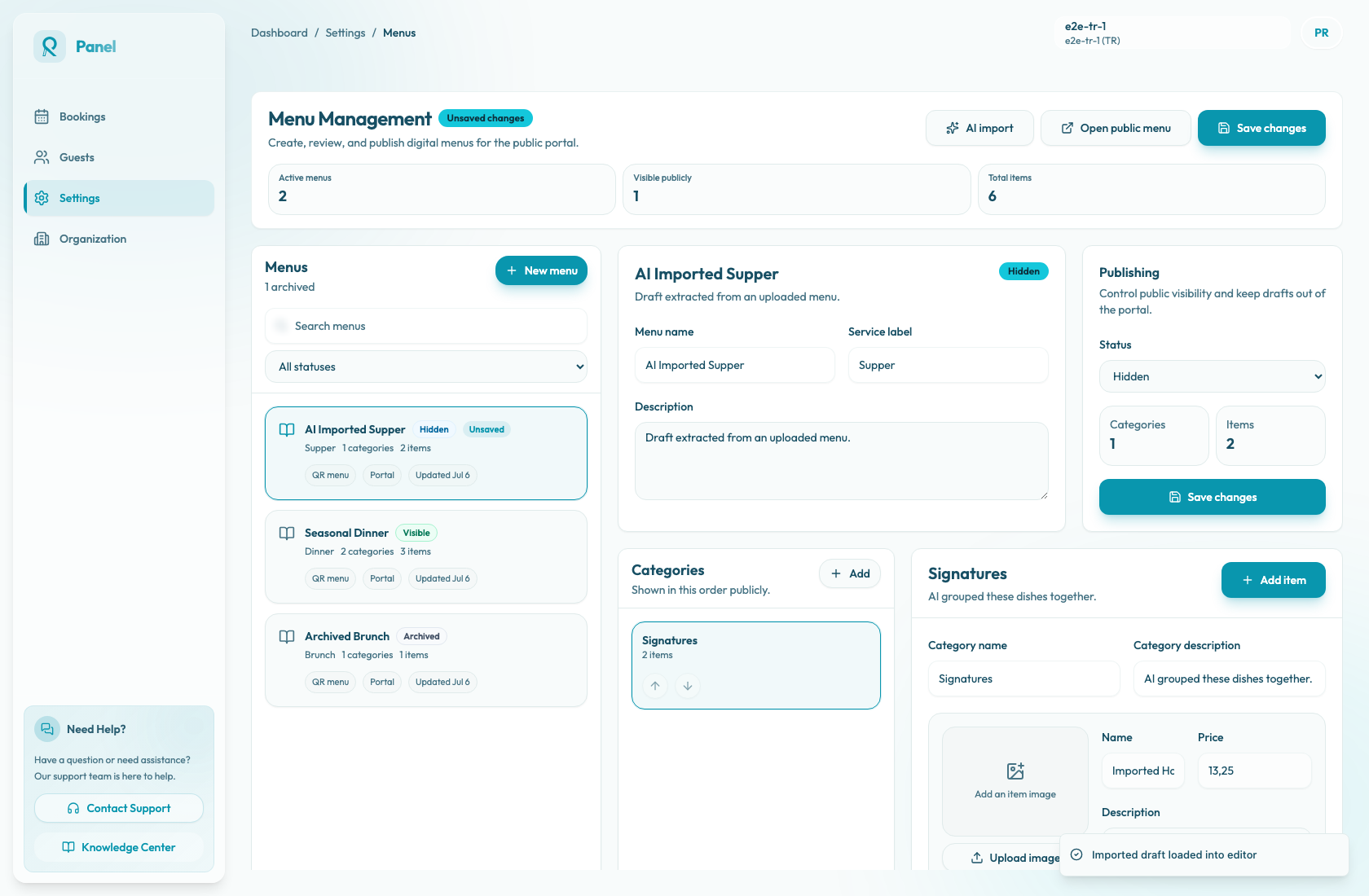
The draft is only in the editor until Save changes succeeds. The editor shows Unsaved changes at the top and an Unsaved badge on the imported menu. Save before closing or reloading the page.
Review the draft
Check the menu-level details first:
- menu name
- service label
- description
- status, which should usually remain Hidden during review
Then review each category and item:
- category names and order
- category descriptions
- item names
- descriptions
- prices
- allergens
- tags
- Available and Featured settings
- item order inside each category
Correct anything that looks uncertain. Imported text may be close but still wrong. Delete duplicate items, move items into the right categories, and use the up or down controls to match the source menu order that guests should see.
Add images separately
AI import does not extract item images from uploaded menu files. Imported items start without public images, even if the source was a menu photo.
Add item images in the menu editor with Upload image. Menu item images use the normal image upload flow and support PNG, JPEG, and WEBP files up to 10MB each. Public featured cards only appear for items that are Featured, Available, and have an uploaded image.
Save and publish
After correcting the draft:
- Choose Save changes.
- If saving fails, fix the validation issue and save again. A menu needs a menu name and service label; each category and item needs a name; prices cannot be negative; a Visible menu needs at least one category; each menu can include up to 150 items.
- Reload Menu Management and confirm the saved menu persists.
- When the menu is ready for guests, change the status from Hidden to Visible.
- Choose Save changes again.
Only Visible menus appear on the public menu page. Hidden and Archived menus stay out of the guest-facing portal.
Verify the public menu
Use Open public menu after publishing. On desktop and mobile, confirm that:
- the menu appears in the public menu selector
- category tabs and category sections follow the saved order
- item order, names, prices, and descriptions match the reviewed draft
- tags and allergen chips are correct, including Contains labels for allergens
- unavailable items show as Temporarily unavailable
- uploaded images display correctly
- Hidden or Archived menus are not visible