Guest Management
Add a guest profile
Add a saved guest profile from the Reslify Guests page and understand the required fields, validation, and save result.
When to add a profile
Add a guest profile from Guests when the restaurant wants to save a guest before creating a reservation, correct a guest list manually, or prepare contact details for front desk use.
Open Guests and select Add Guest.
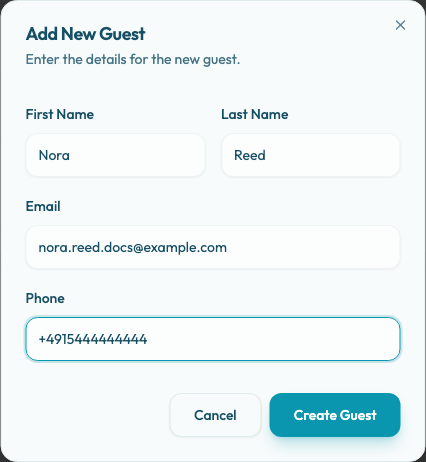
Complete the required fields
In Add New Guest, fill the fields your team needs for service.
- Last Name is required.
- First Name is optional.
- Email is optional, but must be a valid email address if entered.
- Phone is optional, but must be a valid phone number if entered.
Reslify trims extra spaces before saving. Phone numbers are validated and normalized using the restaurant country from the profile address, so use the number format your team expects to use during service.
This dialog does not capture guest notes. It saves the profile with name, optional email, optional normalized phone, and no notes.
Avoid duplicates
Before creating a profile, search by name, email, or phone. If the guest already exists, edit the existing profile instead.
The dialog also checks the loaded guest list for duplicate email addresses. If the email is already used, Reslify shows Guest with this email already exists. and the profile is not created.
Duplicate guest profiles make it harder to select the correct person during reservation intake and can split contact history across multiple records. The duplicate email warning is based on guests already loaded in the panel.
Save the profile
Select Create Guest after reviewing the details. While Reslify saves, the button changes to Creating... and the dialog stays open.
When the save succeeds, Reslify adds the new guest to the Guests list on the page and shows a success toast. The profile then becomes available in reservation intake.
If restaurant context is missing or the save fails, Reslify shows an error toast and the profile is not added.