Guest Management
Edit guest contact details
Update saved guest names, email addresses, and phone numbers from the Reslify Guests page.
Open the edit dialog
Use Guests when a saved guest profile needs a corrected First Name, Last Name, Email, or Phone. This guide covers the guest list edit flow; manual reservation intake also lets staff edit the selected guest before confirming, but that flow saves from the reservation wizard.
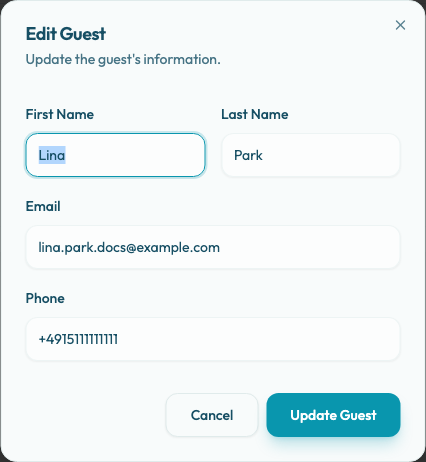
Find the guest, open the row action menu, and select Edit Details. The Edit Guest dialog opens with the guest's existing first name, last name, email, and phone values already filled in.
What can be changed
You can update the first name, last name, email address, and phone number. First name can be left blank, but last name is required.
Email is optional, but it must be a valid email address when entered. When changing email addresses, make sure the new email is not already used by another loaded guest profile. Reslify ignores the guest you are currently editing during this duplicate check, so leaving that guest's existing email unchanged is allowed.
Phone is optional, but it must be valid for the restaurant's country when entered.
This Edit Guest dialog does not include a notes field. Use it only for contact details, not for adding, reviewing, or managing guest notes captured during reservation workflows.
Save accurate contact details
Use the guest's current contact information. Accurate details help the team identify the guest during phone calls, reservation intake, service preparation, and follow-up.
If the restaurant does not have one contact method, leave it blank instead of entering placeholder text.
Select Update Guest to save the change, or Cancel to close the dialog without saving. While the update is being saved, the button changes to Updating....
Confirm the result
After a successful save, Reslify updates the guest row in the list and shows a success toast. Return to the guest list and verify that the row displays the updated contact details.
If the guest was deleted or changed by another session before your save completes, Reslify shows an error toast. Refresh the list, reopen the guest, and apply the change again if it is still needed.