Guest Management
Guests page overview
Understand how the Guests page helps restaurant teams manage saved guest profiles and contact information.
What the Guests page is for
The Guests page is the restaurant team's operational contact directory for saved guest profiles. Use it to review loaded guests, search by identity or contact details, add new profiles, edit saved details, and delete records that should no longer be used.
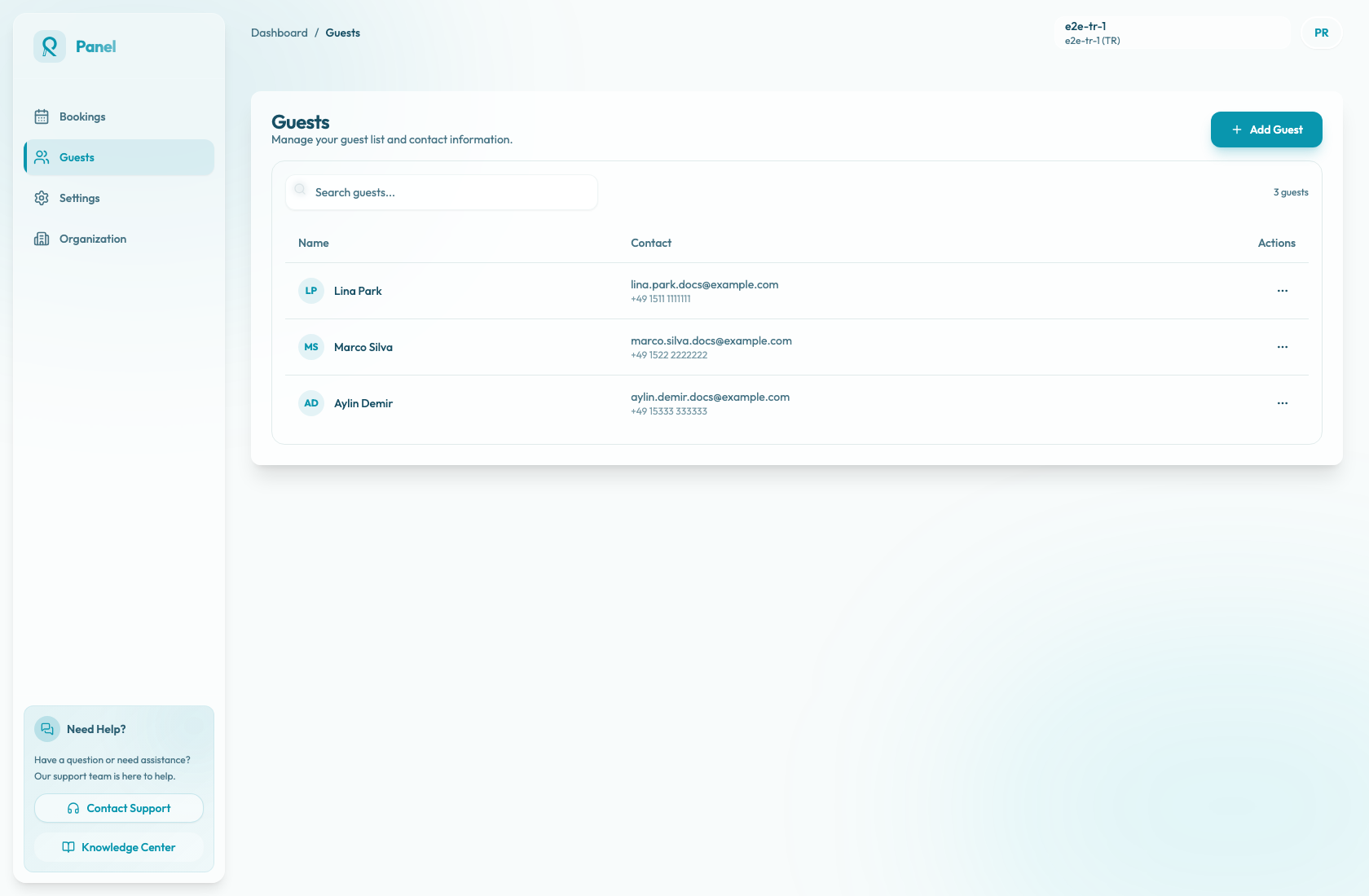
How the page is organized
The top of the page shows the Guests title, a short description, and the Add Guest action. The list area includes the Search guests... field, the total guest count, and a table of saved guests.
The count shows the total number of guests loaded for the restaurant. It does not shrink when a search term filters the visible rows.
What each row shows
The table is organized into Name, Contact, and Actions columns. Each row shows the guest's initials, full name, email address or No email, formatted phone number or No phone, and an action menu.
Use Edit Details to update the saved name, email, or phone. Use Delete Guest only when the profile should be removed from the restaurant's records.
When to use this page
Use the Guests page when the team needs to correct contact details, prepare for service, clean up duplicate records, or add a profile before taking a reservation.
For reservation-specific work, the same guest records are available from the manual reservation intake flow. That means the team can maintain guests ahead of time here, or select/create guests while building a booking when the team is already inside the reservation workflow.
Guest profile notes can exist from reservation flows, but the Guests page list and edit dialog do not currently show or edit those notes.
Keep the list clean
Search before creating a new guest. The search runs in the browser across the loaded guest's first name, last name, email, and phone number. If a guest already exists, update the existing profile instead of creating another one.