Guest Management
Create guest policies
Create booking terms in Settings / Guest Policies and understand how Save updates the terms guests accept.
What guest policies are
Guest policies are guest-facing terms shown during booking. Restaurants can use them for arrival expectations, cancellation language, allergy notices, large-party terms, service charge notes, or other rules guests should understand before reserving.
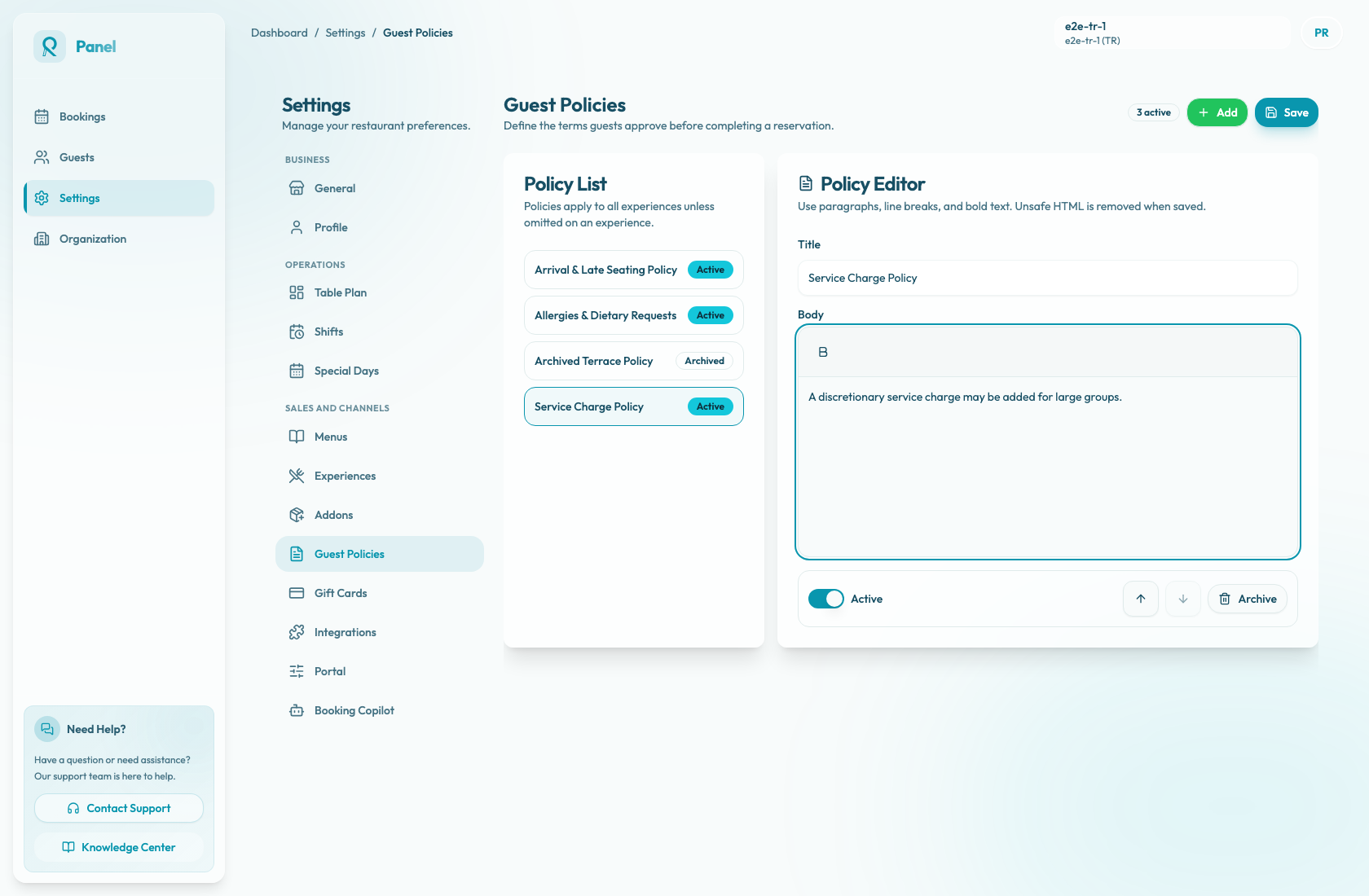
Create and edit policies in Settings / Guest Policies. The page is organized into Policy List and Policy Editor areas, with fields for Title, Body, and whether the policy is Active or Archived.
Add a policy
- Open Settings / Guest Policies.
- Select Add.
- Review the new unsaved policy in Policy List. It starts with an empty Title, an empty Body, and Active on.
- Enter a clear Title.
- Write the Body in the rich text editor.
- Keep Active on if this policy should be shown to guests.
- Select Save.
- Confirm the success toast: Guest policies saved / Portal terms were updated.
Save and validation
Save sends the full ordered policy list, not only the policy currently open in Policy Editor. Before saving, review any new policies, order changes, Active changes, Archive actions, or Reactivate actions that are already in the list.
The server requires both Title and Body after sanitization. If either field is blank, or becomes blank after unsupported markup is removed, the save fails and the panel shows Failed to save guest policies.
The rich text editor supports constrained WYSIWYG formatting: paragraphs, line breaks, and bold text. Unsafe HTML is removed when saved, and bold text is stored as safe rich text.
Write policy text clearly
Use plain language that a guest can understand before booking. Avoid internal shorthand.
Good titles are specific: "Arrival & Late Seating Policy", "Allergies & Dietary Requests", or "Large Party Service Charge". The body should explain what the guest is accepting and what the restaurant expects.
How policies apply
Active policies apply during booking unless a specific experience omits a policy from its Guest Policies tab. This lets the restaurant keep shared policies in one place while tailoring individual experiences when needed.
When guests accept a policy during reservation, Reslify validates the saved title, body, and content version for that policy. Reservations keep an acceptance snapshot, so edits you save later apply to future acceptances rather than rewriting what an earlier guest accepted.