Guest Management
Order and archive guest policies
Control the order of guest-facing policies and archive policies that should no longer appear to guests.
Why policy order matters
Policies are easier for guests to understand when the most important terms appear first. Put broad house rules, arrival expectations, or payment-related terms ahead of narrow seasonal notes.
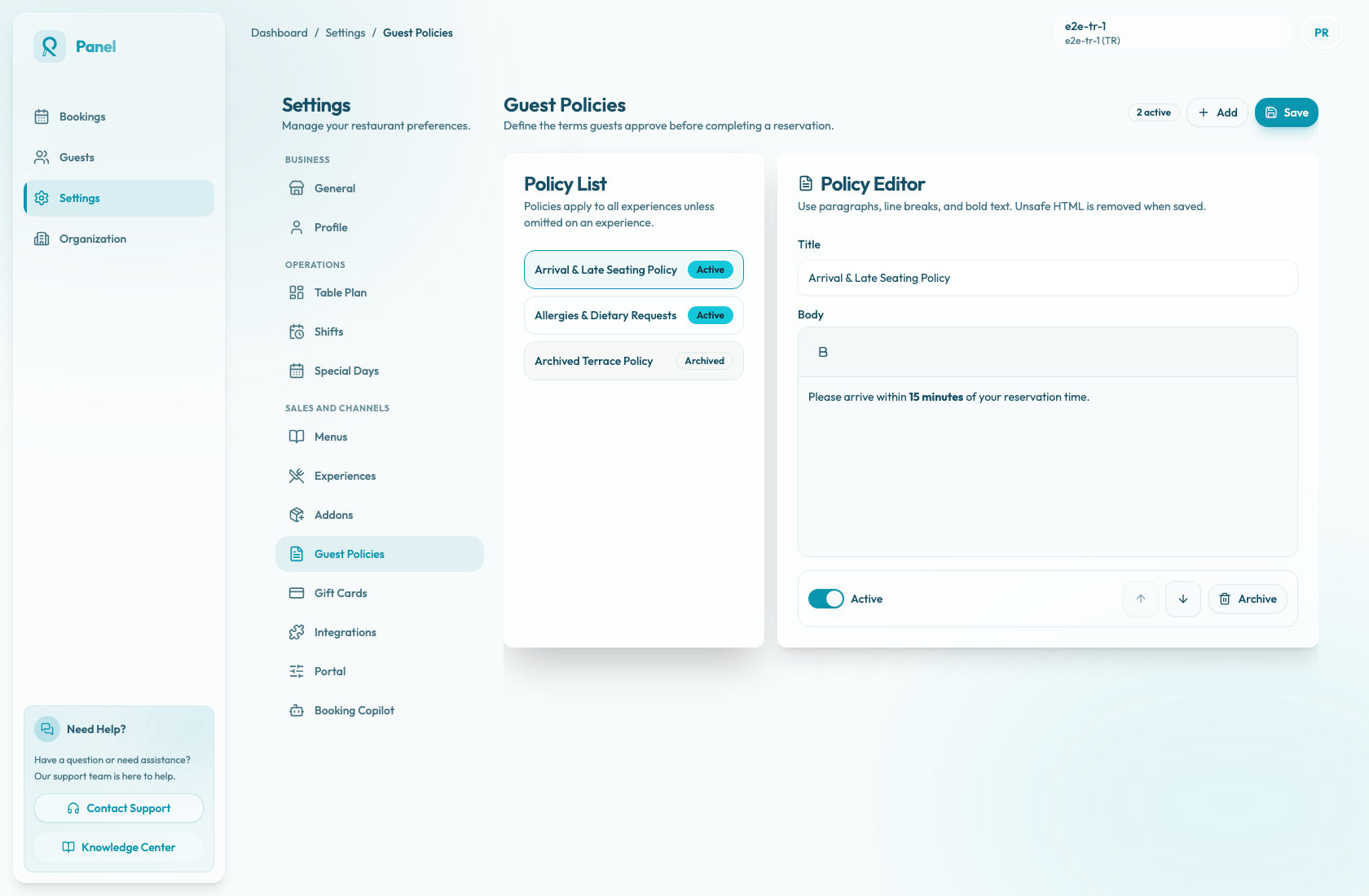
Use Settings / Guest Policies to reorder and archive policies. The Policy List shows every current policy in its saved order, including policies marked Active and Archived.
Before you change the list
Active policies apply during booking unless they are omitted on an experience's Guest Policies tab. Archived policies do not need guest acceptance and should not appear as active guest-facing terms.
The header badge counts active policies only. Archived policies still remain in Policy List so staff can review or reactivate them later.
Changes are drafts until you choose Save. Saving sends the full ordered policy array, so order changes, archive status changes, and text edits are committed together.
Reorder policies
Select a policy from Policy List, then use the up and down icon buttons in Policy Editor. The top policy cannot move up, and the bottom policy cannot move down.
Choose Save after arranging the list.
Keep related policies near each other. For example, place arrival and late seating terms near cancellation or payment terms if guests need to understand them together.
Archive a policy
Archive a policy when it should no longer appear to guests but the restaurant wants to keep it available for reference. Select the policy, then choose Archive.
Archive and reactivate both toggle the policy's active state. There is no separate delete button on this page.
Choose Save to persist the archived state.
Reactivate a policy
If a policy becomes relevant again, select the Archived policy and choose Reactivate. Review the title and body before saving, especially if the policy refers to seasonal rules or old pricing.
The Add button creates a new active draft policy. Add a title and body, then choose Save before expecting it to apply to bookings.
What happens after save
When policies are saved, Reslify requires a title and body, removes unsafe rich text, preserves or assigns policy IDs, and updates the content version when the title or body changes.
Future bookings use the saved order of active policies, except for policies omitted on a specific experience. Existing reservations keep the guest policy snapshot that was accepted at booking time, including the title, body, version, accepted time, and locale. Reordering or archiving later does not rewrite those historical accepted snapshots.