Guest Management
Select or create a guest during reservation intake
Use Guest Selection in Quick Reservation Intake to attach an existing guest or create a draft guest before confirming a manual reservation.
Where guest selection appears
Guest selection appears in New Reservation inside the Quick Reservation Intake sheet. The Guest Selection section comes after the team sets the reservation context: date, party size, experience, and slot. This keeps the guest decision tied to the exact booking the team is creating.
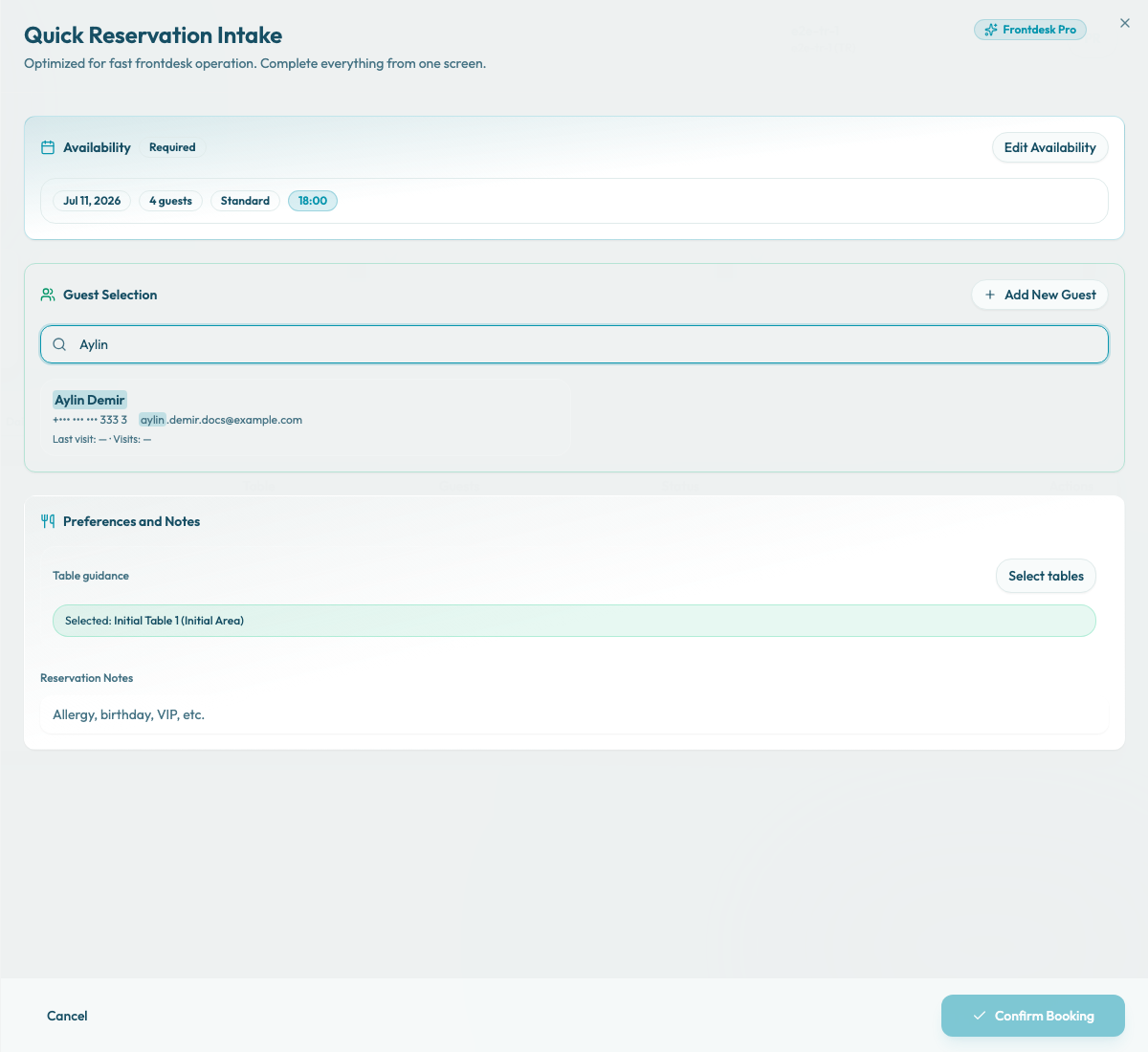
Select an existing guest
In Guest Selection, use Search by name, email or phone.... Before a query is entered, Reslify shows Start typing to find an existing guest.
Search starts after at least 2 characters. Reslify detects the primary field from what the team types, then searches that field plus email, first name, last name, and phone. It removes duplicate matches and returns up to 20 guests.
If no result matches, the section shows No guest found. Use Add New Guest to create one. Try a likely spelling, email fragment, or phone fragment before deciding the guest is new.
When the correct result appears, select it. The guest becomes attached to the draft reservation.
Use the existing profile whenever possible. This keeps guest records cleaner and helps the team recognize returning guests in later workflows.
Review the selected guest
After selection, Reslify shows the selected guest card with the guest name, masked phone number or No phone, email address or No email, visit metadata, and a Selected badge.
Use Edit Guest if the intake details need correction before confirmation. Use Select Different Guest to clear the selection and return to search.
Create a guest from the intake sheet
If no saved profile matches, select Add New Guest. Reslify opens create mode with First Name, Last Name, Email, and Phone fields.
In this wizard, both first name and last name are required before Save Guest becomes available. Email is optional. Phone is optional, but if the team enters one, Reslify validates and normalizes it using the restaurant country.
This intake form does not block duplicate email addresses in the client. To avoid duplicates, search first and select the existing guest when one matches.
Select Back to Search to return without saving the create/edit form.
Save the intake guest
Select Save Guest to create a draft guest inside the reservation wizard. The draft guest is available for this reservation before the booking is confirmed.
If the team edits the selected draft or created guest, Save Changes updates that wizard-state guest before confirmation.
This flow is different from adding a saved profile directly on the Guests page. The standalone Guests page is for maintaining guest records outside an active booking. In reservation intake, the guest details are finalized with the booking.
Continue the reservation
After selecting an existing guest or saving a draft guest, continue with table guidance and reservation notes. Confirm the booking only after the guest, availability, table, and operational notes are correct.
When the team selects an existing guest, Confirm Booking sends that guest's saved identifier with the reservation. When the team creates a draft guest in the wizard, Confirm Booking sends the guest details without a saved guest identifier. During reservation creation, Reslify's server-side guest sync matches by saved identifier when present, then by phone, then by email; if a draft only has name fields, those details stay attached to the reservation without a reusable phone or email match.