Payments & Revenue Protection
Charge a no-show or late-cancel fee
Use a saved card guarantee to charge a configured fee after a guest no-shows or cancels late.
Before you charge
This guide is for charging a saved card guarantee after a no-show or eligible late cancellation. It is not the paid-commitment settlement flow for deposit or prepaid reservations.
A cancellation fee can only be charged when the reservation has a card guarantee, the guarantee status is CHARGE_PENDING or CHARGE_FAILED, and the accepted policy charge window has not expired. The guest must have saved a card during booking, and the accepted policy must allow the reason you are charging.
Open the reservation from Bookings, then review the reservation details sidebar.
How the guarantee becomes chargeable
For a no-show, staff first marks the reservation NO_SHOW. If the accepted policy applies to no-shows, the card guarantee moves to charge pending. Reslify still blocks the charge until the configured No-show grace minutes has elapsed.
For a late cancellation, the guest must cancel through the guest reservation flow after the accepted Late cancellation cutoff. If the accepted policy applies to late cancellation, the card guarantee moves to charge pending. If staff cancels the reservation as a merchant cancellation, an active guarantee is released instead.
Charge the saved card
- Open Bookings.
- Find the reservation.
- Open the reservation details sidebar.
- Review the reservation timeline, guest communication, accepted terms, reservation status, and charge window.
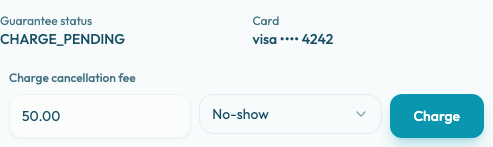
- Confirm Guarantee status and Card.
- Under Charge cancellation fee, confirm or lower the Cancellation fee charge amount.
- Choose the charge reason, No-show or Late cancellation.
- Select Charge.
- Look for the Cancellation fee charged success toast, then review Charge attempts.
Do not charge from memory. Confirm the reason matches what happened before submitting the fee.
What the amount and reason mean
The default amount comes from the accepted policy fee amount. The amount must be greater than zero and cannot exceed the maximum fee the guest accepted. If the restaurant chooses to charge less, enter the lower amount before selecting Charge.
The accepted policy snapshot protects consistency even if the experience policy has changed since the guest booked.
The reason dropdown only includes reasons allowed by the accepted policy. A no-show-only policy shows No-show; a late-cancellation-only policy shows Late cancellation; a policy that applies to both can show both.
After the attempt
After a successful charge, the guarantee status updates and the attempt appears in Charge attempts. Each attempt shows status, amount, reason, payment intent id when present, and failure message when present. If the charge fails, the panel shows Failed to charge cancellation fee. Provider charge failures are recorded and can be retried while the guarantee is still eligible.
The reservation remains available for review, and the refund action may become available for the charged amount.