Reservations & Availability
Accept or reject reservation requests
Review pending reservation requests, verify the guest and requested slot, then accept or reject the request from the review sidebar.
When requests appear
Reservation requests appear when an experience requires merchant approval instead of confirming automatically. Guests can still request an available time, but the restaurant decides whether to accept it.
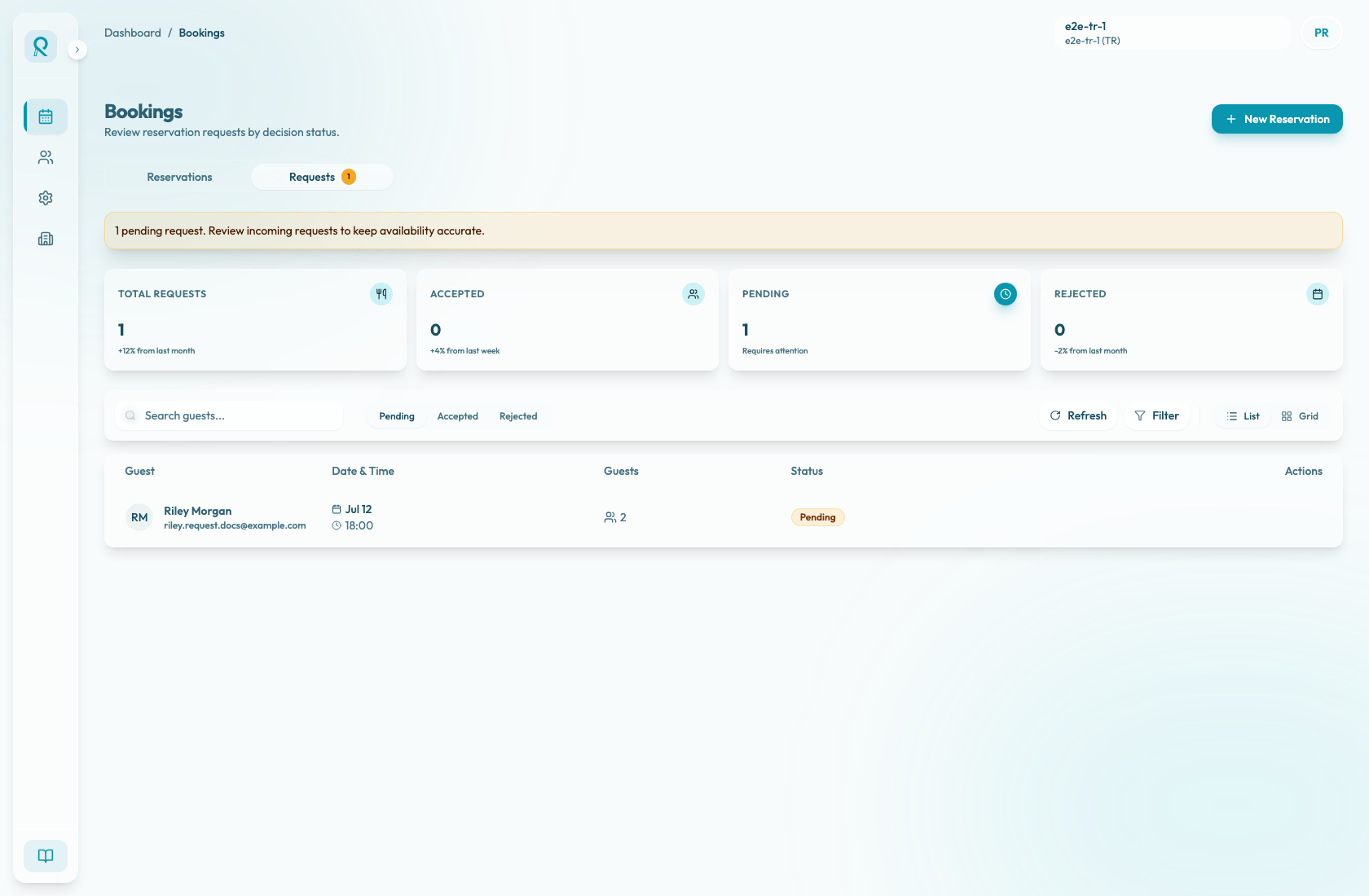
Use the Requests tab in Bookings to review these incoming requests separately from confirmed reservations. The tab badge shows how many requests need attention.
The Requests tab opens on Pending requests. Use the request status control to switch between Pending, Accepted, and Rejected when you need to review decisions. The request feed looks back seven days and continues forward, so use it for current and recent approval work rather than as a full historical export.
Review the request
Open the request details before taking action. The row is useful for finding the guest, date and time, party size, and status, but the full review context is in the sidebar.
Confirm the request status, request source, guest name, date, time, duration, party size, experience, area, and table assignment. The sidebar also shows the guest ID, phone, email, saved guest profile note, and the guest note submitted with the request when those details exist.
Read the guest note and contact information. If the request is close to service time or needs a special seating decision, use the note and contact details to decide whether the team should follow up before accepting.
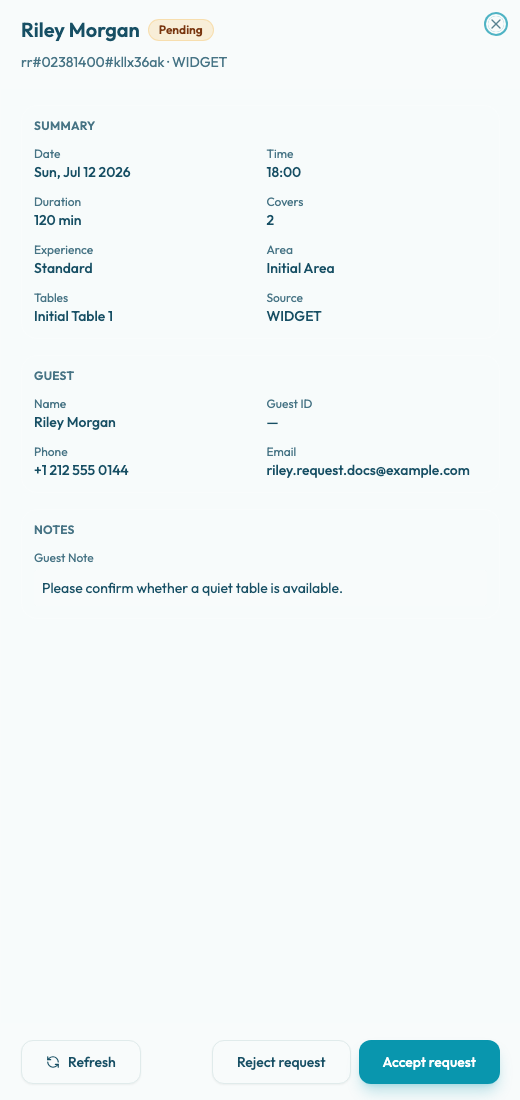
Use Refresh in the toolbar or in the sidebar if another teammate may have changed the request. Refresh reloads reservations, the visible request list, and the pending request badge.
Accept a request
Accept the request when the restaurant can honor the requested time, party size, experience, and seating. Select Accept request from the sidebar. After acceptance, Reslify confirms the request, shows a success message, closes the sidebar, and removes the request from the Pending filter.
Use the Accepted filter when you need to review recently accepted request outcomes. Accepted requests no longer show accept or reject actions in the sidebar.
Before accepting, check whether the table assignment still makes operational sense. If the dining room has changed since the guest submitted the request, refresh the list first and confirm the request is still pending.
Reject a request
Reject the request when the restaurant cannot accommodate it, should not approve the request, or needs the guest to choose a different time.
Make the rejection decision from the request sidebar after verifying that you have opened the correct guest and date. Select Reject request to reject it. After rejection, Reslify shows a success message, closes the sidebar, and removes the request from the Pending filter.
Use the Rejected filter when you need to review recently rejected request outcomes. Rejected requests should no longer be treated as expected covers for service and no longer show accept or reject actions.