Reservations & Availability
Configure reservation availability
Understand the building blocks that make reservation slots available: tables, combinations, shifts, experiences, capacity, and special days.
What creates availability
Reservation availability is calculated from the restaurant's table plan, experiences, shifts, capacity controls, special days, and existing reservations. A guest-facing slot appears only when all of these are true:
- the experience is active and its reservation rules allow the requested party size, date, and time
- the date is covered by a weekly shift or a special-day shift calendar
- that shift assigns at least one table to the selected experience
- the assigned table or a valid table combination can fit the party size and duration
- capacity control still leaves capacity for that restaurant, area, or interval
- no special-day closure or existing booking blocks the date and time
Use this guide as the map before troubleshooting missing slots. Most availability issues are caused by one of these building blocks being incomplete, mismatched, or configured in the wrong order.
Build the foundation first
Table Plan
Start in Table Plan. Create each area, then add tables with the correct minimum and maximum capacity. If the team seats larger parties by joining tables, add those as Combinations.
A combination is usable for availability only when every table in that combination is also selected for the experience inside the relevant shift. Creating the combination is the first step; assigning those tables in shift availability is what makes it available for booking.
If a table allows multiple parties at the same time, enable Overbooking Enabled on that table intentionally. The table will be marked as overbookable in the availability selector.
Experience Settings
Then review Experience Settings. The Reservation Rules section controls whether the guest's request is eligible before table capacity is checked:
- Min Guests and Max Guests define the party-size range.
- Min Notice blocks bookings that are too soon.
- Max Notice blocks bookings too far in the future.
- Booking Gap adds spacing between reservations for that experience.
- Automatically approve reservations changes approval behavior, but it does not create capacity by itself.
Archived experiences are hidden from active booking flows, so keep bookable experiences active before you troubleshoot shifts.
General Booking Interval
In General Settings, Reservation Settings includes the Booking Interval. This controls the cadence of generated times, such as every 15 minutes or every 30 minutes. It does not create service hours on its own; it only controls how available times are spaced inside configured shifts.
Configure weekly shifts
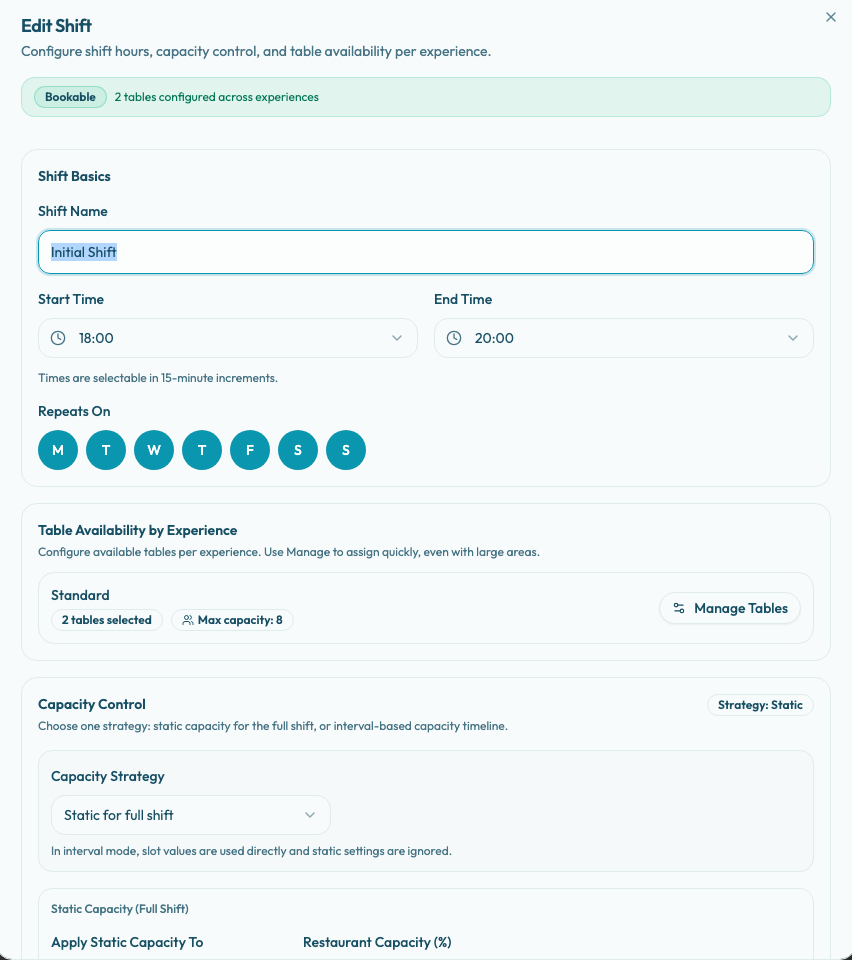
Open Shift Settings and create the weekly service windows. A shift needs a name, a start time, an end time, and at least one repeat day. Shift times are selected in 15-minute increments, and shifts cannot overlap another shift on the same weekday.
Saving a shift does not automatically make it bookable. The shift becomes bookable only after Table Availability by Experience has at least one table selected for at least one experience.
Use Manage Tables on each experience row to assign inventory:
- search by table name when an area is large
- filter by area to focus the list
- use Add visible or Clear visible for the current filtered view
- use Add all or Clear area for one area
- check or uncheck individual tables for precise control
The row shows how many tables are selected and the Max capacity total for those selected tables. If an experience has no selected tables, it is marked Not bookable for that shift.
Choose capacity control
Use Capacity Control to reduce or shape the capacity exposed by a shift. Table assignment decides which tables can be used; capacity control decides how much of that inventory is allowed.
Static for full shift applies one percentage across the shift. You can apply it to the Whole restaurant or to Specific areas.
Interval-based timeline applies percentages by time block. Choose 15, 30, or 60 minute granularity, then target either the Whole restaurant or one Specific area. In interval mode, the interval values are used directly and static settings are ignored.
Use 100% for normal availability, lower percentages to hold back inventory, and 0% to block capacity for that target. If the shift time range is invalid, interval capacity cannot be configured until the time range is fixed.
Add special-day overrides
Use Special Days for holidays, closures, private events, and date-range-specific service calendars.
Choose Closed for the date range when no bookings should be accepted during the selected dates. Closed special days do not use weekly shifts.
Choose Use a special shift calendar when the restaurant is open, but the normal weekly schedule should be replaced for those dates. Add at least one special shift, then configure that special shift with its own name, time range, table availability, and capacity control. Special-day shifts use the same table-availability and capacity rules as weekly shifts.
When a date falls inside a special-day range, the special-day shifts are used instead of the normal weekly shifts. If the special day has no configured shifts because it is closed, guests will not see availability for that range.
Troubleshoot a missing slot
Check the settings in this order:
- Table Plan has the needed area, tables, capacities, and combinations.
- Every table in a needed combination is selected for the experience in the relevant shift.
- Experience Settings allows the party size, notice window, booking gap, and duration.
- Booking Interval generates the time the guest expects to see.
- Shift Settings has a shift on that weekday, with a valid start and end time.
- Table Availability by Experience has selected tables for the exact experience.
- Capacity Control is not reducing the restaurant, area, or interval to zero.
- Special Days is not closing the date or replacing the weekly shift with an unconfigured special shift.
- Existing reservations or blocked availability are not already consuming the relevant tables.