Reservations & Availability
Use the daily bookings view
Use the daily list view to run service from the selected day's reservations, visible guest details, statuses, times, tables, and request review tools.
When to use the daily view
Use the daily bookings view when the team needs a practical reservation list for one service day. This is the fastest view for answering guest calls, checking arrival order, reviewing table assignments, and opening a reservation for more detail.
In the Reservations tab, Daily plus the date picker loads reservations from the selected date. Use Monthly for a calendar overview, then select a day to return to the daily list.
The Requests tab is separate from the selected-day reservation list. It filters reservation requests by Pending, Accepted, or Rejected and is not controlled by the daily date picker.
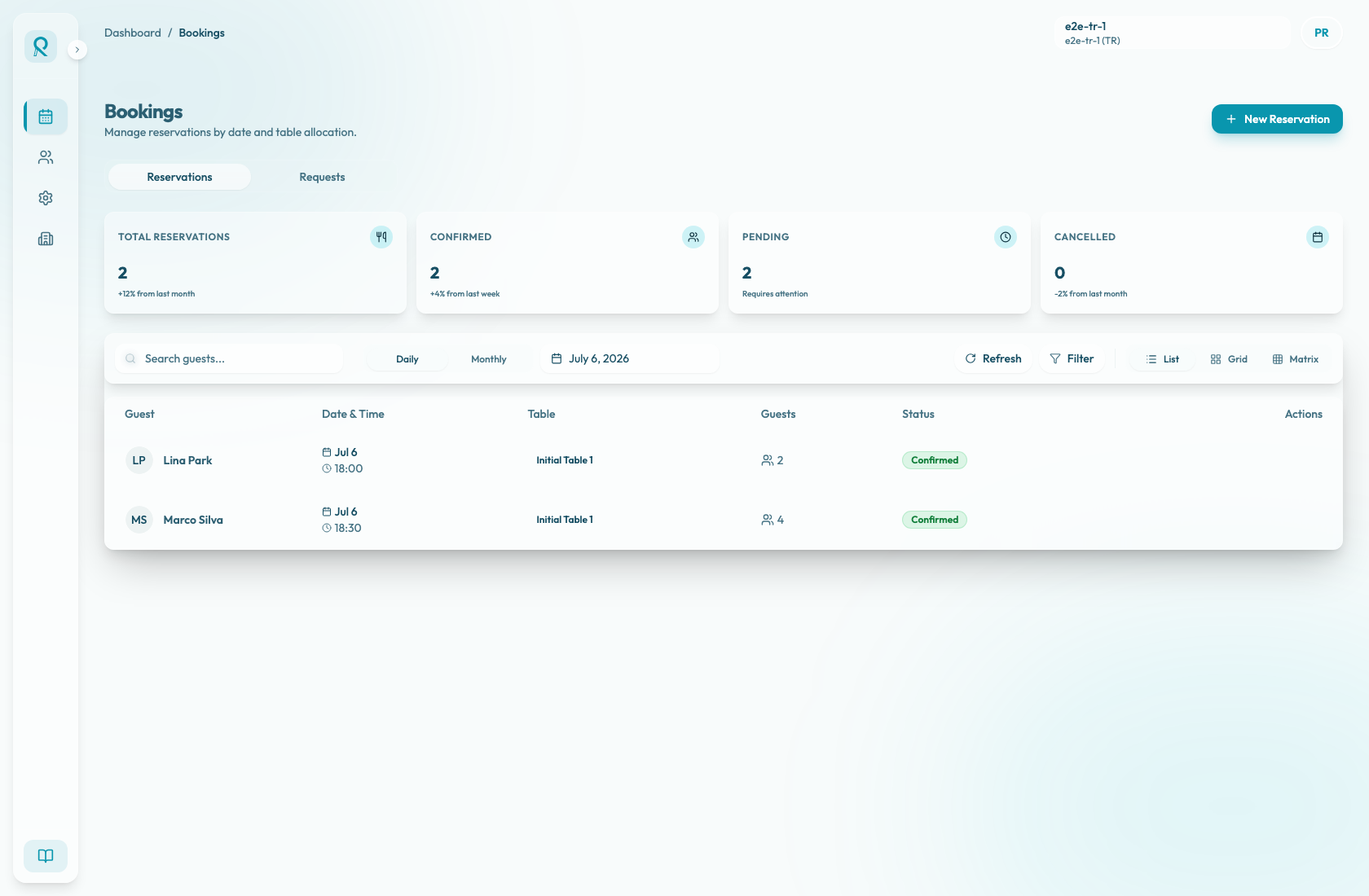
Read the list
Each row in the daily reservation list represents one reservation. Read across the row: Guest, Date & Time, Table, Guests, Status, and Actions.
The guest column shows the guest name. The date and time column confirms the service date and arrival time. The table column shows the assigned table name; if no table is assigned it shows N/A, and if the reservation points to a removed table it shows Deleted table. Status badges separate Confirmed reservations from cancelled or no-show states.
Select the row or the Details action to open the reservation sidebar. The sidebar contains the full summary, guest phone and email when available, guest and merchant notes, cancellation policy details, payment details, gift card details, and the change log.
Work through the day
Use the date picker to select the service day. Use Back to Today when you have moved away from the current day. Use Refresh after another team member has made changes or when the page has been open for a while.
Open a row when you need contact data, notes, status actions, or operational metadata that does not fit in the list. Confirmed future reservations can be cancelled from the sidebar. Confirmed reservations that have already started can be marked no-show. No-show reservations can be restored to confirmed.
For incoming reservation requests, switch to Requests, choose Pending, and open the request row. The request sidebar shows requested date, time, duration, covers, experience, area, tables, source, guest contact information, and guest notes. Pending requests can be accepted or rejected there.