Reservations & Availability
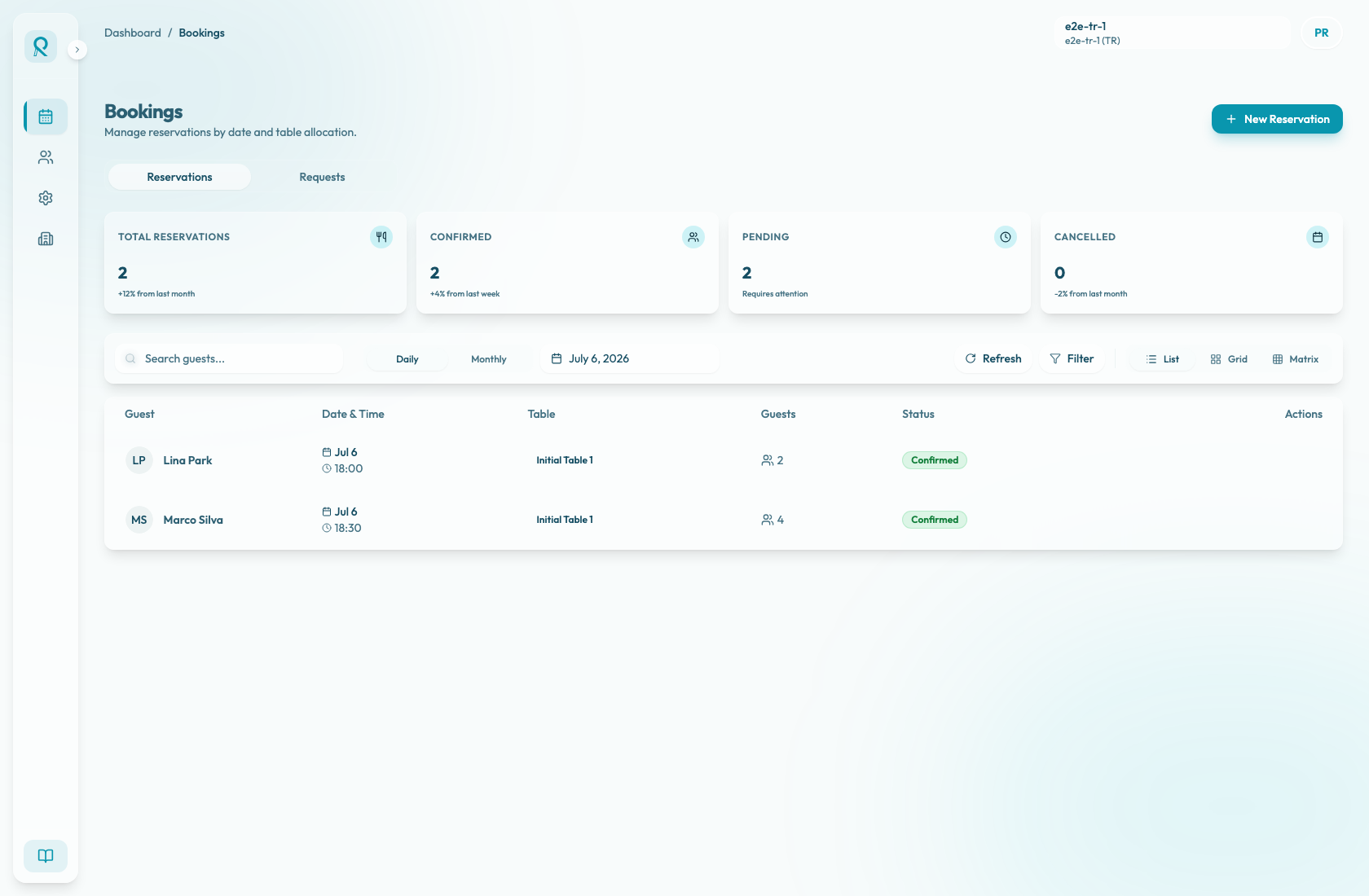
Bookings dashboard overview
Understand the Bookings page layout, counters, Reservations and Requests tabs, date controls, view buttons, refresh, and New Reservation entry point.
What this page is for
The Bookings page is the operational home for reservations. Use it at the start of service, during guest calls, and whenever the team needs to understand what is happening on a specific date.
From this page you can review booking volume, switch between Reservations and Requests, move across dates, refresh live data, change the view, and start a manual reservation.
Main areas
The top summary cards change with the active tab. Reservations shows Total Reservations, Confirmed, Pending, and Cancelled. Requests shows Total Requests, Accepted, Pending, and Rejected.
Use the Reservations and Requests tabs to separate confirmed reservation operations from incoming reservation requests. When there are pending requests, the Requests tab shows a badge and the page can show a Review Requests prompt so the team can keep availability accurate.
In Reservations, the Daily and Monthly period tabs decide whether you are working a specific service day or reviewing the month. Daily mode includes a date picker and a Back to Today control when you are not on today's date. Monthly mode summarizes upcoming reservations, pending requests, and unsuccessful reservations; selecting a day returns you to Daily view for that date.
The center of the page shows the current view. In the default List view, each reservation row includes guest identity, date and time, table, guest count, status, and a details action. Grid shows the same bookings as cards. Matrix is available only for Reservations and shows areas and tables against a timeline, with a whole-day or shift-specific timeline window.
Common actions
Use New Reservation when the team needs to create a booking manually for a phone call, in-person request, or concierge-assisted request. This button stays available from both Reservations and Requests.
Use Refresh when you need the latest reservations, requests, and pending-request count immediately. The page also refreshes after reservation updates and request decisions; when realtime is configured, new reservation and request events update booking data and can show an in-app notification.
Use the request status controls in Requests to move between Pending, Accepted, and Rejected requests. Requests are reviewed by decision status rather than by the selected daily date, and the Matrix view is not shown for Requests.
Use the view buttons when the question changes. List is best for scanning rows, Grid is best for reading individual booking cards, and Matrix is best for table-level operations.