Reservations & Availability
Assign tables to reservations
Assign one or more tables to a reservation so the booking appears correctly in daily operations and the table matrix.
When to assign tables
Assign tables while creating a manual reservation so the booking has a clear service location before it is confirmed. Table assignments help the host team, matrix view, capacity planning, and guest arrival flow.
The New Reservation wizard can show a table suggestion after you choose the experience, date, time, and party size. You can keep that suggestion or open the table picker to choose a different table assignment.
Use table guidance
In the New Reservation wizard, the Table guidance section shows the current assignment. If no experience and slot are selected yet, it asks you to select them first so Reslify can load table suggestions.
If Reslify has a suggestion, it appears as the selected area and table names. Select Change tables to review other options. If there is no suggestion, select Select tables before confirming the booking.
Pick the right table
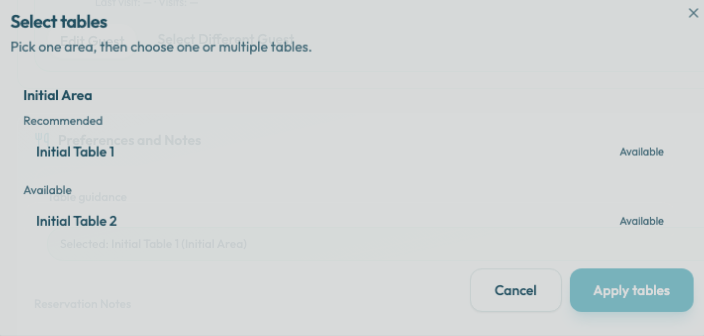
The table picker groups options by area. A reservation can use one area at a time; if you choose a table in a different area, the picker switches the assignment to that area.
Within the selected area, choose one or more tables:
- Recommended tables match Reslify's current suggestion for the selected slot.
- Available tables can be selected, but review their status label before applying them.
- Unavailable tables are already booked or excluded. They are disabled unless the slot requires an override.
Apply the selection with Apply tables. The button is only available after you have selected an area and at least one table.
After applying tables, review guest notes, accessibility needs, and service preferences before you confirm the booking.
Understand warnings
If a selected table is marked Not fitting, the wizard shows a Table capacity warning because the table may not fit the party size. Choose a larger table or a valid multi-table assignment when possible.
If a selected table is booked or excluded, the wizard shows an Overbooking warning. For override-required slots, confirming the booking opens Override required so a team member can explicitly continue.
Tables with overbooking enabled can appear as Overbookable instead of blocked. Use these only when the table's configured capacity can still support the overlapping parties. In the matrix view, overbooking-enabled tables are marked with an OB badge.
Use combinations for larger parties
Configured table combinations are suggested as multiple tables in the same area. The picker does not show a separate combination row; select the tables in the combination together, then apply them.
If a larger party does not receive a useful suggestion, confirm that the combination exists in the table plan, includes the needed tables, and has a capacity range that fits the party size.
If the expected table is missing or blocked
Check whether the table exists in the table plan, belongs to the right area, is available for the relevant experience or shift setup, and can support the selected party size.
Also check for overlaps. A booked table is blocked unless it is overbookable for the new party, while excluded tables cannot be used without an override flow.