Reservations & Availability
Choose experience, date, time, and party size
Choose the correct reservation date, party size, experience, and available time slot in the manual reservation wizard.
Why this step matters
Date, time, party size, and experience determine whether a reservation fits the restaurant's configured availability. Choose these values before finalizing guest and table details.
This step helps the team avoid creating a reservation for the wrong service, experience, or party size.
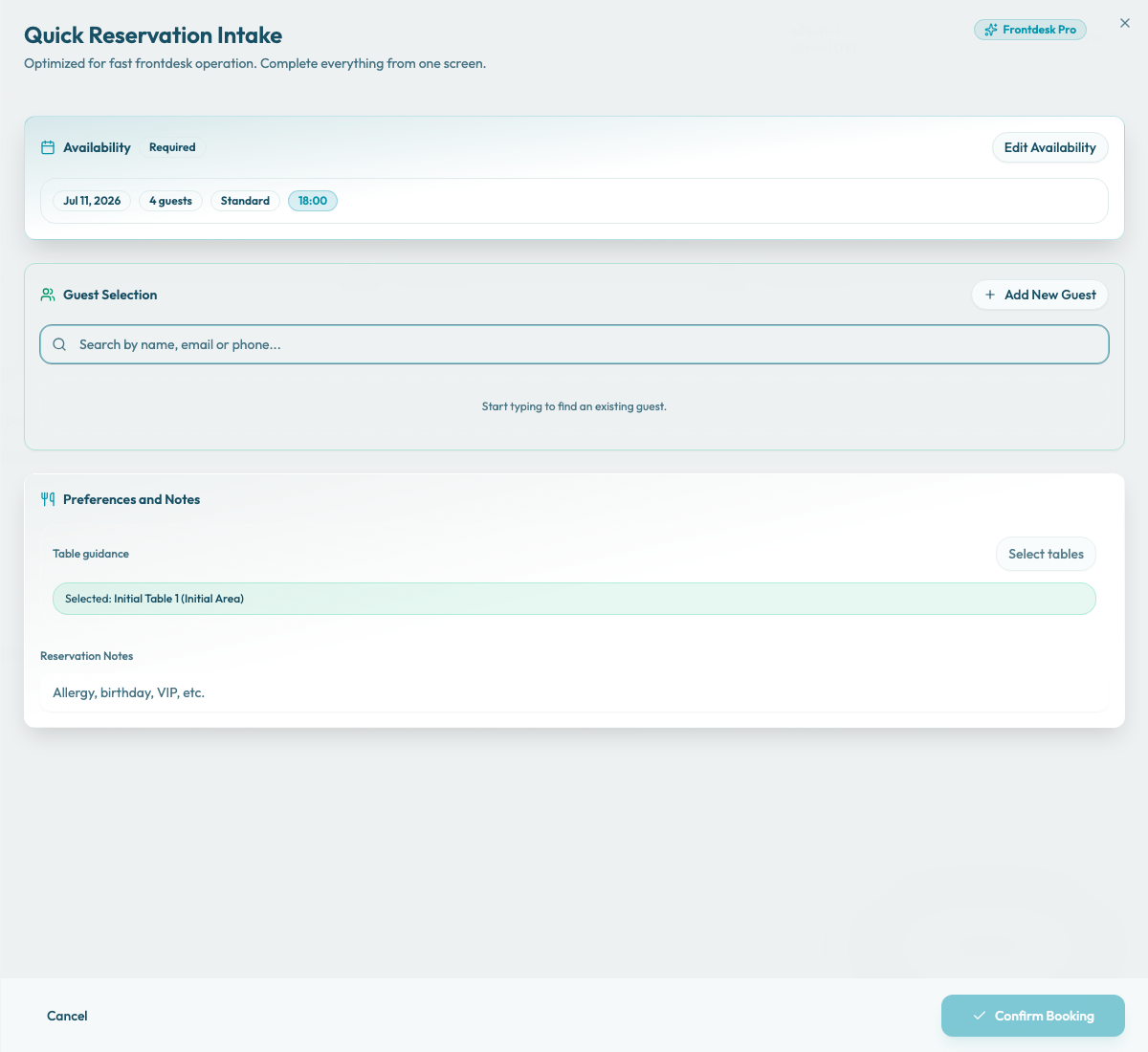
Choose availability
Select the reservation date first. Use the quick date shortcuts for Today, Tomorrow, or Next Saturday, or choose a date from the calendar. The calendar is intended for today and future reservations.
Enter the party size next. Use the numbered buttons for parties of 1-10, or use the custom field for larger parties. Changing the date or party size clears the selected slot and table guidance so the wizard can recalculate availability for the new request.
Choose the experience that matches the guest request. Experiences may have different availability, duration, payment rules, guest-facing descriptions, or add-ons. The wizard shows each experience as Available, Limited, or No slots, and may show the duration plus the first available time.
If an experience shows No slots, you can keep it selected while reviewing the request, but you must choose another date or party size before the reservation can continue.
Select a time slot from the shift groups. Slots may be marked Recommended, Multi-table, Overbook only, Outside policy, or No capacity depending on the availability check. Prefer recommended or normal available slots for standard bookings. Treat multi-table or override-related badges as operational warnings that need staff review.
If the expected time is missing, check the restaurant's shifts, special days, experience settings, booking interval, table availability, table combinations, and capacity.
Select or create the guest
After choosing a slot, search for the guest by name, email, or phone number. Select the existing guest record when one exists so visit history and contact details stay connected.
If the guest is new, use Add New Guest. First name and last name are required. Email is optional in the wizard, and phone is optional, but any phone number entered must be valid for the restaurant's country settings.
Use Edit Guest only to correct the details used for this reservation intake. If the guest record needs broader maintenance, review the guest profile after the booking is created.
Review table guidance
Once the experience and slot are selected, the Table guidance section can show a recommended table or table set. Review the suggested area and tables before confirming.
Use Select tables or Change tables when the host team needs a different assignment. Pick one area, then choose one or more tables. The table picker separates recommended, available, and unavailable tables.
If you select a booked, excluded, outside-hours, or not-fitting table, the wizard may show an overbooking or capacity warning. Continue only when the restaurant has approved that exception and the service team understands the impact.
Continue only after the slot is correct
Once the date, party size, experience, time, guest, and table guidance are correct, add any short operational note the service team needs. Good notes cover allergies, celebrations, VIP handling, accessibility needs, seating preferences, or the reason for an approved exception.
Before creating the reservation, Reslify re-checks the selected slot. If the slot has become unavailable, is outside policy, or requires an override, the wizard asks for one more confirmation. Use Back to review the inputs, or Confirm override only for a deliberate exception.