Reservations & Availability
Close a date or date range
Close a single date or date range so guests cannot create reservations during holidays, private events, or unavailable service periods.
When to close dates
Close a date or date range when the restaurant should not accept bookings for that period. Common examples include holidays, maintenance, buyouts, private events, staff training, and seasonal closures.
Use a special day closure instead of deleting weekly shifts for a temporary exception. A closure is easier to audit and applies only to the affected dates.
Create a closure
Open Settings, select Special Days, and choose Add Special Day.
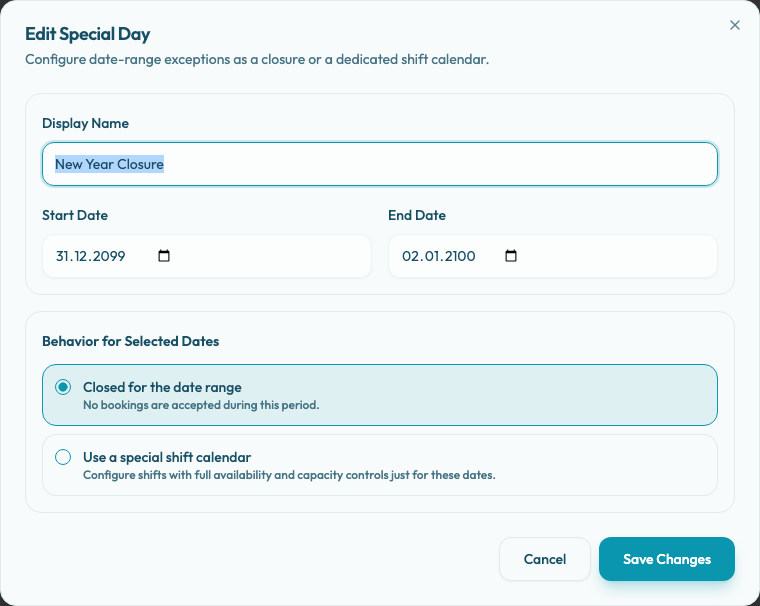
Fill in the required Display Name, then choose the Start Date and End Date. The end date must be the same as or later than the start date. To close one day only, use the same date for both fields.
Under Behavior for Selected Dates, select Closed for the date range. This mode accepts no new bookings during the selected period.
Save the special day. After saving, the selected date range appears in the Special Days list with the Closed badge. Use Edit to change it, or the delete action to remove the special-day record.
Before closing a date
Review existing reservations for the affected dates. Closing availability prevents new bookings, but the team may still need to handle existing guests.
If there are future reservations, decide whether the restaurant will honor, move, or cancel them before changing availability.