Reservations & Availability
Configure table combinations
Create, edit, and maintain valid table combinations so larger-party availability and table suggestions use realistic joined tables.
What combinations do
Table combinations tell Reslify which tables in the same table-plan area can be joined for larger parties. A combination does not create a new physical table; it stores a valid multi-table setup that availability and table guidance can use.
Use combinations for joined tables, private-room layouts, or flexible seating groups. Do not create combinations for tables that cannot be operated together.
Before you create one
Create the tables first and make sure their names and capacities match the floor plan. Combination names are shown as the selected table names joined together, so clear table names make staff guidance clearer.
Combinations are area-specific. Open the area that contains the tables you want to join; the form only lists tables from that area. To combine tables in another area, open that area and create a separate combination there.
If a shift or experience is limited to specific tables, a combination can only help when every table in that combination is included in that shift/experience table availability.
Create or edit a combination
Open Settings, select Table Plan, then open the area. Use Add Combination from the Combinations section.
In Create Combination, select at least two tables. The create action stays disabled until two or more tables are selected.
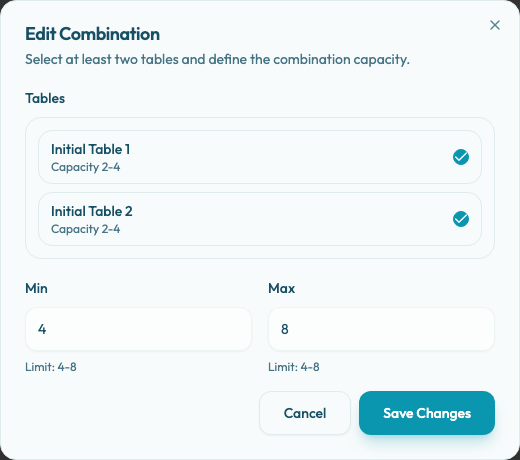
Set Min and Max inside the displayed Limit range. The lower limit is the largest selected table's maximum capacity, and the upper limit is the sum of the selected tables' maximum capacities. For example, two tables with capacity 2-4 create a combination limit of 4-8.
Save the combination. The combination card appears under Combinations with the selected table names and the configured capacity range.
To change an existing setup, use the edit action on the combination card. Edit Combination can change the selected tables and the capacity range. Saving the same table set with a new capacity is allowed.
Reslify prevents duplicate combinations inside the same area. The same table set cannot be created twice, even if the tables are selected in a different order or you try to give the duplicate a different capacity. Edit the existing combination instead.
Delete combinations and tables
Use the delete action on a combination card when that joined setup is no longer valid. The Delete combination? confirmation removes only the combination; the individual tables remain in the area.
Deleting a table also updates combinations that use it. If a two-table combination loses one table, the combination is removed. If a larger combination still has at least two tables after the deleted table is removed, the combination remains with the remaining tables. Review the capacity range after deleting tables so the remaining setup still matches service reality.
Deleting an area removes the area and all tables and combinations inside it.
How combinations affect booking
Combinations can make a slot available for a larger party when no single table can hold that party, as long as the party size fits the combination's Min and Max range and every table in the combination is usable for that slot.
In manual reservation intake, the table suggestion is still shown as individual tables in one area. The table picker does not display a separate combination row; when a combination is suggested, its tables appear as the recommended tables for that area. The picker also stays area-scoped: choosing a table in another area switches the selection to that area.
When staff apply the suggestion, the reservation stores the area and the individual table IDs. Operational views and reservation details then show the actual tables the team should prepare.
If larger party slots are missing, review the combination's area, table set, capacity range, experience party-size rules, and shift table availability together.