Reservations & Availability
Configure table plan areas
Create, open, rename, and delete Table Plan areas while understanding the impact on tables and combinations.
What areas are for
Areas are the top-level containers in Settings > Table Plan. Every table and table combination is saved inside an area, so create areas before adding table capacity or joined-table combinations.
Use areas for real service zones such as main dining room, terrace, counter, private room, or bar. Clear area names make the table plan easier to scan and help managers configure table availability inside weekly shifts and special-day calendars.
Create an area
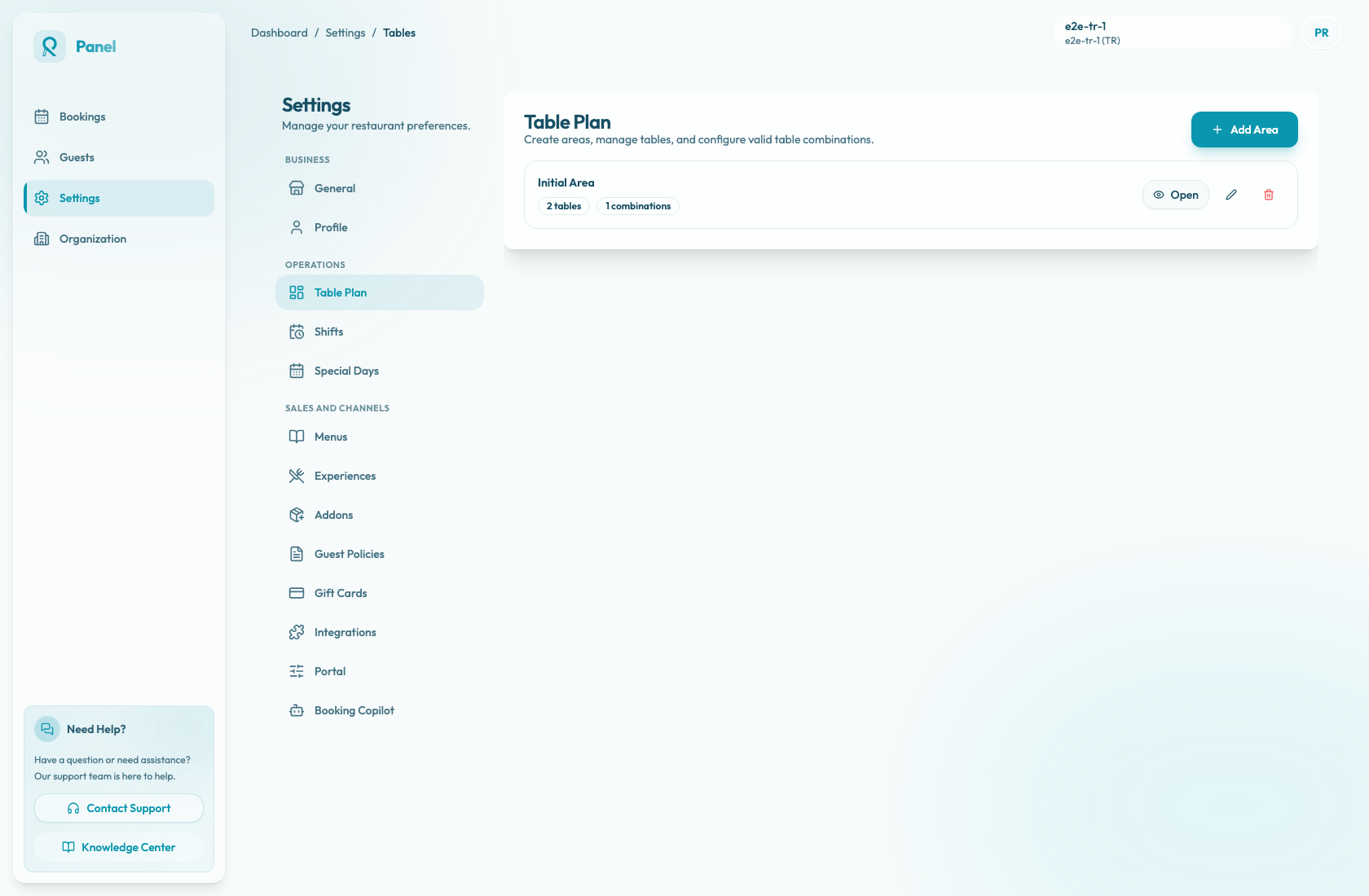
Open Settings, select Table Plan, then use Add Area. In the Create Area dialog, enter the Area Name and select Create Area.
Area names are trimmed when saved. The name must be 2 to 40 characters and cannot match another area name, even if the only difference is capitalization or extra spaces. Use the same wording the team uses during service, such as Main Hall, Terrace, Bar, or Private Room.
After a new area is created, Reslify opens that area automatically so you can add tables and combinations. Use Back to return to the area list.
Open or edit an area
Each area card shows the area name plus its table and combination counts. Use Open to review the Tables and Combinations inside that area. The selected area is kept in the page URL, so refreshing or reopening a saved link returns to that area. If the link points to an area that no longer exists, the page returns to the area list.
Use the edit icon on the area card or Edit Area inside the area detail view to rename an area. Editing the area name does not create or remove the tables and combinations already inside it.
Delete an area
Use the trash icon on an area card or Delete Area inside the area detail view. Reslify asks for confirmation before deleting.
Deleting an area removes the area and all tables and combinations inside it. If you are currently viewing that area, Reslify returns to the area list after the deletion. If you only need a new label, edit the area instead of deleting it.
Operational impact
Areas are not only labels. Shifts, special-day shifts, table guidance, and matrix views all depend on the table plan structure. A shift can assign tables by area, and combinations are valid only within the area where they were created.
Before deleting an area that is already in use, review the tables and combinations inside it and check the shifts or special-day shifts that rely on those tables. Deleting a table separately updates combinations that use it and removes combinations left with fewer than two tables, so area cleanup can affect joined-table availability.