Reservations & Availability
Configure tables and capacity
Create, edit, and delete tables in Table Plan with accurate capacity, overbooking, and availability side effects.
Why table capacity matters
Tables tell Reslify how many guests can physically be seated. Availability, table guidance, table combinations, matrix views, and manual reservation workflows all depend on accurate table capacity.
Set capacity conservatively enough for real service, not only for the theoretical maximum number of chairs.
Before you start
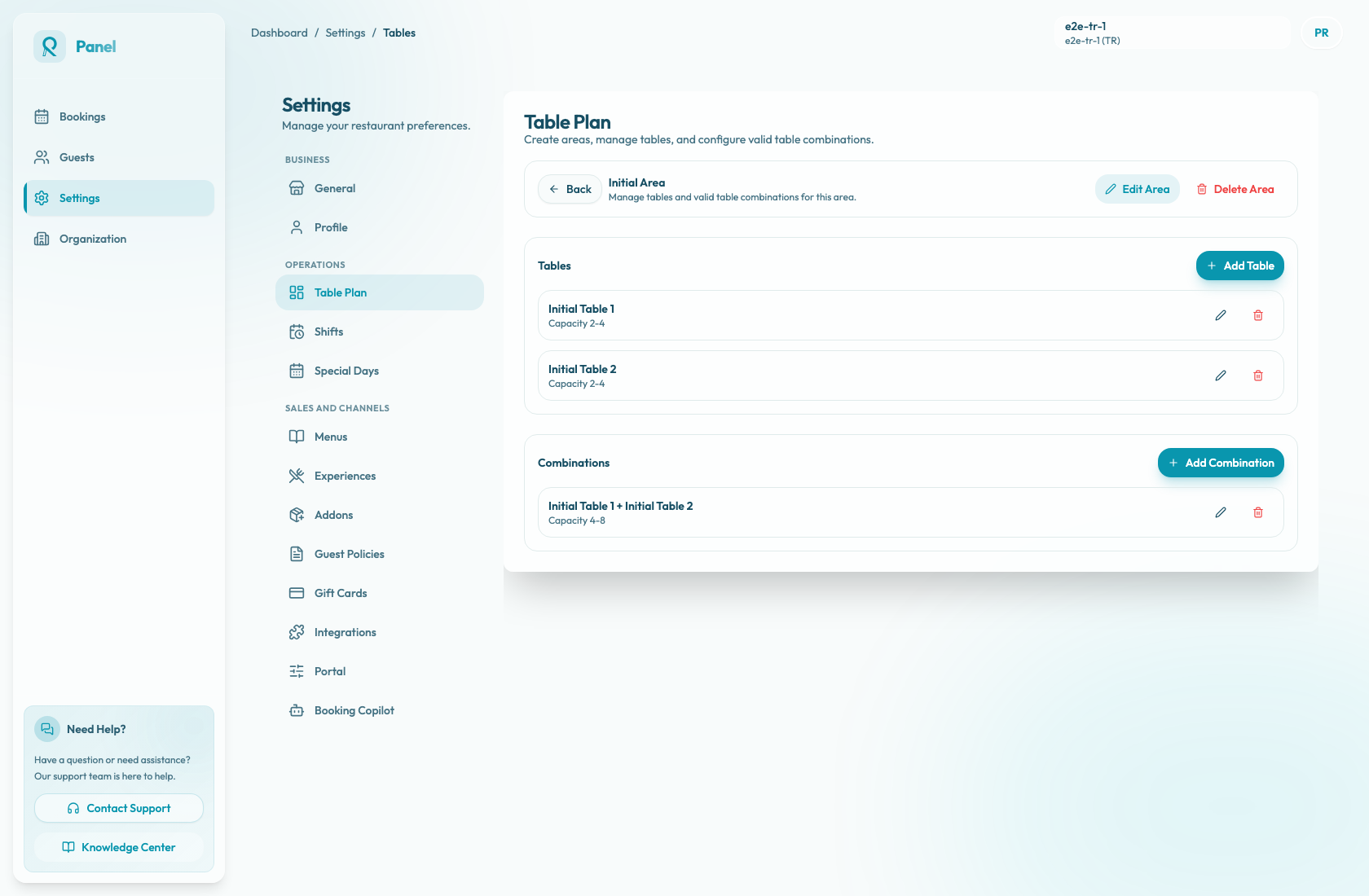
Open Settings, select Table Plan, then open the area that should contain the table. If the area does not exist yet, create the area first.
Table Plan defines the physical inventory. A table becomes usable for reservation availability only after it is also selected for an experience in Shift Settings or a special-day shift calendar.
Add a table
In the area detail page, select Add Table to open Create Table.
Give the table a recognizable name. Use the same naming convention the team uses on the floor, such as T1, Patio 4, Counter 2, or Booth 6.
Set Min and Max capacity. New tables start with Min 1, Max 2, and Overbooking Enabled turned off.
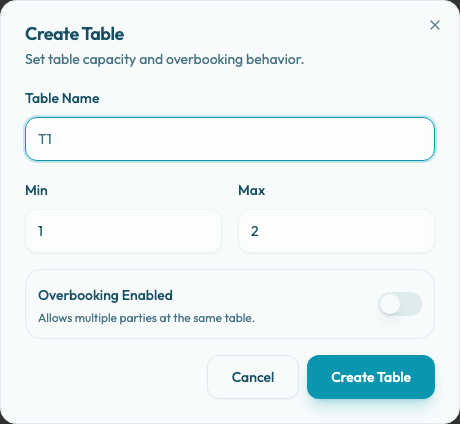
Select Create Table to save the table to the selected area. After it saves, the table appears in the Tables section with its capacity range.
Set capacity correctly
Min and Max must be whole numbers from 1 to 20, and Max cannot be lower than Min. The table name is required, must be unique inside the area, and duplicate names are rejected even when spacing or letter casing differs.
Minimum capacity protects tables from parties that are too small for that table. Maximum capacity prevents Reslify from suggesting or allowing a party size that cannot fit.
If the team joins tables for larger parties, create or review the related Combinations separately. Combination capacity is its own setting; changing a table's capacity does not automatically recalculate existing combination capacity ranges.
Use overbooking carefully
Overbooking Enabled allows multiple parties at the same table, but it is still capacity-aware. A booked table can become Overbookable only when the new party meets the table's Min value and the combined guest count from overlapping parties plus the new party stays within Max.
Only use overbooking for seating models where shared use is operationally intentional, such as communal counters or shared large tables.
For standard restaurant tables, leave overbooking off unless the team has a clear process for managing overlapping parties.
Overbooking-enabled tables are also marked in operational views, including the table matrix OB badge.
Edit a table
Use the pencil action on a table card to open Edit Table. The dialog is pre-filled with the current table name, Min, Max, and overbooking setting.
Change the values, then select Save Changes. Updated capacity affects future table guidance and availability checks that use that table. If the table belongs to combinations, review those combinations after saving so the combination capacity still matches how the floor will be seated.
Delete a table
Use the trash action on a table card to open Delete table?. The confirmation explains that the table will be removed and combinations using it will also be affected.
When you confirm deletion:
- the table is removed from the area
- combinations that included the table are updated
- combinations left with fewer than two tables are removed
- weekly shift table availability and special-day shift table availability lose that table assignment
If an experience or shift depended on that table, it may have less capacity or no usable table until you assign another table. Review Shift Settings and Special Days after deleting operational inventory.